How to Extract Text from PDF Online Free
You have a PDF full of words you need. Maybe a quote for an essay, a paragraph for a report, or a whole contract you want to edit. Retyping it by hand wastes an hour you will not get back. This guide shows you how to extract text from PDF files online free, with four methods that cover both normal PDFs and scanned ones.
Quick answer
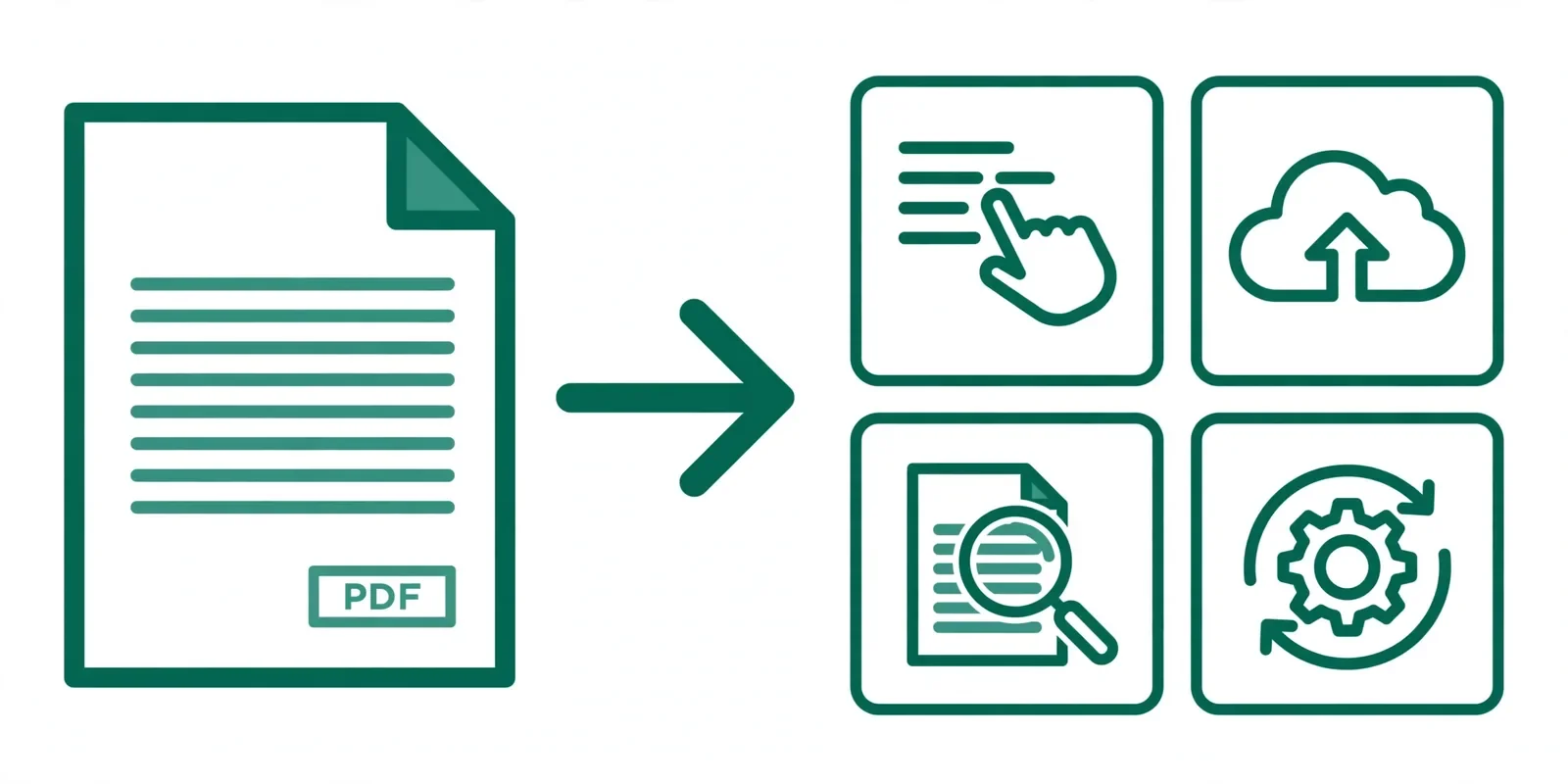
To extract text from a PDF, open it and try to select the words. If you can select them, copy and paste them into a document. If you cannot select them, the PDF is a scan. Upload it to Google Drive, open it with Google Docs, and Google will read the text for you with OCR. Then copy the text.
First, Check What Kind of PDF You Have
Not all PDFs hold text the same way. Your file falls into one of three groups, and the group decides which method will work.
Digital PDF. Someone created it from Word, Google Docs, or a design app. The words live in the file as real text. You can select them, search them, and copy them. Most reports, invoices, and ebooks are digital PDFs.
Scanned or image PDF. Someone took photos of paper pages or ran them through a scanner. Each page is a picture. The words look real on screen, but the file has no text layer. Copy and paste will not work here. You need OCR, which reads the words out of the picture.
Protected PDF. The owner locked the file with a permissions password that blocks copying. You will see the text fine, but selection does nothing. Only unlock files you own or have permission to edit. If someone else sent you the file, ask them for the password or an unlocked copy.
Here is the 10 second test. Open the PDF and drag your cursor across one sentence. If the words highlight, you have a digital PDF. If nothing highlights, you have a scan. If a lock icon or a password box appears, you have a protected file.
Method 1: Copy and Paste From Your PDF Reader
This is the fastest way to extract text from PDF files that already hold a text layer. It takes seconds, needs no tool, and works on any computer or phone.
Steps
- Open the PDF in your browser, in Adobe Acrobat Reader, or in any PDF app.
- Click at the start of the text you need. Press Ctrl+A on Windows or Cmd+A on Mac to select everything, or drag to select one part.
- Press Ctrl+C or Cmd+C to copy.
- Paste into Word, Google Docs, Notepad, or any text app with Ctrl+V or Cmd+V.
For a short passage, this is all you need. A student copying two quotes for an essay can finish before the kettle boils.
The method has limits. Long documents paste with extra line breaks, because the PDF stores each line as a separate chunk. Tables and two-column pages often paste in the wrong order. If the pasted text looks like a puzzle, paste it into Notepad first to strip the layout, then fix the breaks by hand. For a whole book or a long report, one of the methods below will save you time.
Method 2: Use Google Drive to Extract Text Free
When copy and paste fails because your PDF is a scan and you need to extract text from PDF scans, Google Drive is the best free fix. It runs OCR on your file and turns the pictures of words into real text. You need a free Google account, and nothing to install.
Steps
- Go to Google Drive and upload your PDF.
- Right-click the uploaded file, point to Open with, then choose Google Docs.
- Wait while Google reads the pages. A new document opens with the extracted text.
- Copy the text, or download it with File, then Download, then Plain text or Microsoft Word.
An office worker with a scanned contract can use this to pull out the clauses she needs to quote in an email, without retyping five pages.
Be honest about what you get. Google Docs keeps the words but drops most of the layout. UC Berkeley's accessibility guide walks through the same Drive to Google Docs conversion if you want a second reference. Headings, tables, and columns come out scrambled, and you will need to reformat. Handwriting does not work at all. OCR also misreads letters on blurry pages, so check names, dates, and numbers by hand. Your file goes to Google servers during the process, so this method suits school notes and public reports more than bank statements or medical records.
Method 3: Use Adobe Acrobat OCR
If you already pay for Adobe Acrobat, its built-in OCR is the strongest way to extract text from PDF scans, and it suits long documents. Adobe describes the feature as Scan and OCR, and it adds a searchable text layer to your PDF.
Steps
- Open the scanned PDF in Adobe Acrobat.
- Go to All tools, then Scan and OCR.
- Choose In this file, pick the page range and the language of the text, then select Recognize Text.
- Save the file. You can now select, search, and copy the text.
Acrobat suits people who process scans every week. Adobe's own help page explains the Recognize Text steps for scanned PDFs. A researcher working through a stack of old journal articles will feel the difference on a 200 page file.
Do not buy Acrobat for one file. The subscription costs real money, and Method 2 does the same job free for a single document. Use Acrobat only if you already have it or you handle scans all the time.
Method 4: Use a Free Online Tool to Extract Text From PDF
For a one-off file, a free online tool to extract text from PDF files is the quickest path. You upload the PDF, the tool pulls the text out, and you download a TXT or Word file. No account, no install.
Steps
- Open a free PDF to text converter in your browser.
- Upload your PDF file.
- Choose TXT for plain text or Word if you want to edit the result.
- Wait for the conversion, then download or copy the text.
This method suits a freelancer who gets one odd PDF a month and wants it done in two minutes.
Read the fine print before you upload. Free tools often cap file size, limit how many files you can convert per day, or ask you to sign up for larger jobs. Your file travels to someone else's server, so check how long they keep it and whether they delete it. Never upload bank statements, medical records, or contracts with personal data to a site you do not know. For those files, use a method that runs on your own device instead.
How to Clean Up Extracted Text
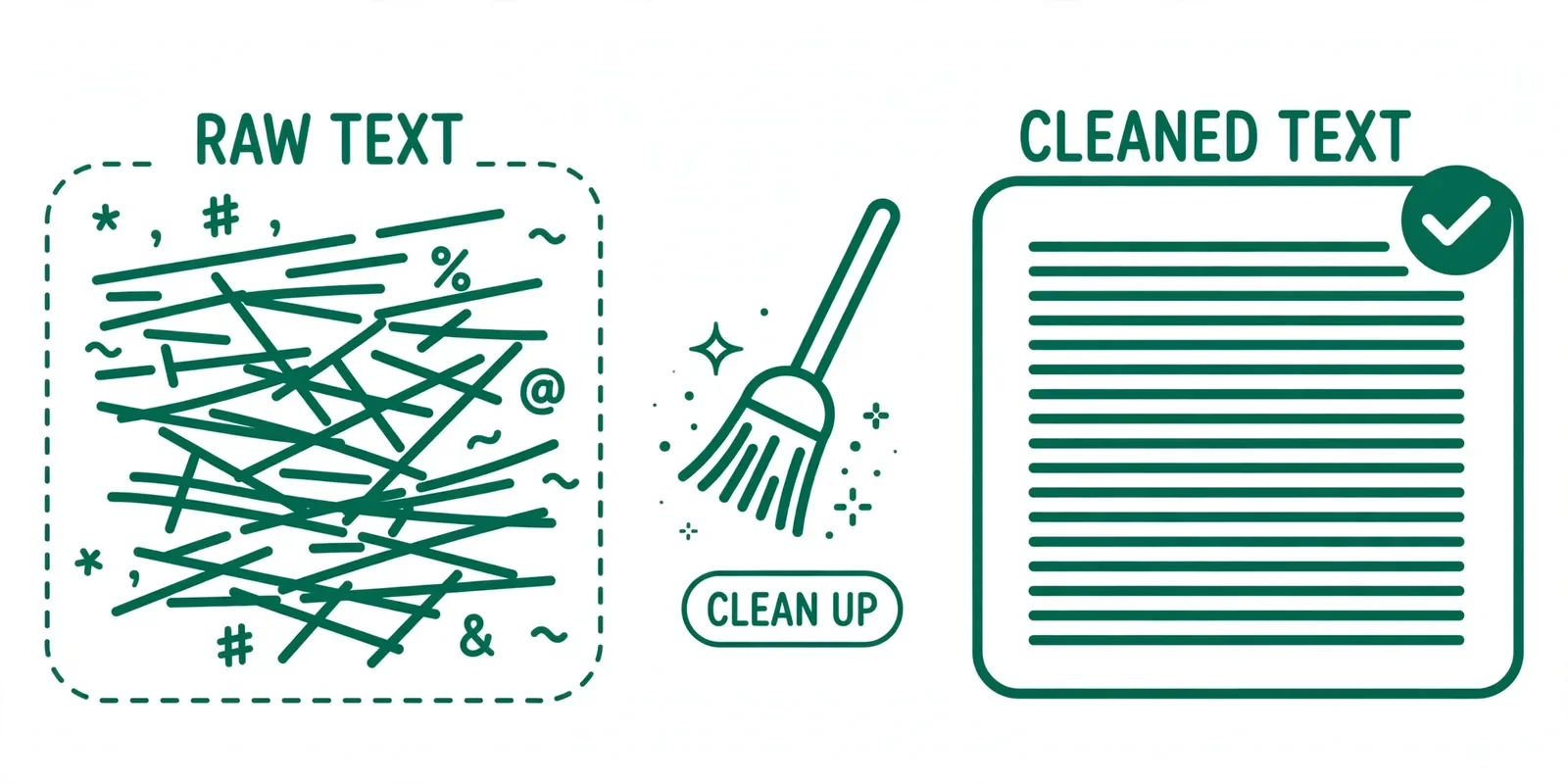
Extracted text almost never comes out perfect. Budget five minutes for cleanup, and the result will read like a normal document.
- Remove extra line breaks. Paste the text into a plain text editor first. Lines that were broken for the page layout will still break mid-sentence. Join them back into paragraphs.
- Rejoin split words. Words cut across a line break often appear with a hyphen in the middle, like "docu- ment". Delete the hyphen and the break.
- Fix common OCR mix-ups. OCR reads "rn" as "m", "0" as "O", and "1" as "l". Search for odd words and fix them. "Tum" in a sentence about stomachs is probably "Turn".
- Check numbers by hand. OCR gets digits wrong more often than letters. Verify every price, date, phone number, and total before you trust it.
- Rebuild tables yourself. Tables rarely survive extraction. Copy the numbers into a fresh table in Word or Google Docs instead of fighting the pasted layout.
Common Problems and Fixes
Most problems when you extract text from PDF files come from one of five causes. Here is what each one looks like and what to do.
- Text pastes as one long block. The PDF stored no paragraph breaks. Paste into Notepad, then add paragraph breaks where sentences end.
- Copied text comes out garbled. The PDF uses a font with broken text encoding. The words look fine on screen but copy as nonsense characters. Try the Google Drive method, which reads the page again with OCR.
- Copy is blocked. A permissions password blocks copying. Ask the file owner for an unlocked copy. Do not use cracking tools on files you do not own.
- Scanned pages come out blank. The page images are too faint or skewed for OCR. Rescan at higher quality if you can, or straighten the pages first.
- Wrong language output. The OCR tool guessed the wrong language. Set the document language to match the text before you run OCR.
Which Method Should You Pick?
Pick by the kind of PDF you have and how often you do this.
- Digital PDF, short text: copy and paste. Ten seconds, no tool needed.
- Scanned PDF, free: Google Drive with Google Docs. Best free OCR for most people.
- Scanned PDF, and you already pay for Acrobat: Acrobat OCR. Strongest for long documents.
- One-off file, no accounts: a free online PDF to text tool. Fastest for a single file.
My recommendation is simple. Start with copy and paste. If the words will not select, go to Google Drive. That pair solves most cases when you need to extract text from PDF files, without spending money or installing anything.
What to Do With the Text After Extraction
Getting the words out is half the job. Now make them usable.
First, count what you have. Paste the text into the Word Counter to see words, sentences, and reading time. That tells you at a glance whether you got the whole document or only part of it. If the count looks far too low, a page may have failed to convert.
Next, fix the casing. Extracted text often comes out in ALL CAPS from headings or in mixed case from OCR. Run it through the Case Converter to switch it to sentence case or title case in one click.
Then remove repeats. OCR sometimes duplicates lines, and merged scans can repeat a page. The Remove Duplicate Lines tool strips repeated lines so your text stays clean.
One honest note: this site does not yet have a dedicated PDF to text extractor tool. The four methods above use your PDF reader, Google Drive, Acrobat, or another free tool. Once you have the text out, the text tools here help you check it, fix it, and clean it up.
Frequently asked questions
Can I extract text from a scanned PDF for free?
Yes. Upload the scanned PDF to Google Drive, then open it with Google Docs. Google reads the pages with OCR and gives you editable text you can copy. It works best on clear scans with printed text. Check the output for mistakes, because OCR can misread letters and numbers on blurry pages.
Why can't I copy text from my PDF?
Your PDF is probably a scan, which means each page is a picture with no text layer. You cannot select words in a picture. Another cause is a permissions password that blocks copying. For scans, use OCR through Google Drive or an OCR tool. For locked files, you need the password or the owner's permission.
How do I extract text from a PDF on my phone?
Open the PDF in your phone's browser or a PDF app and try to select the text. If it selects, copy and paste it into your notes app. If it does not select, upload the file to Google Drive from your phone, open it with Google Docs, and copy the text from there.
Does extracting text from a PDF keep the formatting?
Mostly no. Copy and paste keeps some bold text and line breaks, but columns, tables, and page layout often come out scrambled. OCR tools keep even less layout. Plan to reformat the text after extraction. If you need the exact layout, keep the original PDF and edit it in a PDF editor instead.
Is it safe to upload a PDF to an online text extractor?
It depends on the file. School notes and public reports are low risk. Bank statements, medical records, contracts, and anything with personal data are not safe to upload to a site you do not know. For those, use tools that run on your own device, like your PDF reader or Adobe Acrobat on your computer.
How do I save extracted text as a TXT file?
Paste the text into Notepad on Windows or TextEdit on Mac, then save the file. In Google Docs, use File, then Download, then Plain text. A TXT file holds plain words with no bold text or images, which makes it easy to search, count, or paste into other apps.
Why does copied PDF text come out garbled?
The PDF may use a font with broken text encoding, so the words look fine on screen but copy as nonsense characters. Two-column layouts also paste in the wrong order. Try the Google Drive method, which reads the page again with OCR. If the file is a scan, OCR quality depends on how clear the pages are.
The Bottom Line
To extract text from PDF files, you rarely need to pay or install anything. Try copy and paste first. If the words will not select, your PDF is a scan, so run it through Google Drive for free OCR. Clean up the line breaks, check the numbers, and you have text you can actually use. If your PDF is very large and hard to handle, you can compress the PDF before you work with it. Ready to use the text you pulled out? Paste it into the Word Counter to check the length, or tidy it with the Case Converter.
Last updated: October 16, 2026.
How we tested this
Before you rely on a method, try it on your own file first:
- Open a digital PDF in a browser and copy one page with Ctrl+A, Ctrl+C, Ctrl+V. Confirm the text pastes and note how line breaks look.
- Upload a scanned PDF to Google Drive, open it with Google Docs, and confirm OCR returns editable text. Note how tables and headings come out.
- Run Acrobat Scan and OCR on the same scanned PDF if Acrobat is available, and compare the output with Google Docs.
- Run one free online PDF to text tool on the same file and note its file size cap, daily limit, and deletion policy.
- Confirm the Word Counter, Case Converter, and Remove Duplicate Lines links open the correct tool pages.
Pros and cons
Pros. Copy and paste is instant and free. Google Drive OCR is free and needs no install. Acrobat OCR handles long scanned documents well. Online tools finish a one-off file in minutes.
Cons. Copy and paste mangles tables and long layouts. Google Docs OCR drops formatting. Acrobat needs a paid subscription. Online tools upload your file to someone else's server, so they are wrong for sensitive documents.
A note on privacy
Copy and paste and Acrobat on your own computer keep your file on your device. Google Drive and online extractor tools upload your file to a third-party server. For school notes and public reports, that trade is fine. For bank statements, medical records, contracts, or anything with personal data, stick to methods that run on your own device. This site's text tools process text in your browser.