Count Words in a PDF: 3 Free Ways That Actually Work
Your teacher wants 1,500 words. Your client wants a 500-word report. Your PDF holds the text, but the reader shows no word count. Here are three free ways to count words in a PDF, starting with the fastest one.
Quick answer
To count words in a PDF, copy the text from the PDF, paste it into a free word counter, and read the total. If you need the text out first, see how to extract text from a PDF. It takes under a minute for most documents, needs no signup, and works on any device. If the PDF is a scan, copy will not work, so run OCR first, then count the recognized text.
Why your PDF reader shows no word count
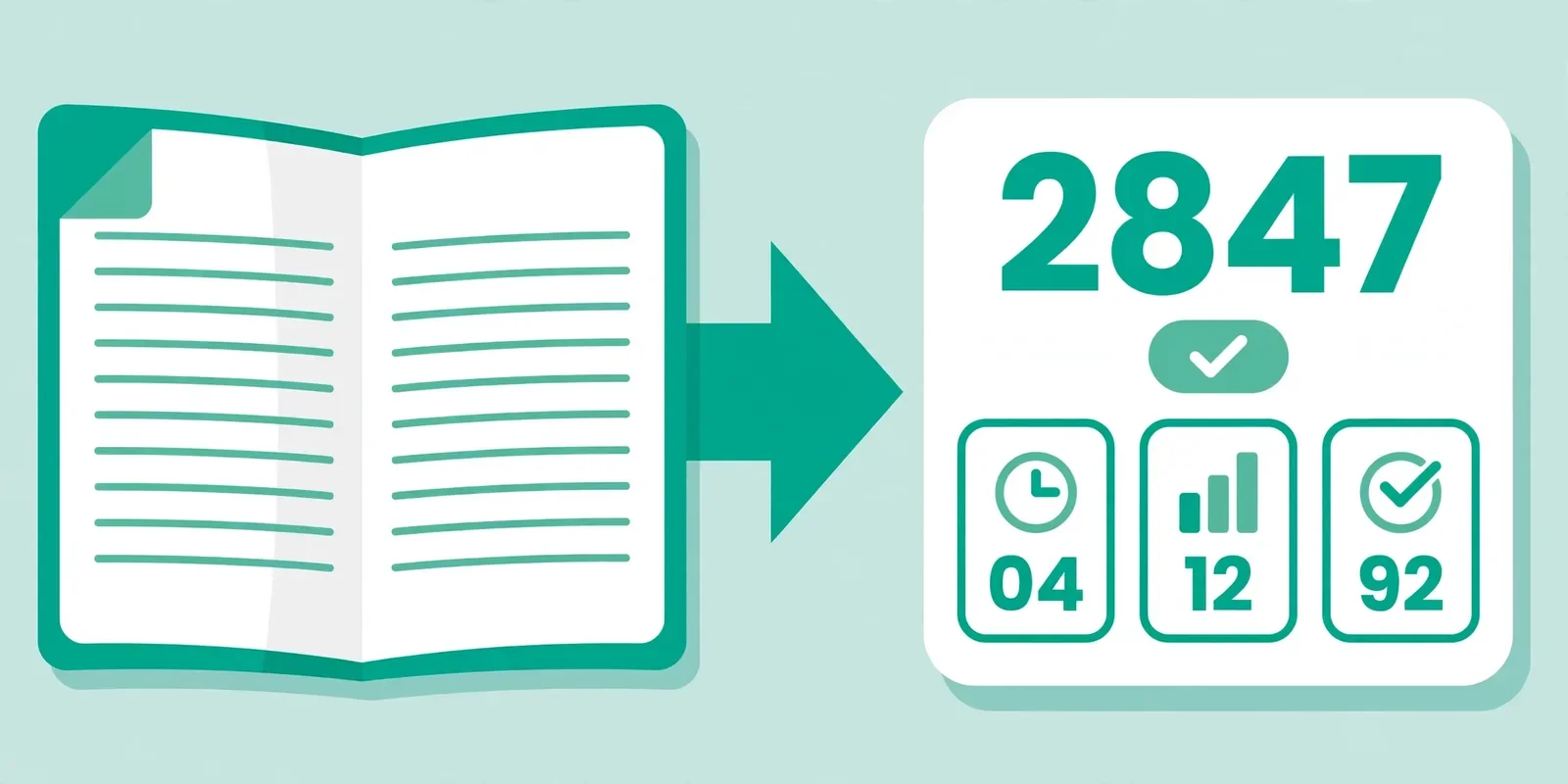
Picture this: you open a 20-page report, hunting for a word total, and the reader shows you page numbers, zoom, and nothing else. The number is not missing because the file is broken. Most PDF readers were never built to count.
PDFs were built to look the same on every screen, not to behave like an editable Word file. Most free readers show pages, not word totals. Paid tools add counting, but you do not need to pay for a number you can get in a minute.
The trick is simple. A word count needs the raw text. Once you get the text out of the PDF, any word counter can count it. The fastest route takes under a minute. The slower routes give you a count you can defend when the number matters for a grade or a payment.
Method 1: Copy and paste into a word counter (fastest)
This is the method to try first. It works for any normal PDF with real text, and it costs nothing.
- Open the PDF. Open the PDF in any reader, browser tab, or phone preview app that lets you select text.
- Select all the text. Press Ctrl+A on Windows or Command+A on Mac, or long-press and choose Select all on a phone. Then copy.
- Paste it into the free Word Counter. Open the Word Counter, click in the box, and paste. The counts update as soon as the text lands.
- Read the word total. The counter shows words at the top, plus characters, sentences, paragraphs, and estimated reading time.
- Count one part only, if you need to. If only the body counts toward a limit, select and copy just that part instead of the whole file.
This method wins on speed and privacy. There is nothing to install, no file to upload, and no account to create. The counter runs in your browser, so your text stays on your device. It also shows reading time, which answers the real question behind many counts, such as how long a speech takes to read aloud.
Watch out for two quirks. Copying from a PDF can glue words together at line breaks or drop header and footer text. If the paste looks garbled, try Method 2. If Select All copies nothing, your PDF is probably a scan. Jump to the scanned PDF section below.
Method 2: Convert to Word or open in Google Docs
When the count has to be exact, convert the PDF into a document that counts words for you. It takes a few minutes, but the result is a real document you can keep editing.
- Convert the PDF to a Word file with a free converter, or upload it to Google Drive and open it with Google Docs.
- In Word, check the status bar at the bottom left for the live count, or open Review, then Word Count, for the full breakdown.
- In Google Docs, open Tools, then Word count, or press Ctrl+Shift+C on Windows or Command+Shift+C on Mac.
- Check what the count covers. Google Docs leaves out headers, footers, and footnotes. Word can include footnotes if the box is ticked in the Word Count dialog.
Use this method when the number has to hold up: a graded assignment, a paid translation quote, or a manuscript with a hard limit. It also rescues PDFs where copy and paste comes out messy. The trade-off is time and privacy. Some converters upload your file to a server, so skip them for private documents and use copy and paste or a desktop tool instead. Google's help page on counting words in a document confirms what Docs includes and leaves out.
Method 3: Count inside your PDF reader
Some desktop PDF apps count words without any conversion step. In Foxit Reader, open the PDF and use View, then Word Count. Adobe Acrobat Pro includes a word count feature for subscribers, though the exact menu name varies by version, so check the Tools pane. The free Adobe Reader has no direct word count. Adobe's own guide to counting words in a PDF tells readers to convert the PDF to Word instead, then count in Word.
Pick this method when you already pay for one of these apps and count words in PDFs every week. For a one-off count, Methods 1 and 2 are faster and free.
Which method should you pick
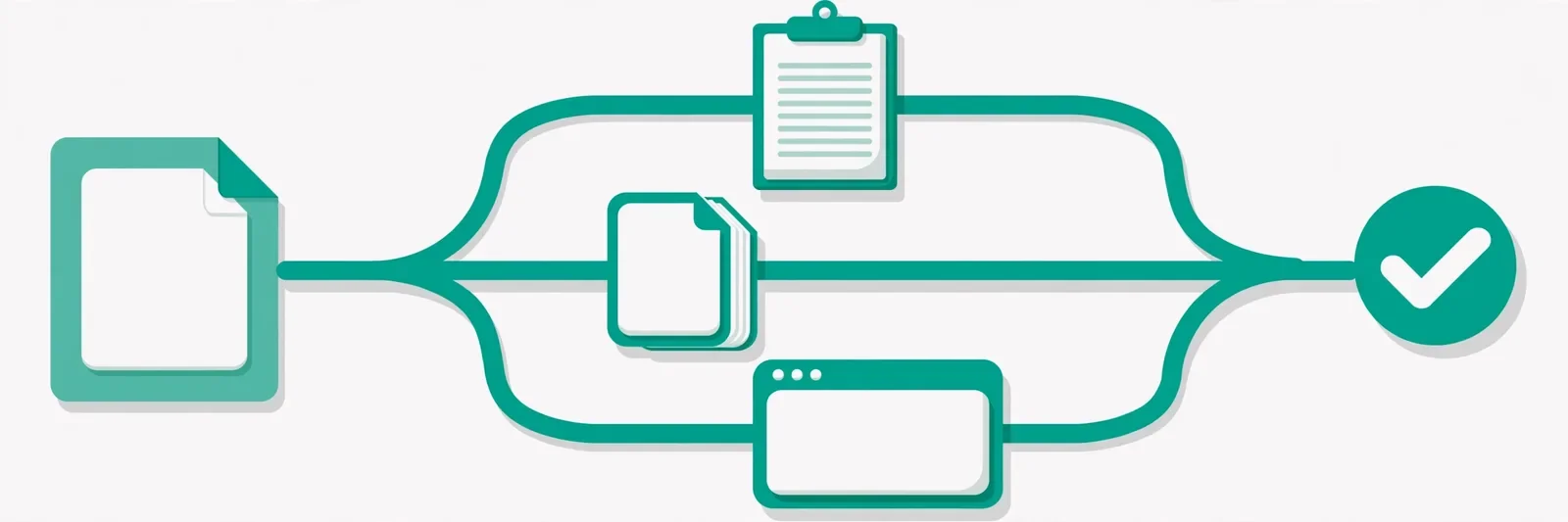
Match the method to the situation. A one-off check needs speed. A graded count needs proof.
| Situation | Best method | Why |
|---|---|---|
| One quick count, normal PDF | Method 1: copy and paste | Under a minute, free, nothing leaves your device |
| Graded or paid count, or messy paste | Method 2: convert to Word or Docs | Clean document, count you can defend |
| Weekly PDF counts, already have a Pro app | Method 3: count in your reader | No conversion step, fits a routine |
| Scanned PDF, copy gives nothing | OCR first, then Method 1 | Scans hold pictures, not text, until OCR reads them |
My recommendation is plain: start with Method 1 every time. It answers the question in under a minute for most PDFs. Move to Method 2 only when the paste looks wrong or the count has to stand up to someone else checking it.
Why the same PDF gives different counts
Two honest tools can count the same PDF and differ by a few dozen words. That is normal. Counters follow different rules about what counts as a word and which parts of the file they read.
- Hyphenated words. "State-of-the-art" counts as one word in most counters, but some split it into four.
- Numbers and dates. "2026" usually counts as one word. "1,500" may count as one word or two, depending on the tool.
- Headers, footers, and page numbers. Some tools include them, some skip them.
- Footnotes, captions, and text boxes. Copy may or may not pick these up, and counters disagree about them too.
- Line breaks. A PDF can split a word across two lines, or glue two words together when you paste.
A gap under about 5 percent between two methods is normal variation. A far larger gap means something big was left out, such as an appendix or a scanned section. If a limit is enforced, count in the system that enforces it, and note which parts you included.
If copy gives you nothing, your PDF is a scan
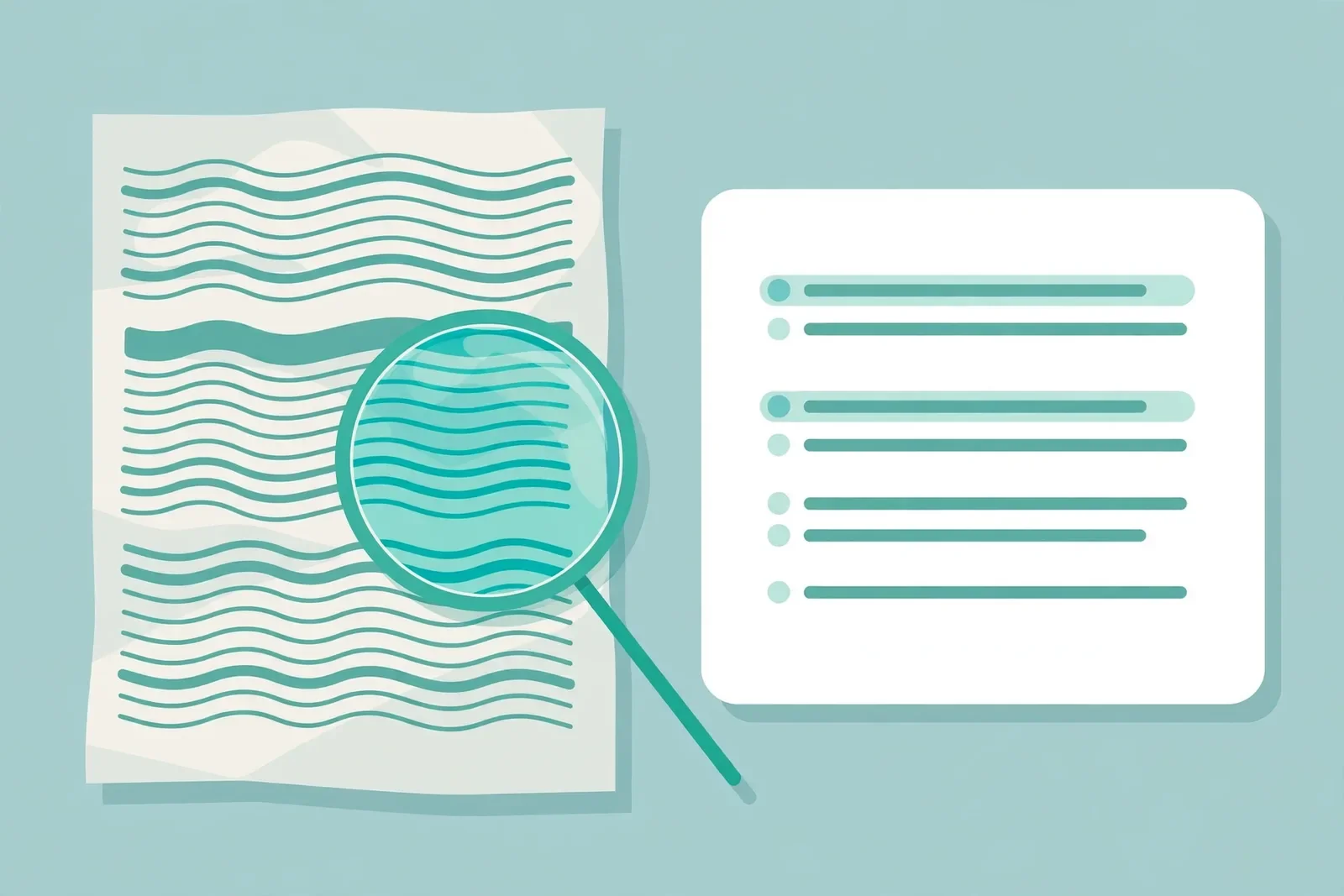
Scanned PDFs hold pictures of pages, not real text. Select All copies nothing because there are no characters to copy. The fix is OCR, which reads the words in the image and turns them into real text.
- Confirm it is a scan. Try to select a sentence. If you cannot select any text, or the whole page selects as one image, it is a scan.
- Run OCR. Upload the PDF to Google Drive and open it with Google Docs, use OCR in a paid PDF app, or use a free OCR tool.
- Copy the recognized text and paste it into the Word Counter for the total.
- Expect a few errors. OCR confuses pairs like "rn" and "m", and it drops punctuation in blurry scans. If the count matters, proofread the text first.
Our guide on how to extract text from PDF online free walks through the OCR options in detail.
Common mistakes and fixes
- Counting the whole file when only the body counts. Copy only the body text, or count the reference list separately and subtract it.
- Trusting the first number without a sanity check. Compare two methods. If they differ by more than about 5 percent, look for missing pages.
- Forgetting words inside images. Words in charts, diagrams, and scanned pages never get counted by copy and paste. Count captions separately or OCR those pages.
- Uploading a private PDF to a random counter site. If the document is a contract, a medical record, or an unpublished manuscript, use the browser-based copy and paste route, where nothing leaves your device.
- Retyping the document to count it. Never retype. Copy is faster and exact, and retyping adds your own typos to the total.
How we tested this
Before you rely on a method, try it on your own file first:
- Open a text-based PDF in a browser, copy one page, and confirm the text pastes cleanly into the Word Counter.
- Open the same PDF in Google Docs and compare the Docs word total with the Word Counter total. Note which parts each count includes.
- Try a scanned PDF: confirm copy selects nothing, run OCR on it, and confirm the recognized text pastes and counts.
- Check the Word Counter, extract text guide, and character counter links open the correct pages.
Pros and cons
Pros. Copy and paste is instant, free, and private. Converting to Word or Docs gives a count you can defend. Counting in a Pro reader fits a weekly routine.
Cons. Copy and paste can mangle tables and long layouts, and it misses headers, footers, and scanned pages. Conversion takes minutes and some converters upload your file. Pro readers cost money.
A note on privacy
Copy and paste keeps your file on your device, and the Word Counter here runs in your browser, so your text is never uploaded or stored. Converting through an online tool or Google Drive uploads your file to someone else's server. For contracts, medical records, or unpublished manuscripts, stick to copy and paste. If you must convert a private file, use a desktop app, not a website you have never used before.
Last updated: October 19, 2026.
Frequently asked questions
Can I count words in a PDF for free?
Yes. Copy the text from your PDF and paste it into a free word counter. It takes under a minute, needs no signup, and works on any device. If the PDF is a scan, run OCR first, then count the recognized text.
How do I count words in a PDF on my phone?
Open the PDF in your phone reader app, select all the text, and copy it. Then open a word counter in your mobile browser, paste the text, and read the total. If your phone cannot select the text, the PDF is a scan, so run OCR first.
Why does my PDF word count differ from Word?
Counters follow different rules. Hyphenated words, numbers, headers, footers, footnotes, and text boxes may be included by one tool and skipped by another. A gap under about 5 percent is normal. A larger gap means part of the file was left out.
Can I count words in a scanned PDF?
Not directly. A scan holds pictures of words, not real text, so copy gives you nothing. Run OCR first to turn the pictures into real text, then paste that text into a word counter. Expect a few OCR errors in blurry scans.
Does Adobe Reader count words in a PDF?
No. The free Adobe Reader has no direct word count. Adobe tells readers to convert the PDF to Word and count there. You can also copy the text and paste it into a free word counter, which is faster and needs no conversion step.
How many words are on one PDF page?
It varies with font, size, spacing, and margins. As a rough guide, a page holds about 250 words double-spaced or about 500 words single-spaced in 12-point Times New Roman with 1-inch margins. Dense PDFs hold more. Treat the figure as an estimate, not a rule.
Count words in a PDF today
You do not need paid software. Open your PDF, copy the text, paste it into the Word Counter, and read the number. If copy gives you nothing, run OCR first, then count. If the count has to stand up to a teacher, an editor, or a client, convert the file to Word or Docs and count there. Count words in your PDF free now.