Google Docs Word Count: Where It Is and What It Misses
You finished a draft in Google Docs and now you need its word count, but the number is nowhere on screen. Docs keeps it tucked inside a dialog, and even when you find it, the dialog leaves out more than most writers expect. This guide shows you every way to open the count, what each number means, and how to get the figures Docs never shows you.
Quick answer
In Google Docs on a computer, open Tools, then Word count, or press Ctrl + Shift + C on Windows and Chromebook, or Cmd + Shift + C on Mac. The dialog shows pages, words, characters, and characters excluding spaces. It leaves out headers, footers, and footnotes, and it never shows sentences, paragraphs, or reading time. For those figures, paste the text into a full counter.
Where the word count lives in Google Docs
Google Docs does not show a word count on screen by default. Unlike some word processors, it has no counter sitting in the status bar waiting for you. The count lives inside a small dialog, and you open it one of two ways.
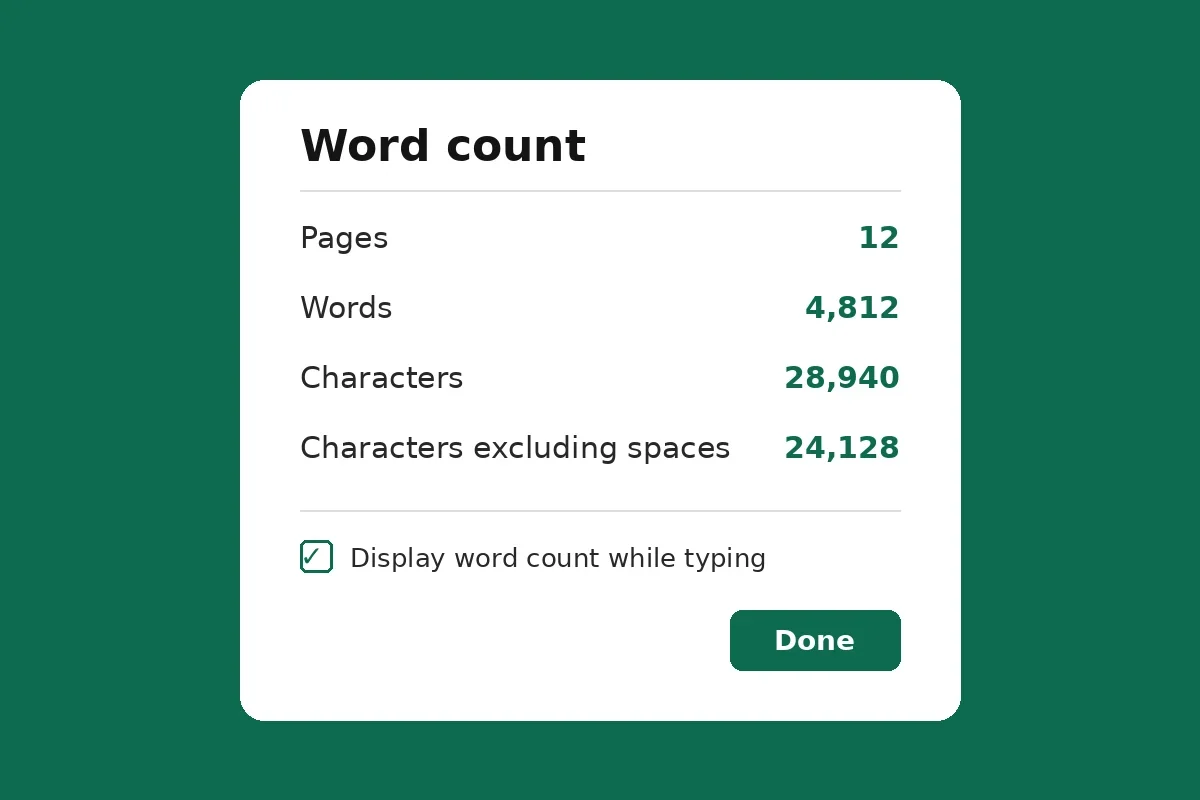
The menu route is the easiest to remember. Open your document in a browser, click Tools in the top menu bar, then click Word count. A small box opens in the middle of the screen with four numbers: Pages, Words, Characters, and Characters excluding spaces. Click Done to close it, or press Esc.
The shortcut route is faster once it becomes habit. Press Ctrl + Shift + C on Windows or a Chromebook, or Cmd + Shift + C on a Mac, and the same dialog opens. Click inside the document text first, so Docs receives the key press instead of the browser. Google lists this shortcut on its own keyboard shortcuts page for Google Docs, which is the safest place to check it if a shortcut ever stops working for you.
Read the four numbers with care, because they answer different questions. Pages tells you how long the document prints. Words is the number most assignments and editors ask for. Characters is the count a form field or a bio box usually enforces. Characters excluding spaces is the stricter version, used by a few style guides and submission forms. If you only need one number, read the one your limit names.
Keep the count on screen while you type
If you check the count more than once while writing, turn on the live counter. Open Tools, then Word count, tick the box labelled Display word count while typing, and click OK. A small counter appears in the bottom-left corner of the document and updates as you type or delete text.
Clicking that corner counter switches what it shows, so you can flip between words, pages, and characters excluding spaces without reopening the dialog. This is the setup to use when you are writing toward a target, such as a 500-word essay or a 1,000-word article, because you can watch the number move instead of stopping to open a dialog every few paragraphs.
Two quirks catch writers out. First, the setting is saved per document, not for your whole account, so a new document starts with the live counter off. Second, clicking Cancel instead of OK after ticking the box throws the change away. If the counter never appears, reopen the dialog and make sure you clicked OK.
Count part of a document, not the whole thing
Sometimes the whole document is not the unit that matters. A teacher may ask for the word count of one essay inside a file that holds three. An editor may ask how long your introduction runs. A freelancer may need to bill for one added section. Docs handles all of these with selections.
- Highlight the text you want to count. Click and drag across the passage, or triple-click to select a whole paragraph.
- Open Tools, then Word count, or press the shortcut. Use Ctrl + Shift + C on Windows and Chromebook, or Cmd + Shift + C on Mac.
- Read the "of" figure. The dialog shows the selection first and the full document second, in the form "X of Y words", so you get both numbers at once.
- Close the dialog and keep editing. Your selection stays highlighted until you click elsewhere, so you can re-check it after an edit.
Word count on the Google Docs mobile app
The Google Docs app for Android and iPhone also has a word count, but it hides in a different place and it cannot stay on screen. Open the document in the app, tap the three dots menu in the top-right corner, and tap Word count. You will see the total words, characters, and pages for the document.
Two limits apply on mobile. First, there is no live counter option, so you reopen the menu each time you want a fresh number. Second, the mobile count is a whole-document figure. If you need the count for one section on your phone, select the passage first, then open the three dots menu and tap Word count, and the dialog will show the selection figure the same way the desktop dialog does.
What Google Docs leaves out of the count
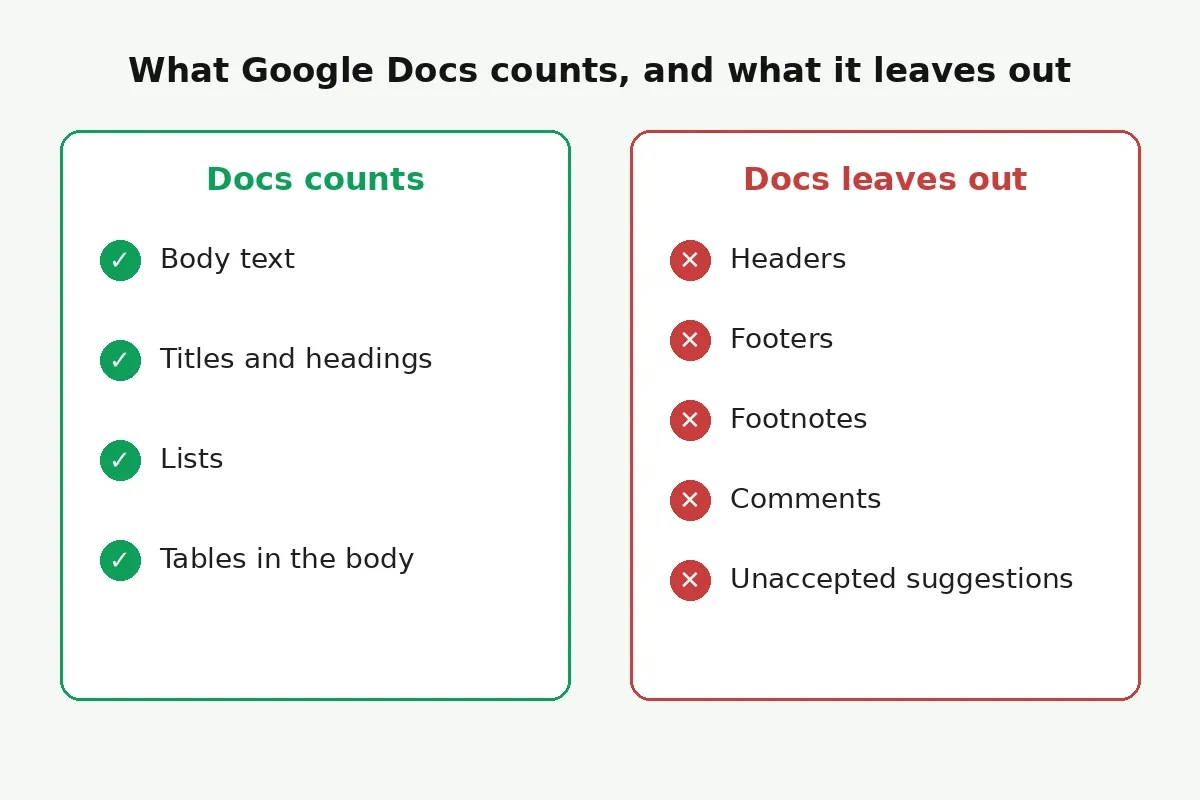
The biggest surprise in the Docs word count is what it skips. Google's own help page states it plainly: unless you select a section, the count applies to everything except headers, footers, and footnotes. That one sentence explains most "missing words" complaints.
Headers and footers sit outside the main body, so a running head, a page number line, or a footer note never enters the count. Footnotes are skipped the same way, even though they can hold a large share of an academic paper. A student whose essay body runs 1,900 words with 300 words of footnotes will see 1,900 in Docs, while a marker who counts footnotes will see 2,200. If your assignment says footnotes count, or says they do not, that wording decides which number to trust, and Docs alone cannot tell you.
Comments and suggested edits are left out too, until they are accepted into the document. A suggestion that has not been accepted is not yet part of the text, so Docs does not count it. Accept the suggestion first, then check the count, or you will submit a number that is short by exactly the words you just added.
The fix for all of these gaps is the same: decide which parts of your document the limit covers, then count exactly those parts. For footnotes, select the footnote text and count the selection. For a whole document including headers, paste the full text into a counter that counts everything you paste. Our guide on word count vs character count explains which count each kind of limit uses, so you check the right number in the first place.
What Docs never shows you at all
Even after you find the dialog, three figures that writers often need are simply not there. Docs shows no sentence count, no paragraph count, and no reading time. A teacher who asks for "about 20 sentences" or an editor who wants a five-minute read cannot be served by the Docs dialog at all.
Reading time is the most common missing figure. A speech or a video script is planned by time, not by words alone, and converting words to minutes needs a speaking pace. A normal speaking pace runs near 130 words per minute, so a 650-word script speaks in about five minutes. Our full table in how many words a 5-minute speech needs covers 1 to 30 minutes at that pace, if you are planning a talk rather than an essay.
The workaround takes one paste. Copy the whole document, paste it into the free Word Counter on this site, and you get words, characters with and without spaces, sentences, paragraphs, and reading time in one view, with no signup. Paste the same text into the Character Counter if your limit is a character limit, such as a bio or a social post, and read the character figures there. If you write social posts often, our list of Instagram and X character limits gives you the exact caps for posts, bios, and captions in one place.
Why Docs and Word give different numbers
Two honest counters can disagree on the same document, and the gap is usually small, a few words in a thousand. The causes are edge cases in how words are defined, not errors in either program.
Hyphenated words are the biggest cause. One counter may treat "well-known" as one word and another as two. Apostrophes cause the same split, and numbers, symbols, and standalone dashes are counted by some tools and skipped by others. A document full of hyphenated terms, dates, and figures will therefore show a slightly different total in Docs, in Word, and in an online counter.
Headers, footers, and footnotes cause the larger gaps. Word can include footnotes in its count when its dialog checkbox is ticked, while Docs always leaves them out. A document with heavy footnotes can differ by hundreds of words between the two programs, and neither number is wrong. Each program is counting a different set of text.
Common mistakes and fixes
Most Docs word count problems are small and fixable. Check this table before you submit.
| Mistake | What goes wrong | Fix |
|---|---|---|
| Looking for a counter on screen | You hunt the toolbar and never find one | Open Tools, then Word count, or press Ctrl + Shift + C (Cmd + Shift + C on Mac) |
| Using Cancel after ticking the live counter box | The counter never appears | Tick "Display word count while typing" and click OK, not Cancel |
| Forgetting the live counter is per document | A new draft shows no counter | Turn the live counter on again for each new document |
| Counting footnotes by the Docs total | Your total is short by the footnote words | Select the footnote text and count the selection, or add it by hand |
| Counting before accepting suggestions | Accepted edits change the total after you checked | Accept or reject all suggestions first, then count the finished text |
| Trusting Docs for a character-limited bio or post | Docs shows no platform-specific rules for links or emoji | Do the final check in the platform composer before posting |
The pattern behind all six is the same: know what your count covers, and check the finished text in the place that enforces the limit.
Frequently asked questions
What is the shortcut for word count in Google Docs?
Press Ctrl + Shift + C on Windows and Chromebook, or Cmd + Shift + C on Mac. Click inside the document text first so Docs receives the key press. The shortcut opens the same dialog as Tools, then Word count, and Google lists it on its keyboard shortcuts page for Google Docs.
How do I show the word count while typing in Google Docs?
Open Tools, then Word count, tick "Display word count while typing", and click OK. A live counter appears in the bottom-left corner and updates as you type. Clicking it switches between words, pages, and characters excluding spaces. The setting is saved per document, so turn it on again for each new draft.
Does Google Docs count footnotes in the word count?
No. Google Docs leaves footnotes out of the word count, along with headers and footers. If your assignment counts footnotes, select the footnote text and count the selection, or add the footnote words to the Docs total by hand before you submit.
How do I check the word count for part of a Google Docs document?
Highlight the passage first, then open Tools, then Word count, or press the word count shortcut. The dialog shows the selection first and the full document second, in the form "X of Y words", so you get both numbers at once.
Can I see the word count in the Google Docs mobile app?
Yes. Open the document in the app, tap the three dots menu in the top-right corner, and tap Word count. You will see total words, characters, and pages. The mobile app has no live counter, so reopen the menu each time you want a fresh number.
Why is my Google Docs word count different from Microsoft Word?
Counters disagree on edge cases such as hyphenated words, apostrophes, and numbers, and they differ most on footnotes, which Word can include and Docs always leaves out. The gap is usually small. For a hard limit, trust the counter in the place that enforces the limit, and leave a small margin under the cap.
Try the counter free
Docs gives you the basics, and that is enough for a quick check. When you need the rest, sentences, paragraphs, reading time, or a character count with and without spaces, open the free Word Counter, paste your finished text, and read every figure in one view. Count the finished version, after the last edit, and confirm the number in the place that will enforce it.
How we tested this: we read the Word Counter and Character Counter tool pages on this site and confirmed they show words, characters with and without spaces, sentences, paragraphs, and reading time live as you type, with no signup. We checked the Docs dialog contents, the shortcut, and the header, footer, and footnote exclusion against Google's own word count help page and its keyboard shortcuts page for Google Docs.
Privacy note: the counters on this site need no account and no signup. Your text is processed in your browser, so a draft, an essay, or an application answer never travels to a server to be counted.
Last updated: October 29, 2026
Related tools and guides
Word Counter
Count words, characters, sentences and reading time in one paste, free and in your browser.
Use tool →Character Counter
Measure characters with and without spaces for bios, posts and form fields.
Use tool →Word Count vs Character Count
Which count each kind of limit uses, and how spaces change the number.
Read article →