How to Split PDF Pages Online Free
If you need to split PDF pages online free, you can pull out exactly the pages you want in under a minute, with no signup and no software to install. This guide shows you how to extract pages or page ranges into a clean new PDF, and how to avoid the mistakes that produce the wrong pages.
Key takeaways
- Extract any page range into a clean new PDF.
- Page numbering starts at 1 — an off-by-one error cuts the wrong pages.
- Splitting copies pages without changing their quality.
- Keep the originals until the split file is verified.
What Does It Mean to Split a PDF?
Picture this: a client asks for just pages 5–8 of your 60-page report. Do you send the whole thing? No. You pull those four pages out. Clean. Fast. That is the whole trick.
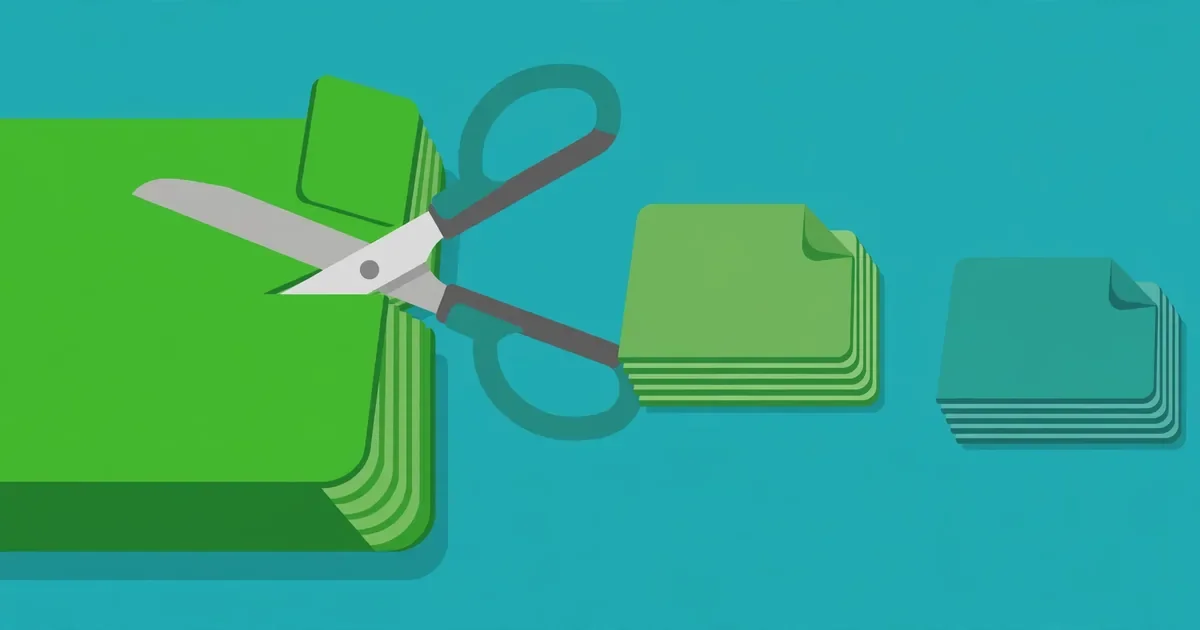
Splitting a PDF means taking one document and producing a new, smaller PDF that contains only the pages you choose. The original file is left untouched, and the new file holds just the pages you selected, in their original order. For example, you might extract pages 5 to 8 from a 60-page report, pull a single invoice out of a monthly statement bundle, or separate one chapter from an ebook so you can print it on its own.
People split PDFs whenever a document contains more than they need. Sending a whole 200-page manual when the reader only asked for one chapter wastes their time and can expose pages you never meant to share. Extracting the exact pages keeps your files tidy, protects private pages, and makes email attachments smaller and easier to handle. Whether you need to separate PDF pages for work, study, or personal paperwork, a free browser tool does the job in seconds without touching the original file.
How to Split PDF Pages Online Free in 6 Steps
Follow these six steps to extract exactly the pages you want. The whole process takes about a minute for most documents.
Step 1: Find the pages you need
Before you open any tool, decide which pages belong in the new file. Open the PDF and note the page numbers you want, remembering that the first page of the document is page 1. Write the range down, for example pages 12 to 18, or list individual pages such as 3, 7, and 9. Checking the pages first is the single most useful step, because it prevents the common mistake of extracting the wrong section and having to start over.
Step 2: Open the free split tool
Open the Split PDF tool in your browser. There is nothing to install and no account to create. The tool works on desktop computers, laptops, tablets, and phones, and it runs entirely in your browser tab. Because the split happens on your own device, your document is never uploaded to a server, which makes this approach a good choice for sensitive files such as contracts, statements, and medical records.
Step 3: Select your PDF file
Click the upload area and choose the PDF you want to split, or drag and drop it into the upload box. Make sure the file opens without a password, because most free split tools cannot process locked files. If the file is password-protected, remove the password first. For very large documents, splitting works the same way, although the tool may take a few extra seconds to read all the pages.
Step 4: Enter the page range
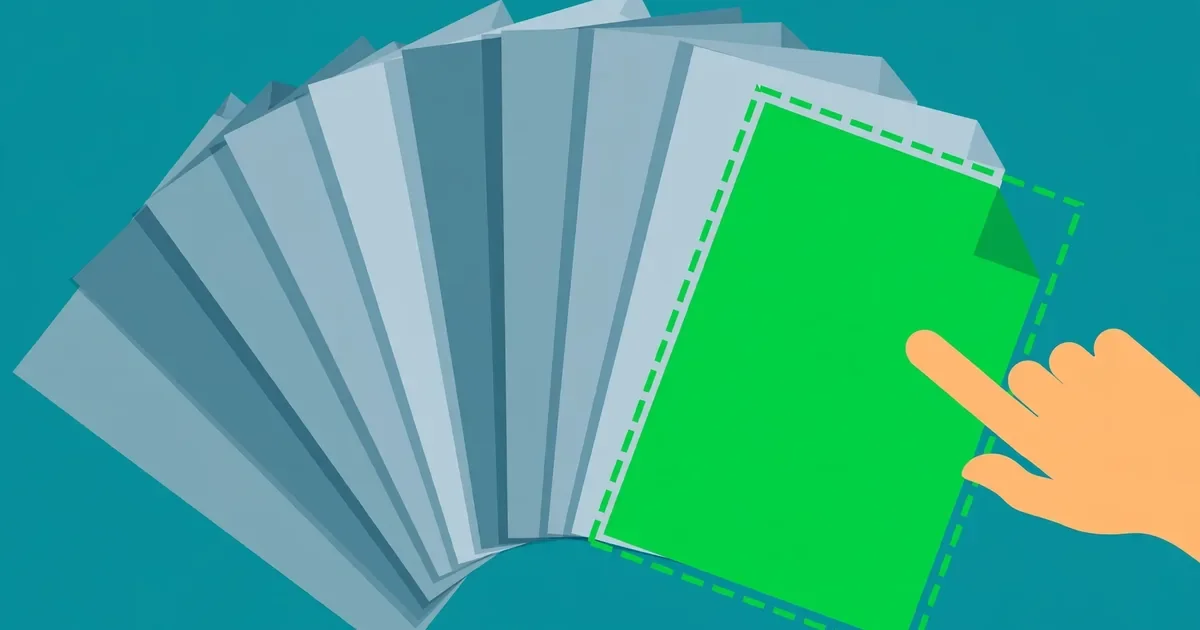
Enter the pages you want in the tool, usually as a range such as 5-8 or as a list of individual pages. Double-check the numbers against the notes you made in step one. Page numbering starts at 1, and the range is inclusive, so 5-8 gives you pages 5, 6, 7, and 8. If you are unsure about a boundary page, include it; you can always remove an extra page later, but a missing page means splitting again.
Step 5: Split the PDF
Click the split button and wait a moment while the tool builds your new file. Small documents finish almost instantly, while very large files can take a little longer. Keep the browser tab open until the download starts. The tool copies the selected pages into a new PDF without changing their text, images, or layout, and without adding a watermark.
Step 6: Download and verify the new PDF
Download the new file and open it to verify the result. Count the pages and confirm that the first and last pages match the range you intended. Scroll through the document to make sure no pages are missing and no unexpected pages slipped in. Keep the original file, since splitting never changes it, and save the new file with a clear name such as Report-Chapter-3.pdf so it is easy to find later.
Tips for Splitting PDFs Accurately
A few small habits make every split come out right the first time.
- Confirm the page numbers first. Skim the document and write down the exact range before you upload anything.
- Include boundary pages when in doubt. It is faster to delete one extra page afterward than to redo a split because a page is missing.
- Use descriptive file names. Names such as Invoice-March-2026.pdf tell you what a file contains without opening it.
- Split once, then tidy up. If the extracted file still contains a page you do not need, remove that page with a page-deletion tool instead of re-splitting.
- Check the file size after splitting. A small extracted file is easy to email, but if it still contains large scanned images, you may want to compress it before sending.
- Keep the original. Splitting creates a new file and never alters the original, so keep the original as your master copy.
Online Split Tools vs Desktop Software
Desktop PDF software can split documents, but it usually costs money, requires installation, and needs updates. For most people, a free online tool is the faster option. You open the tool, select your file, enter the page range, and download the result, all in the same minute, with no setup and no subscription. Online tools are also convenient when you are on a borrowed computer or a phone, where installing software is impractical or impossible.
The main difference is where the work happens. Many online tools upload your files to a remote server for processing, which raises a privacy question for sensitive documents. A browser-based tool such as the one on this site is different: the split happens locally on your device, so your file never leaves your browser. You get the convenience of an online tool with the privacy of desktop software. Desktop programs still make sense for advanced jobs such as editing page content or applying complex security settings, but for simply extracting PDF pages, the browser tool is quicker, free, and easier.
Mistakes to Avoid When You Split PDFs
Most splitting problems come from rushing the page selection.
- Guessing the page numbers instead of checking them — producing a file with the wrong pages.
- Forgetting that page numbering starts at 1 — an off-by-one error cuts off the first or last page you wanted.
- Splitting a password-protected file — it will fail or produce an incomplete result.
- Overwriting the original file with the split result by giving both files the same name. — Overwriting the original file with the split result by giving both files the same name.
- Sharing the extracted file before verifying it — a wrong page range can send private pages to the wrong person.
A quick check of the first and last pages after every split prevents nearly all of these problems.
Also useful: If a sideways or unwanted page survives the split, see how to delete and rotate PDF pages online free.
Quick checklist
Run through this checklist before you finish:
- Page numbers checked, not guessed.
- Correct range entered (for example 1–3, not 0–2).
- Output file opened and pages counted.
- File renamed clearly, for example Report-Pages-1-3.pdf.
- Original kept as a backup.
Related: see how to compress a PDF online free.
Frequently asked questions
Is it really free to split PDF pages online?
Yes. You can split PDF pages online free here with no account, no payment, and no watermark. The tool runs entirely in your browser, so there is no subscription and no trial period to worry about. You can split as many documents as you need, whenever you need them, and the extracted file belongs entirely to you.
Can I split a PDF by page range or extract single pages?
Yes. You can extract a continuous range such as pages 5 to 8, or individual pages depending on the tool options. A range gives you every page between the two numbers, inclusive. If you need several separate sections from one document, split each range one at a time, then keep each result as its own file or combine them later if needed.
Will splitting change the quality of my PDF pages?
No. Pages are copied into the new document without being re-compressed, so the text, images, fonts, and layout stay exactly as they were in the original. The extracted PDF keeps the same quality as the source file. If the new file is still larger than you need for emailing, you can reduce its size afterward with a compression tool rather than sacrificing quality during the split.
Are my files uploaded to a server when I split them?
No. Files are read and split locally in your browser tab, and nothing is uploaded or stored on a server. Your document stays on your own device from start to finish. That makes the tool suitable for private documents such as contracts, bank statements, medical records, and school files that you would rather not send to an unknown server.
Can I split out one page, or do I have to split the whole document?
You can split out a single page. Enter that page as a one-page range, for example 7-7, and the tool will produce a new PDF containing only that page. For the full walkthrough, see how to save one page of a PDF. The same approach works for any number of pages, from one page to a long chapter. The original document is never changed, so you can split out as many different selections as you like.
Conclusion
Learning how to split PDF pages online free takes less than a minute, and it saves you from sending oversized files or pages your reader never asked for. Check the page numbers, enter the range, split in your browser, and verify the result before you share it. If you also need to remove or reorder pages inside a document, read our guide on how to delete and rotate PDF pages online free. To put pages back together afterward, try the Merge PDF tool, or read our guide on how to merge PDF files online free. Ready to extract your pages? Open the Split PDF tool and split your first document now.