How to Merge PDF Files Online Free
If you need to merge PDF files online free, you can finish the job in under a minute without installing software or creating an account. This guide shows you how to combine PDFs into one clean document, keep the pages in the right order, and avoid the mistakes that cause messy results.
Key takeaways
- Combine 2 or more PDFs into one file in under a minute — no signup, no watermark.
- Page order in the list becomes page order in the result — check it before merging.
- Merging happens in your browser — your files are never uploaded to a server.
- Verify the merged file first, then compress it if it is too large to email.
What Does It Mean to Merge PDF Files?
Picture this: you are applying for a job. The portal says one upload only. You have five files. Sound familiar? You have probably done what most people do — emailed five attachments, then got asked to resend them as one file. Merge once. Done.
Merging PDFs means taking two or more separate PDF documents and joining them into a single file. The pages of each original document are placed one after another in the order you choose, so the result reads like one continuous document. For example, you might combine a cover letter, a CV, and three certificates into one application file, or join the chapters of a report that were written by different people. For the job-application case specifically, see how to combine a resume and cover letter into one PDF. When you merge PDFs free in your browser, the tool copies the pages from each file into a new document without changing the text, images, or layout of any page.
People merge PDFs for practical reasons. A single file is easier to send, store, print, and submit than a folder full of separate attachments. Many job portals, university systems, and government forms accept only one upload, so combining your documents first saves you from awkward workarounds. A merged file also looks more professional: the reader opens one document and scrolls through everything in the right sequence instead of hunting through several files.
How to Merge PDF Files Online Free in 6 Steps
Follow these six steps to join PDF files quickly and correctly. The whole process takes about a minute for everyday documents.
Step 1: Gather the PDFs you want to combine
Start by collecting every file you plan to merge in one place, such as a single folder on your computer or phone. Check that each file is a real PDF and that it opens without a password. If a file is password-protected, you will need to remove the password first, because most free merge tools cannot open locked files. Rename the files with a clear numbering system, for example 01-cover-letter, 02-CV, and 03-certificates, so the intended order is obvious before you upload anything.
Step 2: Open the free merge tool
Open the Merge PDF tool in your browser. There is nothing to install and no account to create. The tool works on desktop computers, laptops, tablets, and phones, and it runs entirely in your browser tab. Because the merge happens on your own device, your documents are never uploaded to a server, which makes this approach a good choice for sensitive files such as contracts, invoices, and application documents.
Step 3: Select your PDF files
Click the upload area and choose two or more PDF files, or drag and drop them into the upload box. Most browsers let you select several files at once by holding the Ctrl or Command key while clicking. Add the files in the order you want them to appear in the final document, because that order becomes the page order of the merged file. If you are merging many files, add them in small groups and confirm the list looks right before moving on.
Step 4: Check and fix the file order
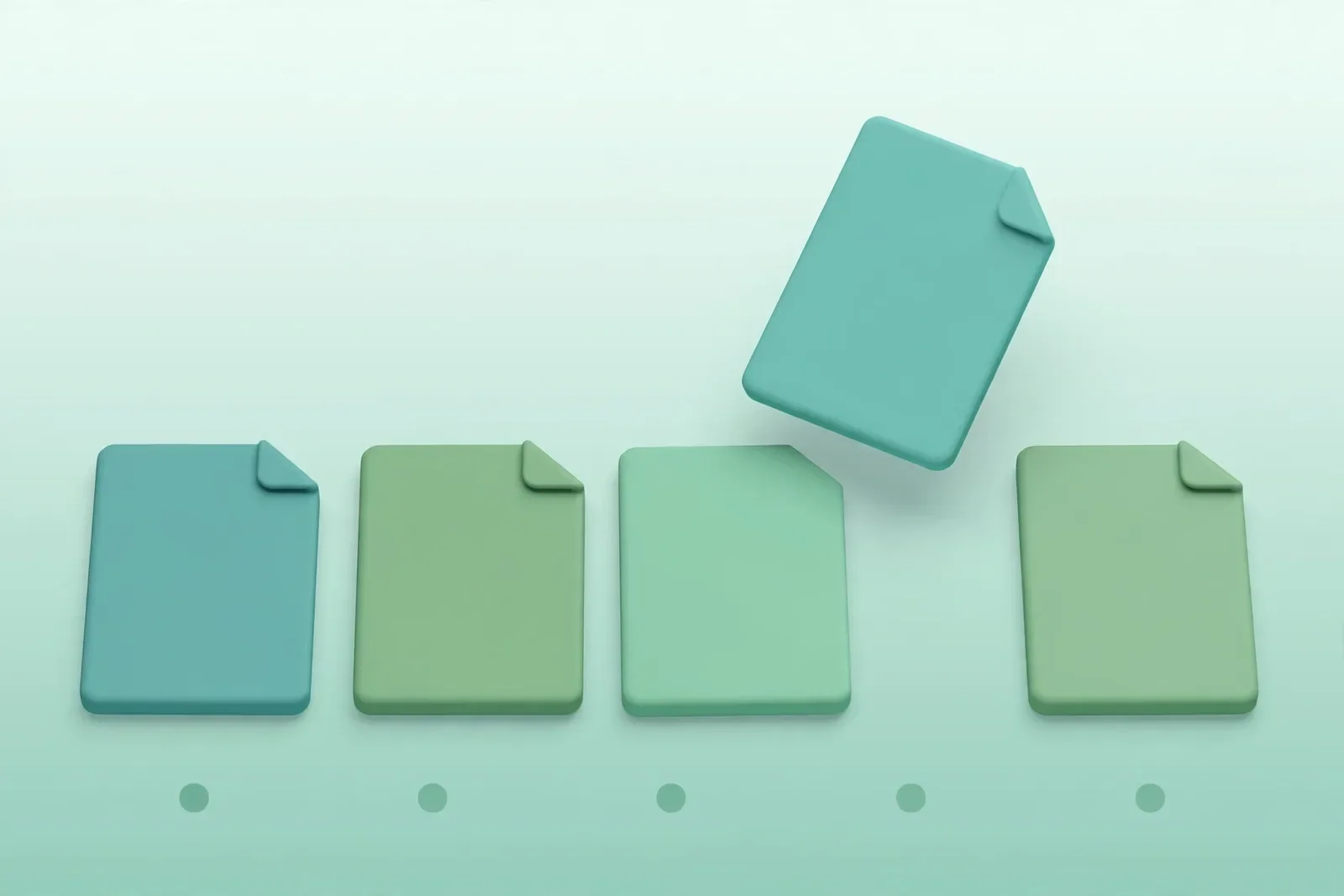
Before merging, look carefully at the file list. The first file in the list becomes the first section of the merged PDF, and the last file becomes the final section. If a file is in the wrong place, remove it and add it again so it lands at the end of the list, or re-add the files in the correct sequence. Also remove any file you added by mistake. A thirty-second check here prevents the most common merging frustration: a finished document with chapters in the wrong order.
Step 5: Merge the PDFs
Click the merge button and wait a moment while the tool combines your files. Small documents finish almost instantly, while very large files with hundreds of pages can take a little longer. Keep the browser tab open until the download starts. The tool copies the pages from each original file into one new PDF, preserving the original quality, fonts, and images without adding a watermark.
Step 6: Download and verify the merged PDF
Download the merged file and open it to verify the result. Scroll to the first page of each section and confirm that every file is present and in the right order. Check that no pages are missing and that the last page of the document is the one you expect. Keep your original files until you have confirmed the merged copy is correct, so you can rebuild it easily if you spot a mistake.
Tips for a Clean, Professional Merged PDF
A few small habits turn an ordinary merged file into a document that looks like it was assembled with care.
- Name files before you merge. Clear names such as 01-cover and 02-report make the intended order obvious and reduce mistakes.
- Match the page size when you can. Files with very different page sizes still merge fine, but a consistent size looks tidier when printed.
- Remove blank or duplicate pages first. If a file contains pages you do not need, delete them before merging so they do not appear in the final document.
- Merge in batches for very large jobs. If you are combining dozens of large files, merge them in groups and then merge the results for a smoother experience.
- Check the file size after merging. If the result is too large to email, you can compress the PDF afterward to shrink it without splitting it apart again.
- Keep one master copy. Save the merged file with a clear name, such as Application-Final.pdf, and keep the originals in a separate folder in case you need them later.
Online Merge Tools vs Desktop Software
Desktop PDF software can merge files, but it usually costs money, requires installation, and needs updates. For most people, a free online tool is the faster option. You open the tool, add your files, and download the result, all in the same minute, with no setup and no subscription. Online tools are also convenient when you are on a borrowed computer or a phone, where installing software is impractical or impossible.
The main difference is where the work happens. Many online tools upload your files to a remote server, which raises a privacy question for sensitive documents. A browser-based tool such as the one on this site is different: the merge happens locally on your device, so your files never leave your browser. Desktop programs still make sense for advanced jobs such as editing page content, but for simply joining PDF files, the browser tool is quicker, free, and easier.
Mistakes to Avoid When You Merge PDFs
Most merging problems come from rushing the preparation step.
- Skipping the order check — discovering after the download that two sections are swapped.
- Merging password-protected files — the merge will fail or produce an incomplete result.
- Merging scanned files with huge file sizes — the result can be slow to open or too large to email.
- Deleting the originals before verifying the merged copy. — Deleting the originals before verifying the merged copy.
A quick preview of each file before you start prevents nearly all of these problems.
Also useful: If the merged file still has pages you do not need, see how to delete and rotate PDF pages online free.
Quick checklist
Run through this checklist before you finish:
- Files gathered and renamed in order (01, 02, 03…).
- Password-protected files unlocked before merging.
- File list checked carefully before clicking merge.
- Merged file opened and every section verified.
- Originals kept until the merged copy is confirmed.
Related: see how to convert JPG to PDF online free.
Frequently asked questions
Is it really free to merge PDF files online?
Yes. You can merge PDF files online free here with no account, no payment, and no watermark. The tool runs entirely in your browser, so there is no subscription and no trial period to worry about. You can merge as many sets of files as you need, whenever you need them, and the merged file belongs entirely to you.
Is there a limit on how many PDFs I can merge?
There is no fixed limit on the number of files. The practical limit is your device: very large sets of files, or files with hundreds of pages each, take longer and use more memory. If the browser feels slow, merge your files in smaller batches and then merge the batch results together. For everyday jobs such as job applications or school assignments, a handful of files will merge in seconds.
Are my files uploaded to a server when I merge them?
No. Files are read and combined locally in your browser tab, and nothing is uploaded or stored on a server. Your documents stay on your own device from start to finish. That makes the tool suitable for private documents such as contracts, invoices, medical forms, and job applications that you would rather not send to an unknown server.
Will merging change the quality of my PDFs?
No. Pages are copied into the new document without being re-compressed, so the text, images, fonts, and layout stay exactly as they were in the originals. The merged PDF keeps the same quality as each source file. If the final file is larger than you need for emailing, you can reduce its size afterward with a compression tool rather than sacrificing quality during the merge.
Can I change the order of the PDFs after adding them?
Yes. The order of the files in the list becomes the order of the sections in the merged PDF. If a file is in the wrong position, remove it and add it again so it moves to the end of the list, or re-add your files in the sequence you want. Always confirm the list order before clicking the merge button, because fixing the order afterward means merging again.
Conclusion
Learning how to merge PDF files online free takes less than a minute, and the skill pays off every time you need to submit, share, or archive documents. Gather your files, check the order, merge them in your browser, and verify the result before you delete the originals. If you also need to tidy up a document afterward, try the Split PDF tool to extract pages, or read our guide on how to split PDF pages online free. For more detail on shrinking a large result, see our guide on how to compress a PDF online free. Ready to combine your files? Open the Merge PDF tool and merge your first document now.