Merge PDFs for a Visa Application: One File, In the Right Order
A visa upload fails for boring reasons: a file over the size limit, pages in the wrong order, a bank statement split across three uploads, or a scan so dark the officer cannot read it. The fix is simple: one file per document, documents in the order your portal lists them, every page readable, and the whole file under the portal limit.
Quick answer
Merge each visa document into its own single PDF, with all its pages in order, then arrange those files in the order your portal's checklist lists them. Scan at 150 DPI, keep every file under your portal's per-file limit (commonly 2 MB or 5 MB, and always check your own portal's figure), never password-protect or zip the file, and read the finished PDF page by page before you upload it. If your portal gives one upload slot per category, merge everything in that category into one file for that slot; if it wants one file per document, keep documents separate and merge only the pages inside each document. The same question comes up for job hunting: should your resume and cover letter be one PDF?
First, check what your portal actually wants
"One file" means two different things on different portals, and mixing them up is the most common cause of a rejected upload. Some portals give one upload slot per document category and expect everything in that category merged into a single file. Others, like the US National Visa Center process, instruct applicants to scan each document as a separate file, with all the pages of that one document together in that file. Both are "one file" rules, but they draw the boundary in different places.
Before you merge anything, read the small print on your own portal's upload page and note three numbers: the format (almost always PDF), the size limit per file, and whether there is a limit on the number of files or on the total size of the whole application. Common per-file limits reported across portals are 2 MB and 5 MB, but your portal's figure is the only one that matters, and it can differ from another country's portal by several megabytes. Write it down before you start, because it decides how much compression the file needs.
The same small print often bans password-protected files and zipped archives. A PDF locked with a password cannot be opened by the caseworker, and a zip cannot be opened by the portal at all, so both are rejected outright. If a document is password-protected, remove the password from your own copy before merging, or re-scan the paper original.
One more rule worth checking: translations. Where a document is in another language, official guidance commonly asks for the translation scanned together with the original document in a single file, so the officer sees both without opening a second upload. Keep that pair together when you merge.
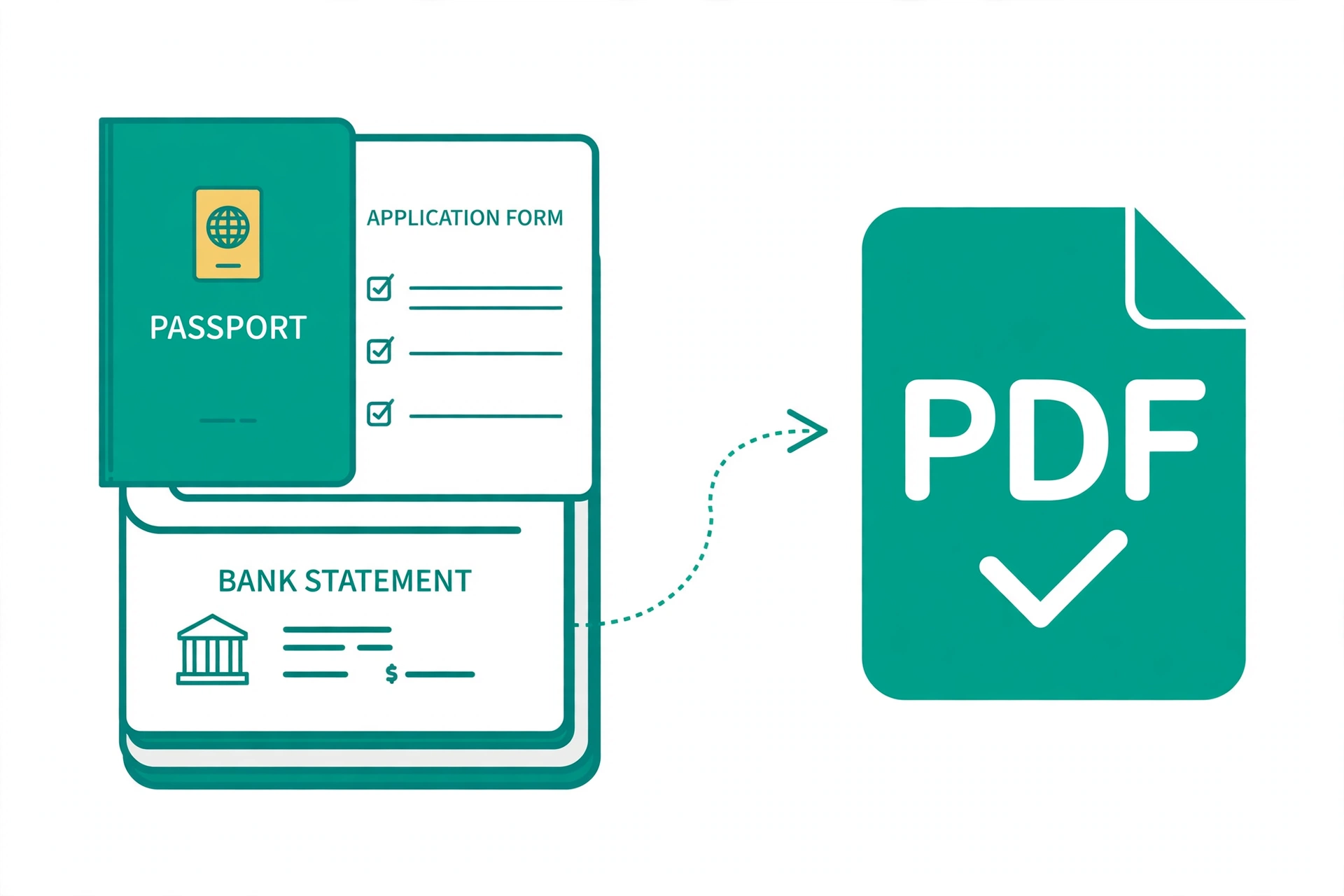
The order officers read
Most visa checklists follow a similar logic, even when the exact list differs by country: identity first, then the application itself, then the reason for travel, then money, then ties to home. An officer opening your file should meet the documents in that sequence, without hunting. The table below is a safe default order for a tourist or visitor application when your portal does not publish its own order. When it does publish one, its order wins, always.
| Position | Document | Why it goes here |
|---|---|---|
| 1 | Cover letter | States purpose, dates, and who is travelling, so everything after it has context. |
| 2 | Application form, signed | The formal application itself, directly after the cover letter. |
| 3 | Passport, information page plus used pages | Identity first: the officer confirms who you are before reading anything else. |
| 4 | Photo, if uploaded separately | Identity check, kept next to the passport. |
| 5 | Travel itinerary and flight booking | Shows when and where you travel, and that the trip is planned. |
| 6 | Accommodation booking | Shows where you will stay for the whole trip. |
| 7 | Bank statements, most recent months first | Proof of funds, in date order, one document, all pages together. |
| 8 | Employment or business proof | Employment letter, pay slips, or business registration, showing ties to home. |
| 9 | Travel insurance | Coverage for the whole trip, kept near the end with the supporting documents. |
| 10 | Anything else the checklist asks for | Extra documents in the checklist's own order, after the main set. |
Inside each document, order matters just as much as order between documents. Bank statements go in date order, newest first or oldest first, matching how the bank issued them, with no month missing. A statement with a missing middle month reads like a gap in funds, even when the money was there. The same applies to pay slips and employment letters: consecutive months, no gaps, no duplicates.
How to build the file, step by step
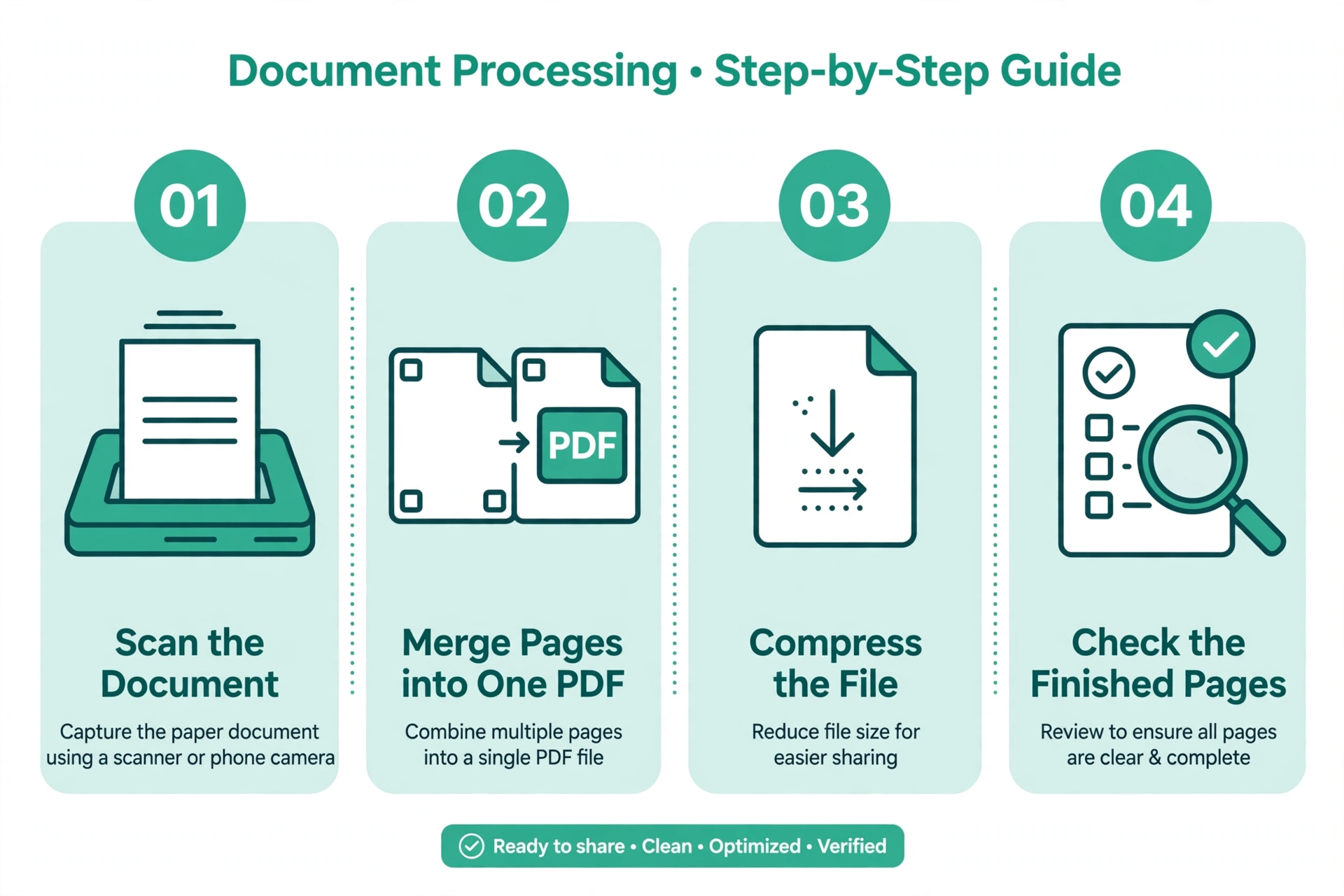
Step 1: Gather every document, paper or digital. Work from your portal's checklist, not from memory. Tick each item off as you collect it, and note which items are multi-page, because those are the ones that need merging.
Step 2: Scan or photograph each document at 150 DPI. 150 DPI is the resolution official scanning guidance commonly recommends, and it is plenty for a document read on a screen. Higher resolutions mostly add file size, not readability. Keep pages upright, fully in frame, and free of shadows.
Step 3: Merge the pages of each document into one PDF. Open the free Merge PDF tool, add the pages of one document in order, and merge them into a single file. Repeat for each multi-page document. Do not merge different documents into one file unless your portal asks for a combined category file.
Step 4: Convert photos to PDF where needed. If a document exists only as phone photos, use the free JPG to PDF tool to turn those photos into one PDF per document, in page order, before merging anything else.
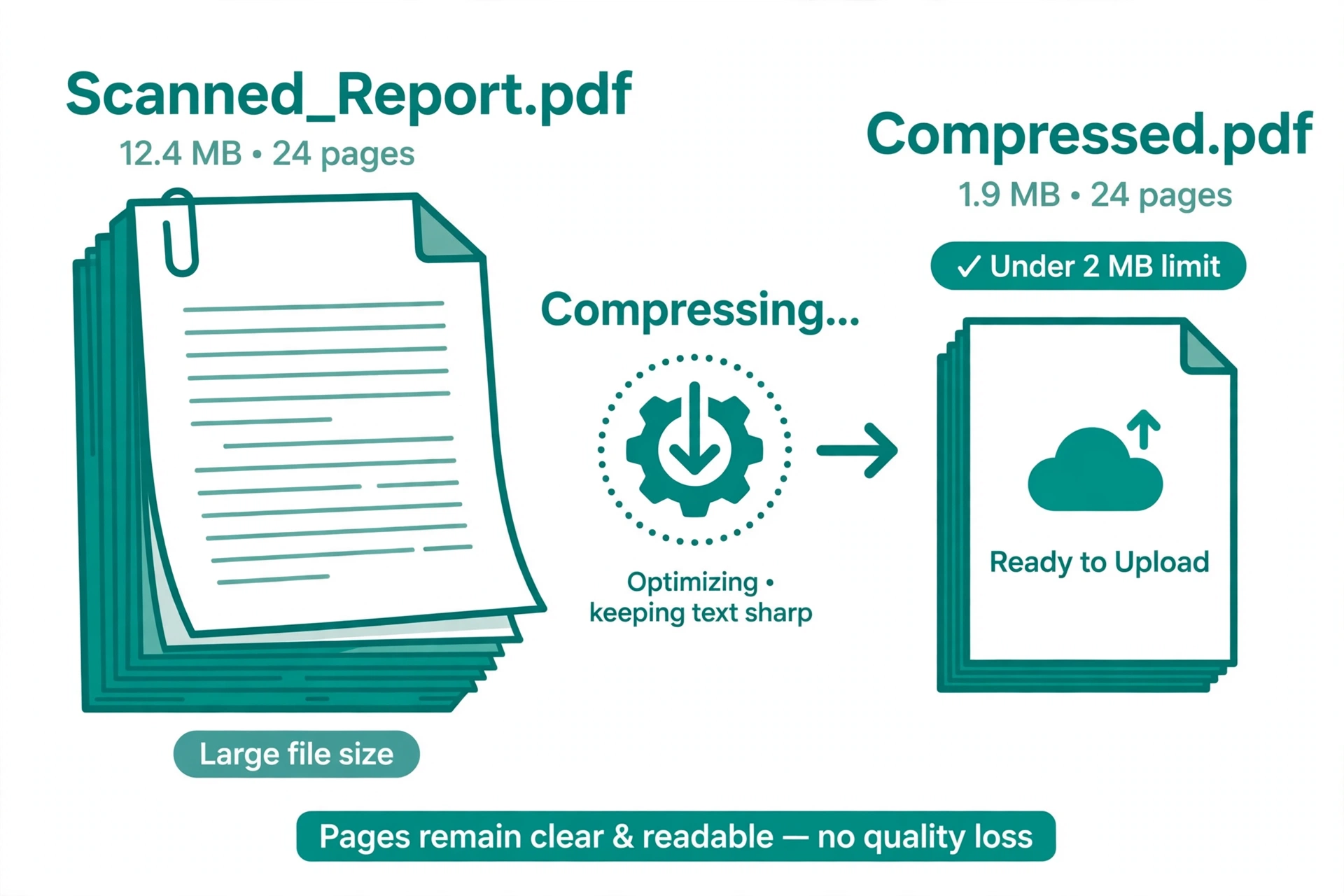
Step 5: Compress any file over your portal's limit. Open the free Compress PDF tool and bring the file under the limit. If compression makes text hard to read, re-scan at 150 DPI in greyscale for text pages instead of colour, which cuts size without losing words.
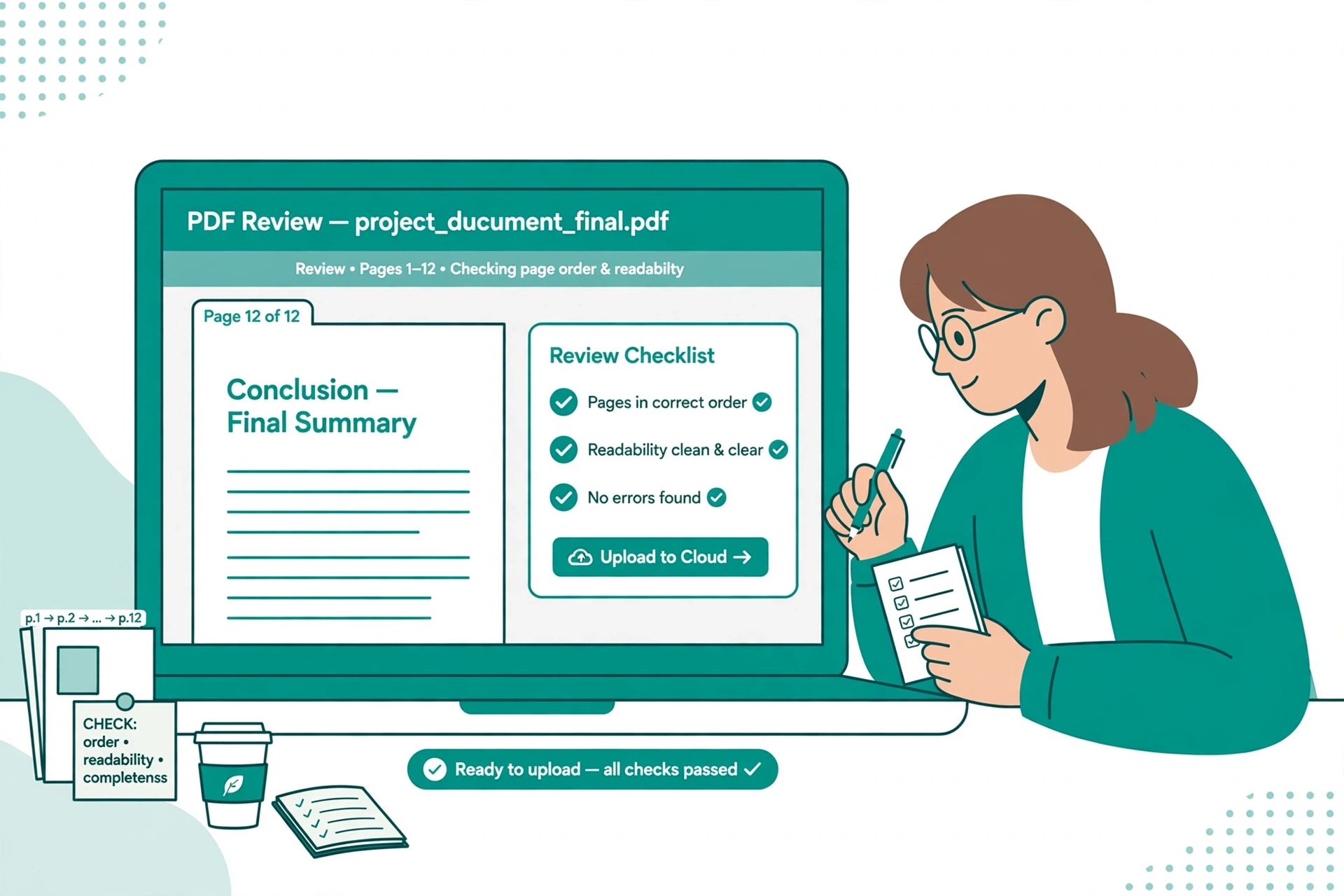
Step 6: Read the finished file page by page. Open the merged PDF and flip through every page. Check the order, check that no page is upside down or cut off, and check that stamps, signatures, and numbers are readable. This one read-through catches most problems before the portal does.
Step 7: Name the file clearly and upload. A name like "passport-john-smith.pdf" or "bank-statements-jan-mar-2026.pdf" helps the officer and helps you find the file later. Upload, wait for the confirmation, and keep a copy of the finished PDF and the upload confirmation together.
Small enough to upload, still readable
Size and readability pull in opposite directions, and the trick is to cut size where it does not hurt reading. The biggest wins come from resolution and colour. A page scanned at 600 DPI in colour can weigh several megabytes on its own, while the same page at 150 DPI in greyscale is a fraction of that size and reads just as well on a screen. Colour matters only where colour carries meaning, such as a coloured stamp or a highlighted correction; for plain text pages, greyscale is the right default.
When a file is still over the limit after compression, split it at a document boundary, not in the middle of a document. A bank statement split across two uploads is confusing; a bank statement in one file and an employment letter in another is exactly how the portal expects them. If your portal allows only one file per category and that category file is over the limit, compress harder or re-scan the longest document at lower resolution, rather than dropping pages. Dropping a page creates a gap the officer will notice.
One thing never to do for size is to photograph a document at low resolution to begin with. A blurry photo cannot be sharpened back into a readable page, while a clean 150 DPI scan can always be compressed smaller. Start clean, then shrink.
Common mistakes and fixes
Merging different documents into one file when the portal wants them separate. Fix it by reading the upload page first. One file per document is the common rule; merge across documents only when your portal gives one slot per category.
Uploading a file over the size limit. Fix it by compressing to under the limit before upload, or re-scanning text pages at 150 DPI in greyscale. The portal usually rejects silently or after a failed upload, so check size before you start.
Bank statement with a missing month. Fix it by gathering consecutive months with no gaps before merging. A missing middle month reads like missing funds, even when the money was there.
Upside-down or cut-off pages. Fix it by reading the finished PDF page by page before upload. One read-through catches rotation and cropping problems that no tool flags.
Password-protected or zipped files. Fix it by removing the password from your own copy or re-scanning the paper original, and never zipping documents for upload. Both are rejected outright.
Translation uploaded separately from the original. Fix it by scanning the translation together with the original document in a single file, so the officer sees both in one place.
Frequently asked questions
Should I merge all my visa documents into one PDF?
Only if your portal asks for a combined file. The common rule is one file per document, with all the pages of that document together. If your portal gives one upload slot per category, merge everything in that category into one file for that slot.
What order should visa documents be in?
Follow your portal's checklist order when it publishes one. Otherwise use cover letter, then the application form, then passport and identity, then travel plans, then financial proof, then employment and insurance, with bank statements in consecutive date order and no missing months.
What size should a visa PDF be?
Under your portal's per-file limit, which is commonly 2 MB or 5 MB but varies by portal, so check your own portal's figure before uploading. Scan at 150 DPI and use greyscale for text pages to keep the file small without losing readability.
Can I upload a password-protected PDF for a visa?
No. Password-protected files and zipped archives are rejected, because the caseworker cannot open them. Remove the password from your own copy before merging, or re-scan the paper original.
What resolution should I scan visa documents at?
150 DPI is the resolution official scanning guidance commonly recommends, and it is plenty for documents read on a screen. Higher resolutions mostly add file size, not readability, and can push the file over the upload limit.
Where does a translation go in a visa PDF?
Scan the translation together with the original document in a single file, so the officer sees both without opening a second upload. Keep the pair together when you merge.
Try the free tool
Start from your portal's checklist, not from a pile of files. Note the per-file limit, gather each document with all its pages, merge the pages of each document in order, compress anything over the limit, and read the finished file page by page before you upload it.
When you are ready, open the free Merge PDF tool, add the pages of one document in order, and merge them into a single PDF. If a document is still phone photos, turn them into a PDF first with the free JPG to PDF tool, and if the result is over your portal's limit, bring it down with the free Compress PDF tool.
How we tested this: we checked the rules cited here against published portal guidance found during research, including the US Department of State scanning tips (2 MB per file, one file per document, 150 DPI, no zipped or password-protected files) and Australian ImmiAccount guidance (5 MB per file, multi-page documents as a single PDF, similar documents grouped), and we read the Merge PDF, Compress PDF, and JPG to PDF tool pages on this site to confirm they process files in the browser with no signup. Portal rules change, so your own portal's upload page is the final check.
Privacy note: the Merge PDF, Compress PDF, and JPG to PDF tools on this site need no account and no signup. Your documents are processed in your browser, so passport pages and bank statements are not sent to a server to be merged.
Last updated: November 6, 2026