Remove Empty Lines from Text: Clean Paste in Seconds
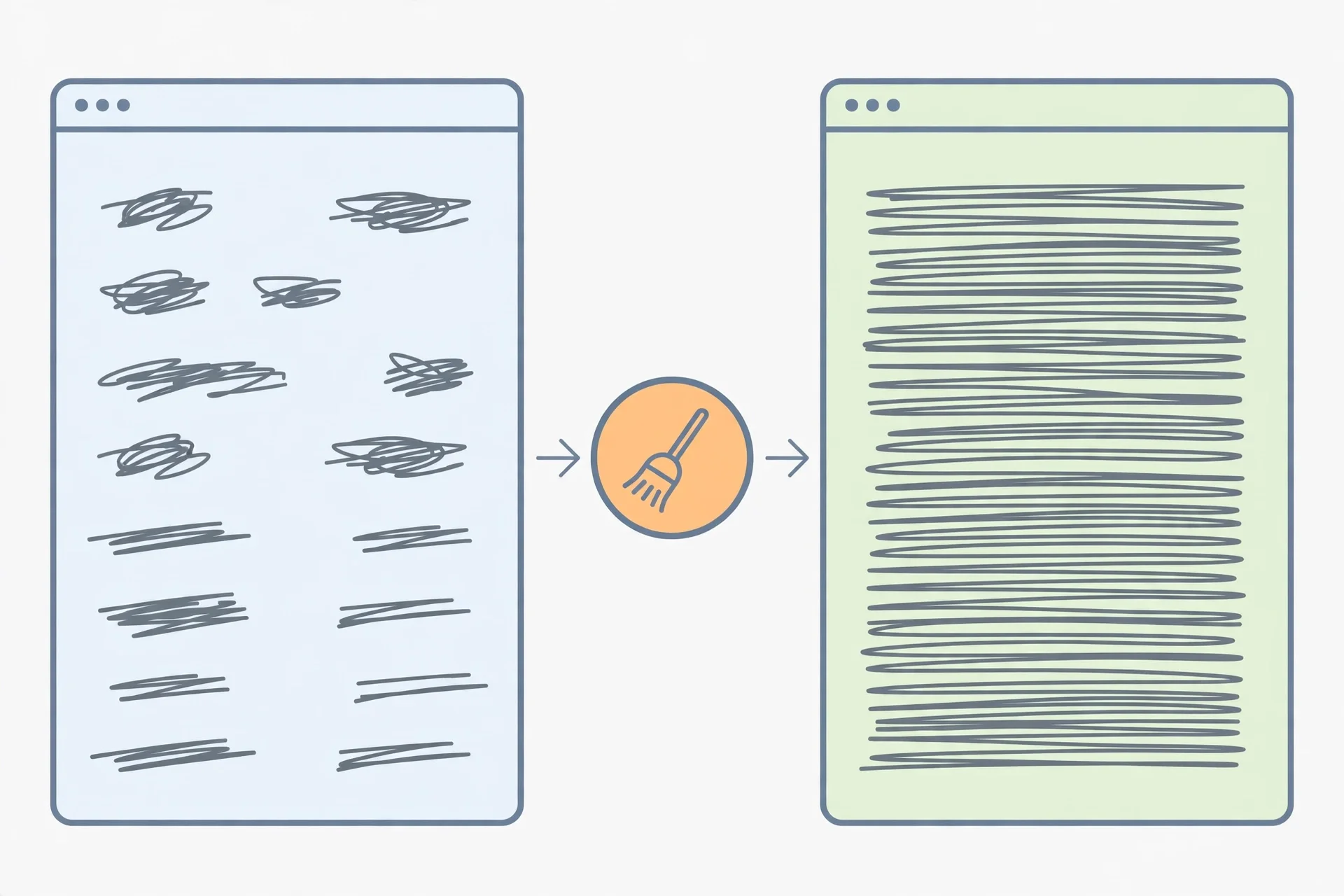
You paste a list into a form and it arrives with a blank line after every entry. You copy notes from a PDF and the text comes out double spaced. Deleting those gaps by hand is slow, and it is easy to delete a real line by mistake. One click does the whole job, as long as you know what counts as empty first.
Quick answer
To remove empty lines from text, paste the text into the free tool on this site, click "Remove empty lines", and copy the result. The tool deletes every line that holds nothing, including lines that hold only spaces or tabs, and tells you how many lines it removed. Content lines are left exactly as they were. Before cleaning a document where blank lines carry meaning, such as a poem or a Markdown file, keep a copy of the original, because this cleaning removes all blank lines at once.
What counts as an empty line
An empty line is a line with no visible content on it. Pasted text hides three different kinds of "empty", and not every cleaner catches all three. Knowing which kind you have tells you whether one click will fix it.
The first kind is truly blank: zero characters, just a line break. Every cleaner catches it. The second kind looks blank but holds spaces, tabs, or both, and a basic cleaner that only checks for zero characters leaves it in place. The tool on this site checks each line after trimming its whitespace, so a spaces-only or tabs-only line counts as empty and is removed. The third kind is not empty at all: a line holding a non-breaking space pasted from Word, or a stray punctuation mark. Those survive cleaning. If a "blank" line survives, select it and look at what is actually on it.
Remove blank lines in four steps
Step 1: Paste your text into the tool. Open the free Remove Duplicate Lines tool and paste the messy text into the box. Nothing you paste is uploaded anywhere. Paste a long document in one go, so the removed count covers the whole thing.
Step 2: Click "Remove empty lines". That single button does the cleaning. You do not need the "Remove duplicates" button for this job, and you do not need to change the checkboxes. "Trim spaces" affects how duplicate lines are compared, not how empty lines are found.
Step 3: Read the removed count. A line under the buttons reports how many empty lines were removed, for example "12 empty lines removed." If you expected a dozen gaps and the tool reports zero, your "blank" lines probably hold non-breaking spaces or stray characters, covered in the fixes section below.
Step 4: Copy the result or download it. Click "Copy result" to put the cleaned text on your clipboard, or "Download .txt" to save it as a plain text file. Paste it into its destination and scan the first and last few lines, where a missing line or an extra gap is most likely to hide.
One habit makes this safer: clean a copy, not the only copy. Keep the original open until you have checked the result, so a mistake costs you a re-paste, not a lost document.
Where blank lines come from
Blank lines rarely appear because someone typed them on purpose. They arrive as a side effect of copying, converting, or exporting.
Copying from a PDF is the most common source. A PDF lays text out for printing, not for pasting, so a continuous paragraph can paste out with a break after every printed line and a blank line where the layout added space. Our guide to extracting text from a PDF covers the wider cleanup. The same thing happens with web pages that space out blocks, or spreadsheets where empty cells become empty lines.
Double Enter presses are the second source. People press Enter twice between paragraphs in Word or email, because it looks right on screen. Pasted into a plain text box, those breaks become blank lines. The third source is exports: mailing lists, keyword tools, and survey results often leave a blank line between items, or where a field was empty.
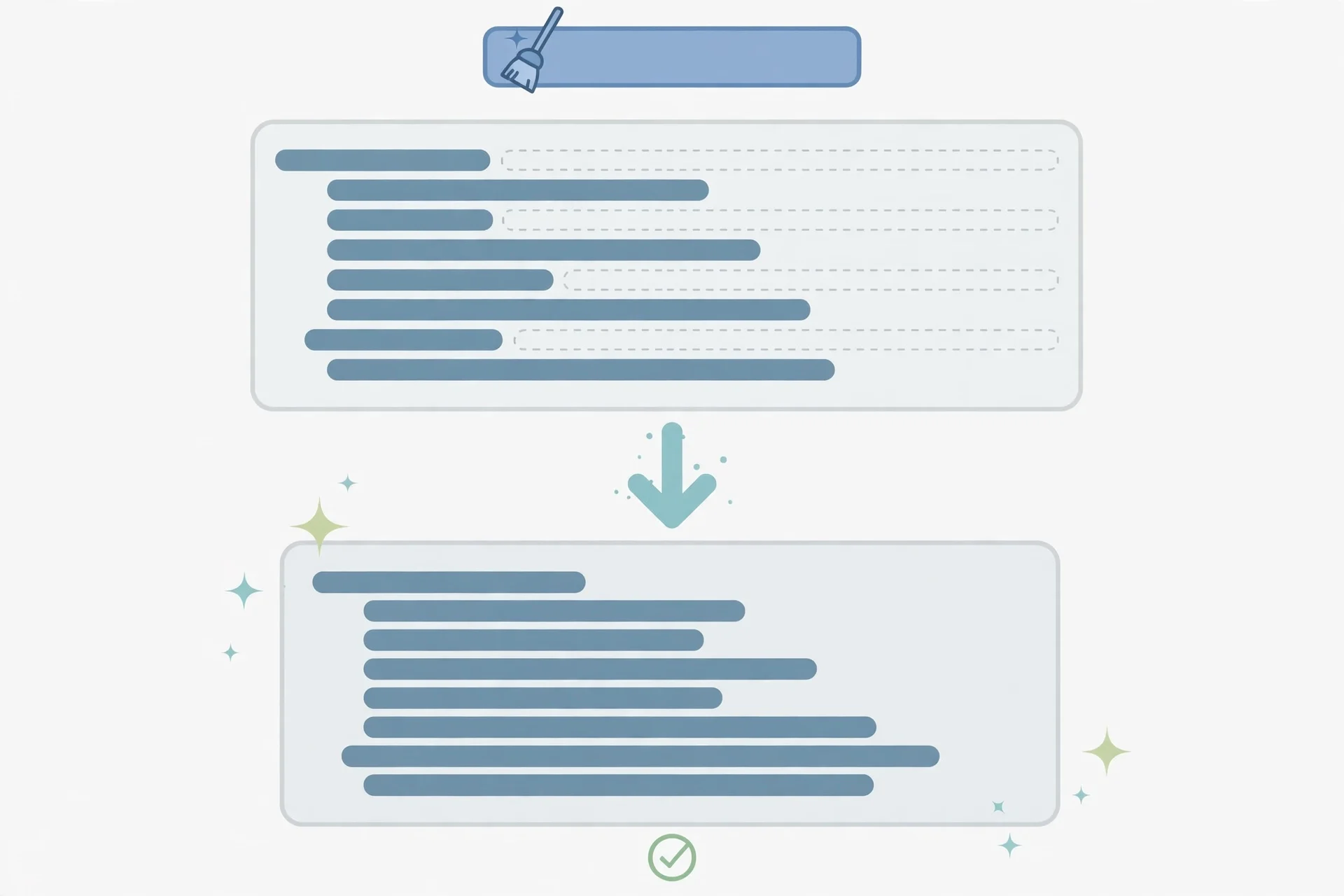
Code files collect the same clutter: blank lines at the top, between functions, and at the end, sometimes three or four in a row. Clean a copy, not the file itself, and check the result first.
When to keep the spacing
Removing every blank line is right for a list, a keyword file, or a pasted block that will be counted or imported. It is wrong for text where a blank line is part of the meaning: where a reader, or a program, uses the gap to tell where one thing ends and the next begins.
In Markdown, a blank line separates paragraphs, and also separates a paragraph from a list or a heading. Strip every blank line and paragraphs run together, and lists can stop rendering as lists. In poetry, a blank line marks a stanza break. In an essay draft, blank lines between paragraphs are the paragraph breaks themselves.
The safe rule is simple: if blank lines separate list items, remove them. If they separate blocks of meaning, keep them, or replace a run of several with one. This tool removes all blank lines at once, so for a document where spacing matters, clean a copy and put back the breaks that belong there.
Other ways to do it
The browser tool is fastest when you have text ready to paste. Two desktop routes cover text that already lives in a document or an editor.
In Microsoft Word (desktop). Press Ctrl+H to open Find and Replace. In "Find what", type ^p^p, and in "Replace with", type ^p, then click Replace All. Repeat until Word reports zero replacements, because three blank paragraphs need more than one pass. The ^p code stands for a paragraph mark, so each pair becomes one. Microsoft's own community answers describe exactly this ^p^p to ^p replacement. Note that this works in the desktop app: Word on the web does not support these special codes in the same way, so for a web-only document, copy the text into the browser tool instead.
In Notepad++. Open the text file, then go to Edit, then Line Operations, then Remove Empty Lines. That deletes blank lines from the whole file at once, with no dialog to fill in. It suits large files you would rather not paste into a browser. If your editor differs, check its Edit menu first: most code editors carry a similar command under a slightly different name.
For everything else, the browser route wins on speed: no install, no account, and the removed count gives you a check a silent desktop command does not.
Common mistakes and fixes
Cleaning the only copy. Keep the original open until the cleaned result is checked, and only then replace it.
Removing paragraph breaks from an essay or a Markdown file. Fix it by deciding before you click whether the gaps are list spacing or paragraph breaks. If they are paragraph breaks, do not remove them all. Clean a copy and restore the breaks that belong there.
A "blank" line that survives cleaning. Fix it by selecting the line and checking what it holds. A non-breaking space, a stray dash, or a single punctuation mark makes the line non-empty to a cleaner. Delete that character by hand, or replace non-breaking spaces with normal spaces first.
Removing duplicates when you only wanted blank lines gone. Fix it by clicking only "Remove empty lines". "Remove duplicates" is a separate job: it keeps the first copy of each repeated line and deletes the rest. If you clicked it by mistake, re-paste the original and clean again. Our guide to removing duplicate lines covers that job on its own.
Counting the wrong thing after cleaning. Fix it by recounting with the right tool. Removing blank lines changes the line count, not the word count. If a form counts lines, recount the cleaned text with the free Word Counter.
Pasting the result into the wrong place. Fix it by checking the destination before you paste. Some forms add their own spacing on paste, so a clean list can arrive double spaced again. Paste into plain text first, then into the destination.
Frequently asked questions
How do I remove empty lines from text online free?
Paste the text into the free tool on this site and click "Remove empty lines", then copy the result. The tool deletes every blank line, including lines that hold only spaces or tabs, and reports how many it removed. No signup is needed and nothing is uploaded.
Does removing empty lines change my words?
No. Only lines with nothing on them are deleted. The wording, order, and spacing inside every remaining line stay exactly as they were, so the word count does not change, only the line count does.
What is the difference between removing and collapsing blank lines?
Removing deletes every blank line, so a list becomes fully compact. Collapsing replaces a run of several blank lines with one, so paragraph breaks survive. This tool removes, so use a copy when paragraph breaks matter.
Can I remove blank lines in Word without a tool?
Yes, in the desktop app. Press Ctrl+H, find ^p^p, replace with ^p, and click Replace All until no replacements remain. Word on the web does not support these codes in the same way, so use the browser tool instead.
Why do blank lines keep coming back when I paste?
Because the source adds them on copy, often from a PDF layout, a web page, or a spreadsheet. Clean the text after pasting, not before, and if the destination reformats on paste, paste into plain text first.
Will removing empty lines fix a double-spaced essay?
It fixes the plain-text version, by joining lines separated by blank lines. If the essay lives in Word and the spacing comes from paragraph spacing settings, change that setting instead, because there are no blank lines to remove.
Try the free tool
Start with the messiest paste you have: a list copied from a PDF, a keyword file with gaps, or notes that came out double spaced. Paste it in, click "Remove empty lines", read the removed count, and copy the clean result back.
When you are ready, open the free Remove Duplicate Lines tool, paste your text, and click "Remove empty lines". To check length after cleaning, the free Word Counter shows words, sentences, and reading time, and our guide to sorting lines alphabetically covers ordering a cleaned list.
How we tested this: we read the Remove Duplicate Lines tool page and its text-tools script to confirm the "Remove empty lines" button deletes every line whose trimmed content is empty, reports the removed count, and offers Copy result and Download .txt. We also checked the Word ^p^p method against Microsoft community answers and the Notepad++ menu route against published editor guidance. No file was uploaded in testing, because the tool runs in the browser.
Privacy note: the Remove Duplicate Lines tool needs no account and no signup. Your text is processed in your browser, so lists and notes are not sent to a server to be cleaned.
Last updated: November 7, 2026