Fix a Sideways Scanned PDF: Rotate and Save It Permanently
You scan a document, it looks fine on your screen, and then it arrives sideways on someone else's phone, in a portal preview, or on paper. The scan is not broken. The rotation was never saved into the file, and this guide shows how to save it so it stays fixed everywhere.
Quick answer
To fix a sideways scanned PDF permanently, rotate the affected pages with a tool that writes the rotation into the file, then download the new file and reopen it to confirm. Our step-by-step guide shows how to rotate a PDF and save it permanently. Rotating in a reader such as Chrome only turns the view on your screen and does not save anything, so the file reopens sideways elsewhere. A 90 degree turn fixes a page lying on its right side, 270 degrees fixes one on its left, and 180 degrees fixes an upside-down page.
Why scans come out sideways
Scans go sideways for ordinary reasons, and none of them mean the document is damaged. The most common is placement. On a flatbed scanner, the document's top edge is expected to sit against a marked corner of the glass. Put the page in rotated, and the scan comes out rotated. The scanner faithfully recorded what it saw.
Phone scans fail differently. A phone camera sensor sits fixed inside the body, so when you hold the phone sideways, the pixels are recorded in the sensor's own orientation and a small orientation tag says which way is up. Your gallery reads that tag and shows the photo correctly. Some upload forms, preview generators, and older programs ignore the tag and show the raw pixels, so a photo that looked fine on your phone arrives sideways after upload. When those photos are combined into a PDF, the sideways orientation travels with them.
Batch scans add a third cause. A feeder that takes a stack of mixed pages can pull one page slightly rotated, or a double-sided scan can flip the back pages. The result is a document where most pages are fine and one or two are not, which is easy to miss until the reader reaches them.
Knowing the cause picks the fix. A placement problem is fixed by rescanning that page the right way up, or by rotating the saved page. An orientation-tag problem is fixed by baking the rotation into the file instead of relying on a tag some reader will ignore. Either way, the fix belongs in the file, not in the viewer you happen to be using today.
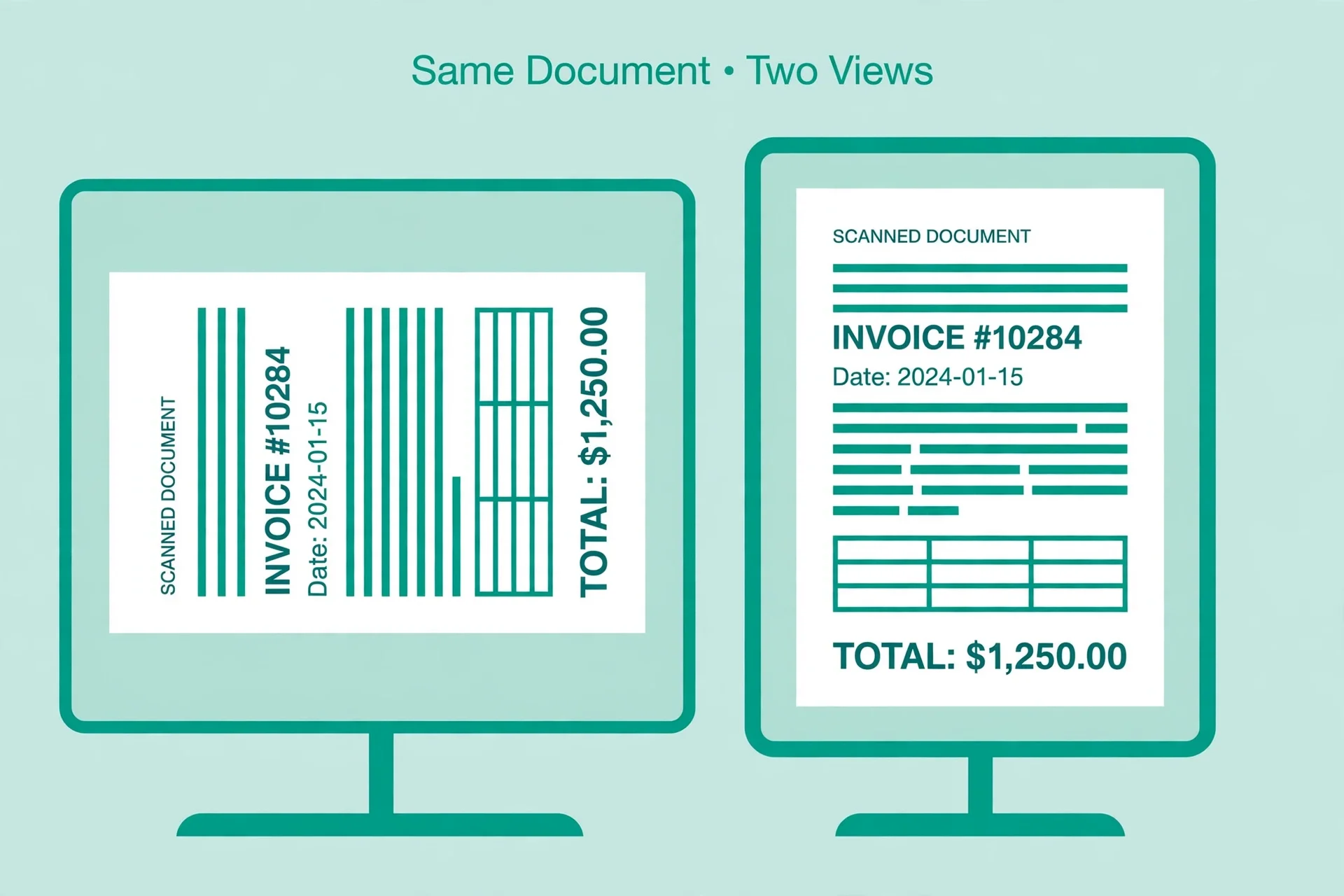
View rotation versus saved rotation
Almost every PDF reader has a rotate button, and almost all of them rotate the view, not the document. Chrome's built-in viewer turns the page for the current session and forgets it on close. Free reader apps do the same. Email the file after a view rotation and the recipient still sees it sideways, because nothing in the file changed.
Saved rotation is different. Every PDF page carries a rotation value of 0, 90, 180, or 270 degrees, and every reader that opens the file honours it. Changing that value fixes the page for everyone who receives the file, including a phone, a portal preview, and a printer. Because the value only tells readers which way to turn the page, nothing is redrawn: text stays selectable, fonts and images keep their quality, and links and form fields keep working. If the scan has no selectable text at all, you will need to extract text from a scanned PDF first. That is why a rotation fix is lossless in a way that re-scanning or printing to PDF is not.
Print to PDF is a fallback worth knowing, with a trade. Rotate the view, then print the document to a new PDF, and the new file holds pages in the viewed orientation. It works with free readers, but it rebuilds the document instead of changing one value, so it is the second choice, not the first. Prefer a tool that writes the rotation into the original file and downloads that file.
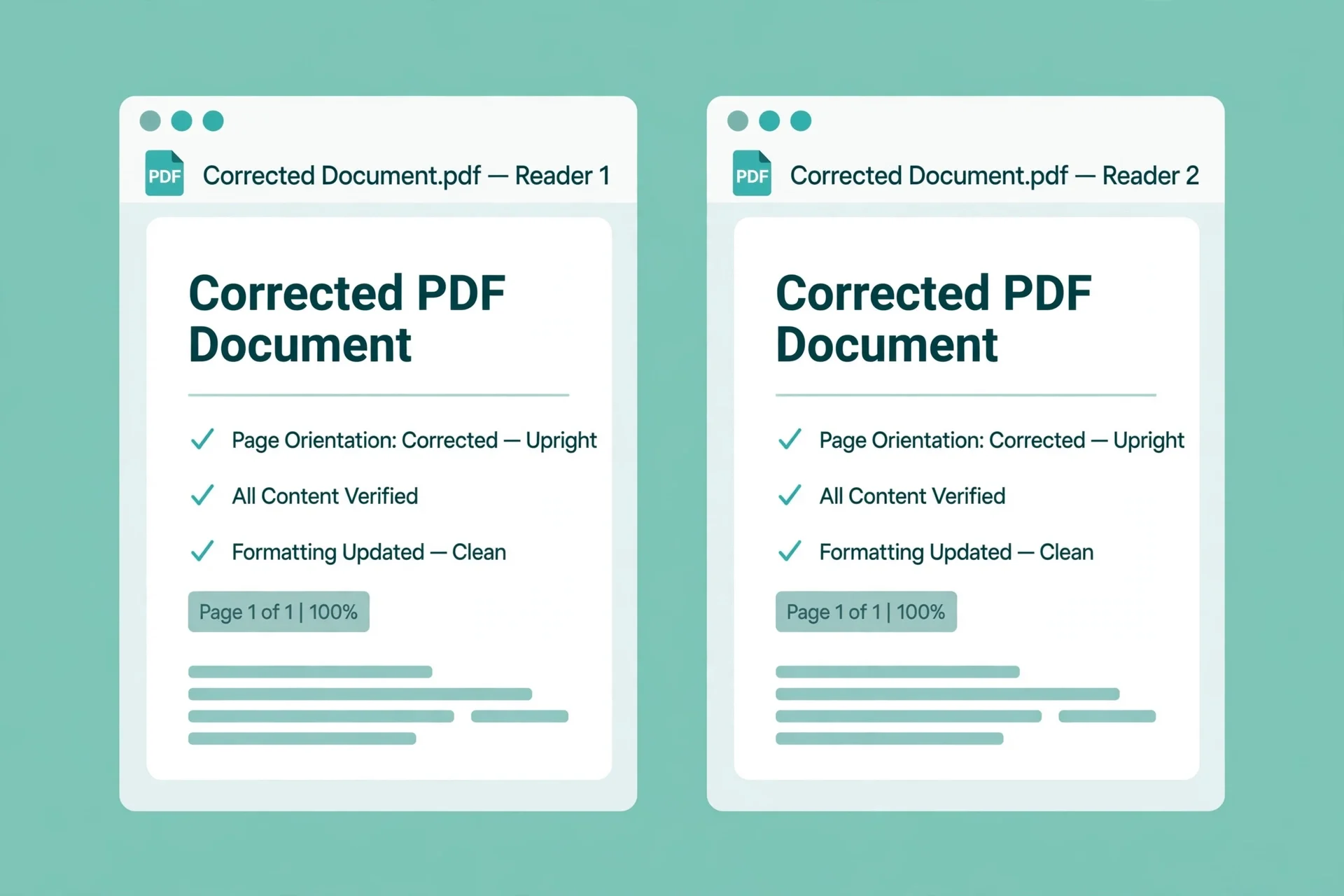
One more check matters after any fix. Reopen the downloaded file in a different reader from the one you used to fix it. If it opens upright there, the rotation is saved. If it only looks right in the fixing tool, you rotated a view again and need to redo the save step.
Step by step: fix it permanently
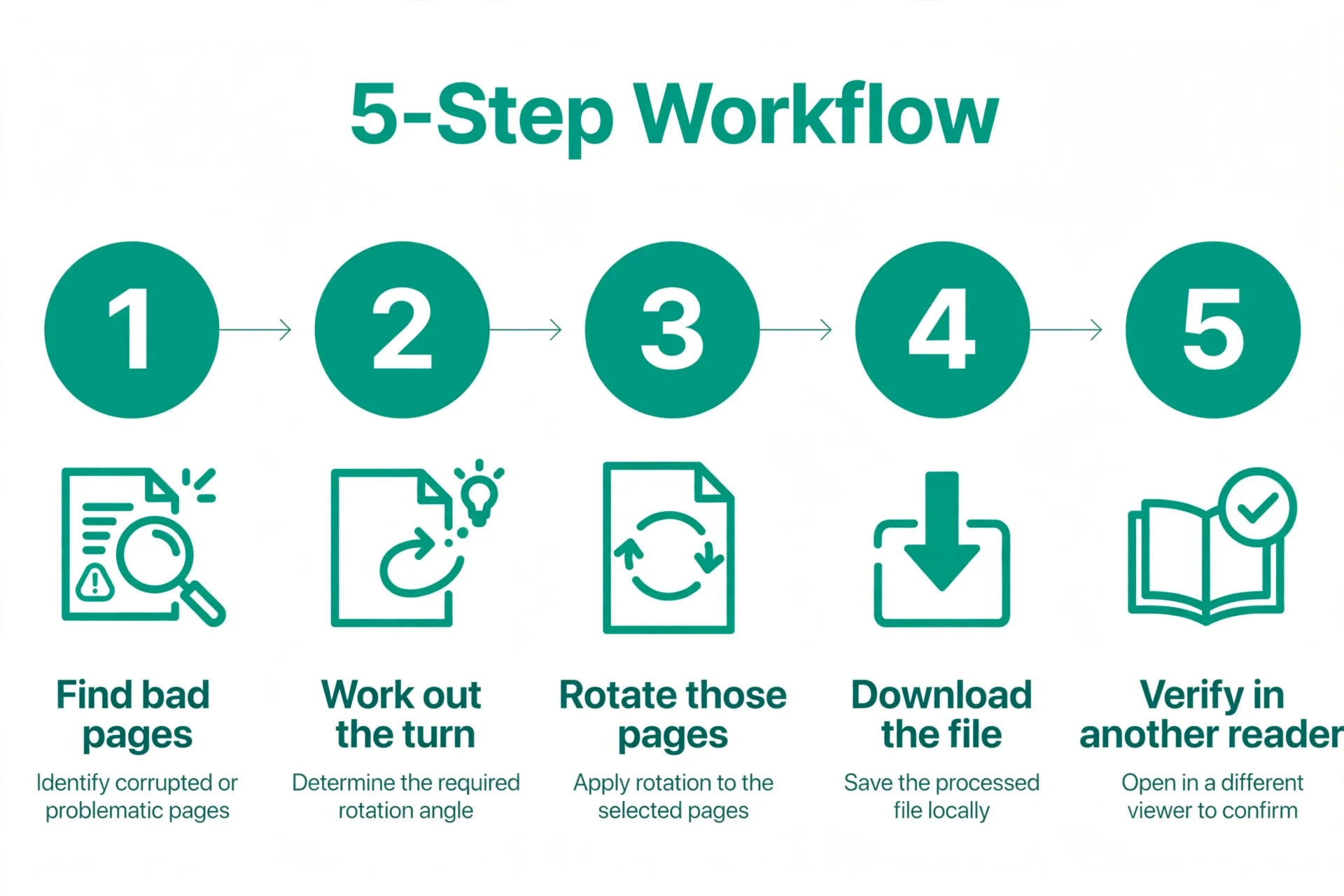
1. Find every wrong page first. Flip through the whole document as thumbnails and mark each page that is sideways or upside down. Fixing only the first bad page and missing a second one near the end is the most common repeat of this job.
2. Work out the turn each page needs. A page lying on its right side needs 90 degrees clockwise. A page lying on its left side needs 270 degrees, which is the same as 90 degrees counterclockwise. An upside-down page needs 180 degrees. If you are unsure, turn it until the text reads left to right and top to bottom.
3. Rotate only those pages. Open the Delete / Rotate PDF Pages tool, turn the marked pages, and leave correct pages untouched. Rotating the whole document to fix one page will break every page that was already right.
4. Download the new file and replace the old one. Save the corrected file over the sideways version, or give it a clear name such as the original name plus "fixed", so the old sideways copy cannot be sent by mistake later.
5. Verify in a different reader. Open the downloaded file in another app or browser, and check the fixed pages plus one page on either side. Also print one fixed page if the document will be printed, because printers honour the saved rotation value too.
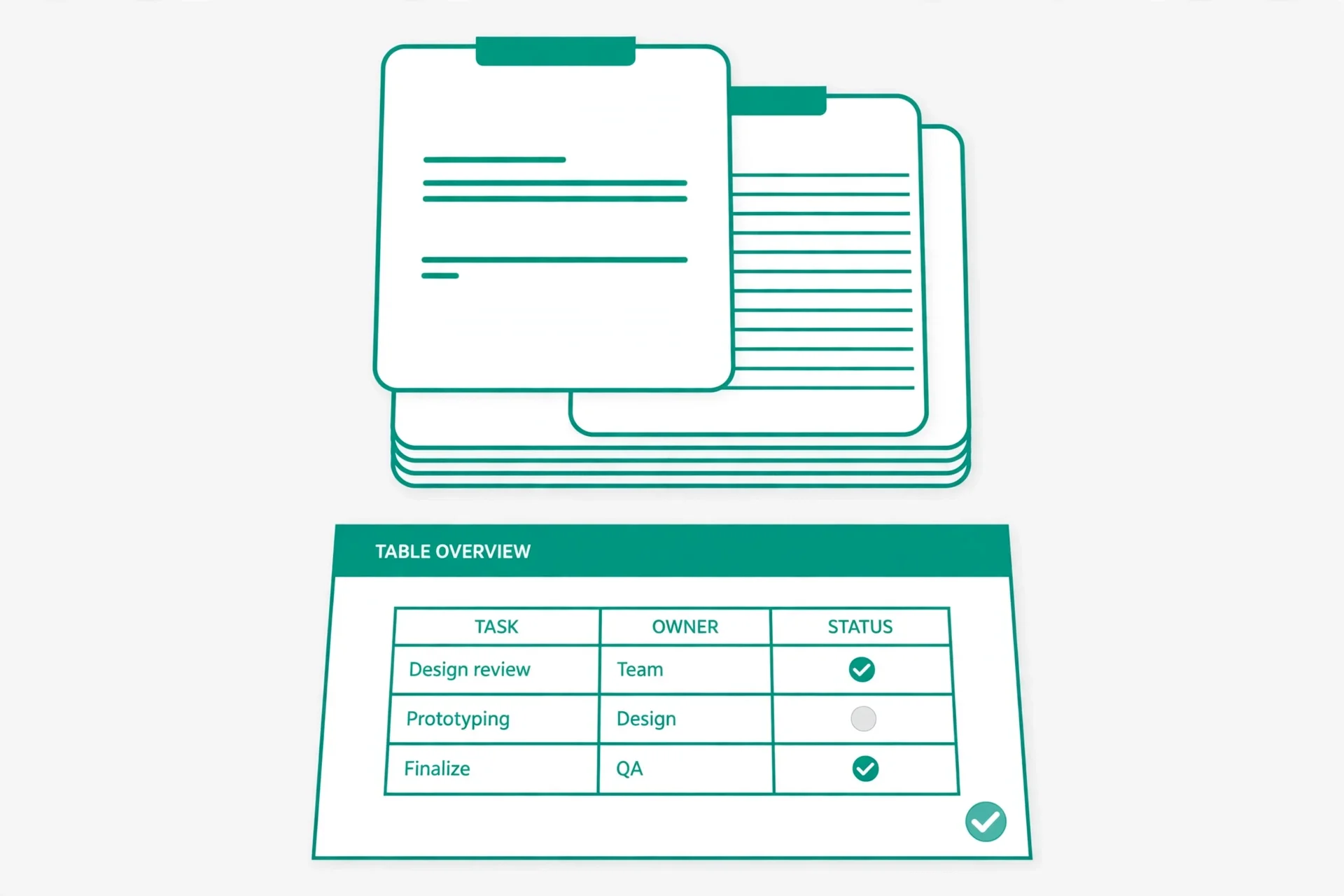
Mixed pages and landscape tables
Not every wide page is a sideways page. A document can mix portrait letters with a landscape spreadsheet, a wide diagram, or a scanned chart that is meant to be read sideways. The goal is readability, not making every thumbnail point the same way. Leave a landscape table alone if its text reads correctly when the page is turned, and only fix pages where the text itself is sideways.
Mixed orientation also affects printing. A landscape page in a portrait document prints rotated on paper unless the printer is told otherwise, which is normal and correct for that page. What you want is for each page to print the way it reads on screen. After fixing, flip through the print preview as well as the screen view, because a page that reads fine on screen but prints sideways will still embarrass you at the office printer.
Forms and portals add one more trap. Some upload previews ignore rotation values and show thumbnails sideways even when the file is correct. If a portal preview looks sideways but the downloaded file opens upright in two readers, the file is right and the preview is wrong. Send the file anyway, and mention in your message that it opens upright, rather than rotating an already correct file a second time and breaking it.
Common mistakes and fixes
Rotating in Chrome and assuming it saved. Fix it by using a tool that writes rotation into the file and downloads a new copy. View rotation never survives closing the file.
Rotating every page to fix one page. Fix it by rotating only the marked pages. A whole-document turn breaks every page that was already correct.
Fixing the file, then sending the old copy. Fix it by replacing the sideways file or renaming the fixed copy clearly, so the old version cannot be attached by mistake.
Rotating an already correct file a second time. Fix it by verifying in a second reader before touching the file again. A sideways portal thumbnail does not mean the file is sideways.
Rescanning the whole document for one bad page. Fix it by rotating the saved page instead. Rescanning costs time, risks new placement errors, and is rarely needed when only orientation is wrong.
Frequently asked questions
Why does my scanned PDF keep opening sideways?
Because the rotation was only changed in a viewer, not saved into the file. Readers such as Chrome rotate the view for one session and forget it on close. Use a tool that writes the rotation into the file and downloads a new copy.
How do I rotate a PDF and save it permanently?
Open a rotate tool, turn the wrong pages by 90, 180, or 270 degrees, download the corrected file, and reopen it in a different reader to confirm. The saved rotation value is then honoured by every reader and printer.
Does rotating a PDF lose quality?
No, when only the rotation value changes. Nothing is redrawn, so text stays selectable and images keep their quality. Printing to PDF as a workaround rebuilds the file instead, which is why it is the second choice.
How do I fix only one sideways page?
Rotate just that page and leave the rest untouched. Rotating the whole document to fix one page will break every page that was already correct.
Why is only one page in my scan sideways?
Usually that page was placed rotated on the scanner glass, fed rotated, or shot in a different phone orientation from the rest. The other pages needed no correction, so only that page carries the wrong orientation.
Should I rotate a landscape table page?
No, if its text reads correctly when the page is turned. A wide table or chart is meant to be landscape. Fix pages where the text itself reads sideways, not pages that are wide on purpose.
Try the free tool
Flip through the document, mark the sideways pages, and note the turn each one needs: 90 degrees for a right-side page, 270 for a left-side page, 180 for upside down. Rotate only those pages, download the corrected file, and verify it in a second reader before you send it.
When you are ready, open the Delete / Rotate PDF Pages tool, turn the marked pages upright, and download the fixed file. Replace the old sideways copy so it cannot be sent by mistake.
How we tested this: we checked the view rotation versus saved rotation distinction against published rotation guides found during research, including the PDF page rotation values of 0, 90, 180, and 270 degrees, and we read the Delete / Rotate PDF Pages tool page on this site to confirm it offers page rotation. This guide covers orientation only; it does not rescan, re-encode, or OCR the document.
Privacy note: the tool pages on this site state that files are processed in your browser with no signup. A scanned document, which often contains personal information, is not sent to a server to be rotated.
Last updated: November 4, 2026