How to Convert PDF to JPG Online Free
If you need to convert PDF to JPG online free, this guide shows you exactly how to do it in under a minute. A PDF to JPG converter turns each page of a PDF document into a separate image file that you can share, upload, print, or insert into a presentation. Instead of installing software or creating an account, you can export PDF pages as images directly in your browser, free of charge. This article walks you through the six simple steps, explains how to keep your image quality high, compares JPG with other image formats, and answers the most common questions about converting PDF files to pictures. By the end, you will know how to get clean, sharp JPG images from any PDF.
Convert PDF to JPG Free — Open the Tool
What Does Converting PDF to JPG Mean?
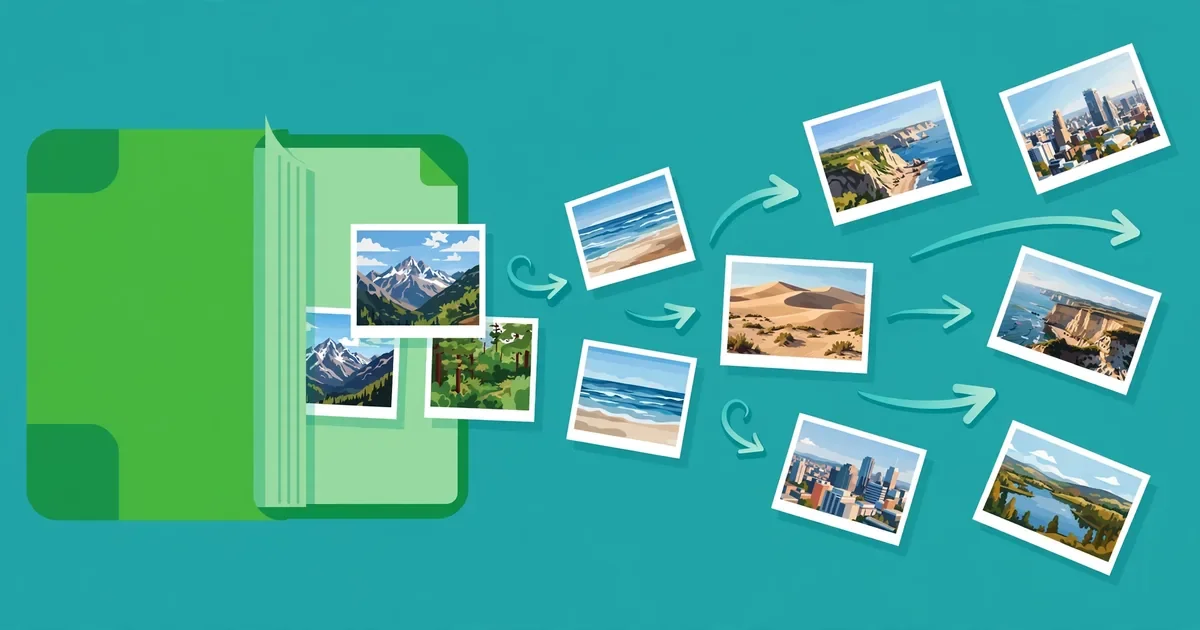
A PDF is a fixed-layout document designed to look the same on every device. A JPG is a raster image made of pixels, which makes it easy to display on websites, attach to messages, and drop into slides or social posts. When you convert a PDF to JPG, each page becomes its own image file, so a ten-page PDF becomes ten JPG pictures. The text and layout stay visually identical, but the result is no longer an editable document. That trade-off is exactly what makes JPG useful: images open everywhere, preview instantly, and cannot be accidentally reformatted by a word processor.
People convert PDF pages to images for many everyday reasons. A teacher might turn a worksheet page into a picture for a class chat. A designer might export a poster page as a JPG to share a preview with a client. A job seeker might save a certificate page as an image to attach to an online application. Students often convert lecture slides to images so they can review them on a phone without opening a PDF reader. In each case, the goal is the same: a lightweight, universal picture that anyone can view in seconds.
Key takeaways
- Export any PDF page as a JPG image.
- Pick only the pages you need — not the whole file.
- Higher quality means a larger file — match quality to the use.
- JPG is best for sharing; PNG is better for sharp text.
How to Convert PDF to JPG Online Free in 6 Steps
Follow these six steps to export PDF pages as JPG images with our free PDF to JPG converter. The whole process takes less than a minute for most files, and your PDF never leaves your browser.
- Open the PDF to JPG tool. Go to the free PDF to JPG converter on this site. There is no signup, no download, and no payment screen standing between you and the tool.
- Choose your PDF file. Click the upload area and select a PDF from your device, or drag and drop the file into the browser window. The file is read locally, so nothing is sent to a server.
- Pick the pages you want. Decide whether to convert every page or only selected pages. If you only need one diagram or one certificate page, converting that page alone saves time and keeps your download tidy.
- Choose your image quality. Higher quality produces sharper text and smoother graphics but creates larger files. For screen viewing, a medium setting is usually plenty; for printing, pick the highest quality available.
- Convert and wait a moment. Click the convert button and let the tool render each page as a JPG image. Large PDFs with many pages take a little longer, so keep the tab open until the download is ready.
- Download your JPG images. Save the images to your device. If the tool offers a ZIP file for multi-page PDFs, download that single archive and extract it to get each page as a separate JPG.
After downloading, open one or two images to confirm the text is sharp and nothing was cut off. If a page looks blurry, convert it again at a higher quality setting rather than enlarging a low-resolution image, which only stretches the same pixels. To get the settings right the first time, see how to convert PDF to JPG without losing quality.
Which Pages Should You Export?
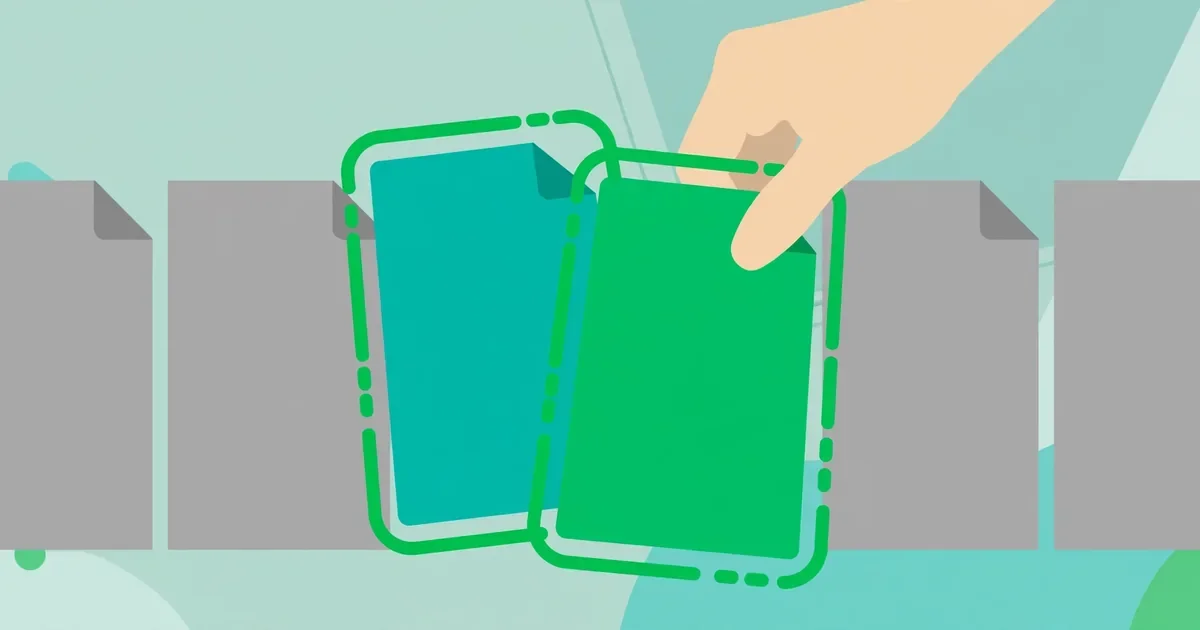
Converting every page is the simplest choice, but it is not always the smartest one. If your PDF has fifty pages and you only need three, exporting everything wastes time and storage. Before you convert, skim the PDF and note the page numbers you actually need. Many tools let you convert a page range, such as pages 4 to 6, or pick individual pages one at a time.
Think about how you will use the images. For a presentation, export only the pages with charts or key quotes. For an online form, export just the page that needs to be uploaded. For archiving, export everything so you have a complete image set. Naming your files clearly, such as report-page-03.jpg, makes them much easier to find later.
PDF to JPG vs Other Image Formats: What to Choose
JPG is the most popular format for PDF pages, but it is not the only option. The table below compares the formats you are most likely to meet, so you can pick the right one for your task.
- JPG: Best for photos, scanned pages, and sharing. Small files, universal support, but lossy compression can soften very fine text at low quality settings.
- PNG: Best for screenshots, diagrams, and pages with sharp lines or transparency. Larger files than JPG, but lossless quality keeps edges crisp.
- WebP: Best for web pages where small file size matters. Great compression, but a few older programs still do not open it.
- Keeping the PDF: Best when the document must stay editable, searchable, or printable at full quality. Choose this when you need the original document, not a picture of it.
For most people, JPG is the right default. It opens on every phone, computer, and messaging app, and its file sizes stay small enough to email or upload without trouble. Switch to PNG only when you need pixel-perfect edges on a diagram or screenshot, and keep the original PDF whenever the document itself still matters.
Tips for the Best Quality JPG Images
Small choices during conversion make a big difference to how your JPG images look. Use these tips to get sharp, professional results every time.
- Start from the best source file. A blurry scan will stay blurry after conversion. If possible, convert from the original digital PDF rather than a photo of a printed page.
- Use high quality for print. Images meant for printing need more pixels than images meant for a screen. Pick the highest quality setting when the JPG will be printed or zoomed in on.
- Do not upscale a small image. Enlarging a low-resolution JPG cannot add detail that was never there. Convert again at a higher setting instead of stretching the file in an editor.
- Check text-heavy pages closely. Small fonts suffer first from compression. Zoom to one hundred percent and read a paragraph before you accept the result.
- Protect private pages. Even though this tool processes files in your browser, avoid converting sensitive documents on shared or public computers, and delete downloads you no longer need.
Common Mistakes to Avoid
Most conversion problems come from a handful of avoidable mistakes. Watch out for these when you export PDF pages as images.
- Converting the wrong file. Double-check the file name before you start, especially if you have several similar PDFs in one folder. Converting the wrong document wastes time and can leak the wrong content if you share it.
- Ignoring page orientation. If a page was scanned sideways, the JPG will be sideways too. Fix the rotation in the PDF first, or rotate the image after conversion.
- Picking the lowest quality to save space. Tiny files look fine as thumbnails but turn to mush when opened full size. Balance file size against readability for the way you will actually use the image.
- Forgetting to check every page. A single skipped or blank page can ruin a set of images. Scroll through the download once before you send it to anyone.
- Uploading private files to random converters. Many online converters upload your document to a server. Use a tool that converts in your browser, like the one on this site, so your files stay on your device.
Also useful: If you only need images from certain pages, first see how to split PDF pages online free.
Quick checklist
Need one chart from a 30-page PDF for a slide? You do not need the whole file. Grab that one page as an image. Drop it in. Done.
Run through this checklist before you finish:
- Correct PDF file confirmed before starting.
- Pages selected — not the whole file by accident.
- Quality checked: text sharp, not blurry.
- File named clearly, for example Page-3.jpg.
- JPG vs PNG choice made for the use.
Related: see how to convert JPG to PDF online free.
Frequently Asked Questions
Is it really free to convert PDF to JPG online?
Yes. You can convert PDF to JPG online free on this site with no account, no payment, and no watermark. The converter runs entirely in your browser, so there are no credits to buy and no daily limits to worry about.
Will my JPG images keep the original quality?
Yes, as long as you choose a suitable quality setting. JPG uses lossy compression, so very low settings can soften fine text, but a medium or high setting keeps pages sharp for screen viewing and printing. Always preview a text-heavy page before you share the images.
Can I convert all pages of a PDF at once?
Yes. You can convert every page of a PDF into separate JPG images in one run. Multi-page PDFs are usually delivered as a ZIP archive containing one JPG per page, which keeps the download to a single file.
Do I get a ZIP file for multi-page PDFs?
Yes, when a PDF has several pages, the images are normally bundled into a ZIP file so you can download them all at once. Extract the ZIP on your device to access each page as an individual JPG image.
Are my files uploaded to a server when I convert them?
No. This PDF to JPG converter processes your file locally in your browser tab. Nothing is uploaded, stored, or shared, which makes it safe for certificates, invoices, and other private documents.
Conclusion
Converting PDF pages to JPG images does not need software, an account, or a payment. Open the free converter, choose your PDF, pick your pages and quality, and download sharp JPG images in under a minute. Remember to start from the best source file, check your images before sharing them, and keep the original PDF until the pictures are right.