How to Convert JPG to PDF Online Free
Need to convert JPG to PDF online free? Whether you are turning photos into a single document, sending scanned pages, or building a portfolio, this guide shows you how to turn images into a clean PDF in seconds — no signup, no watermark, no software to install.
Key takeaways
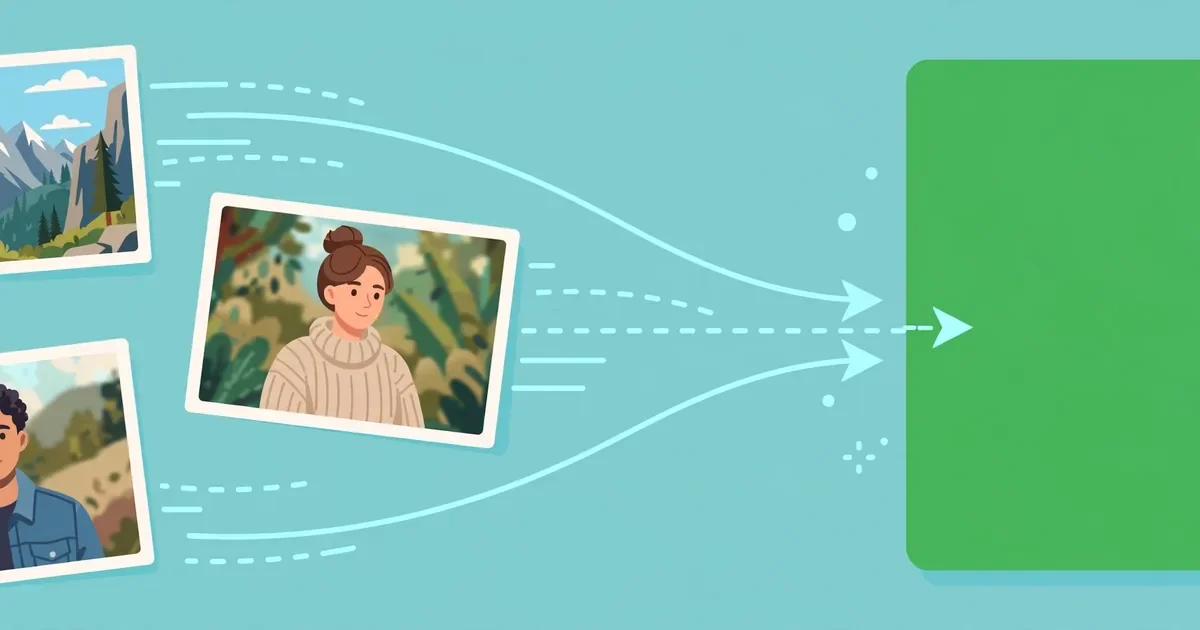
- Turn one or many images into a single clean PDF.
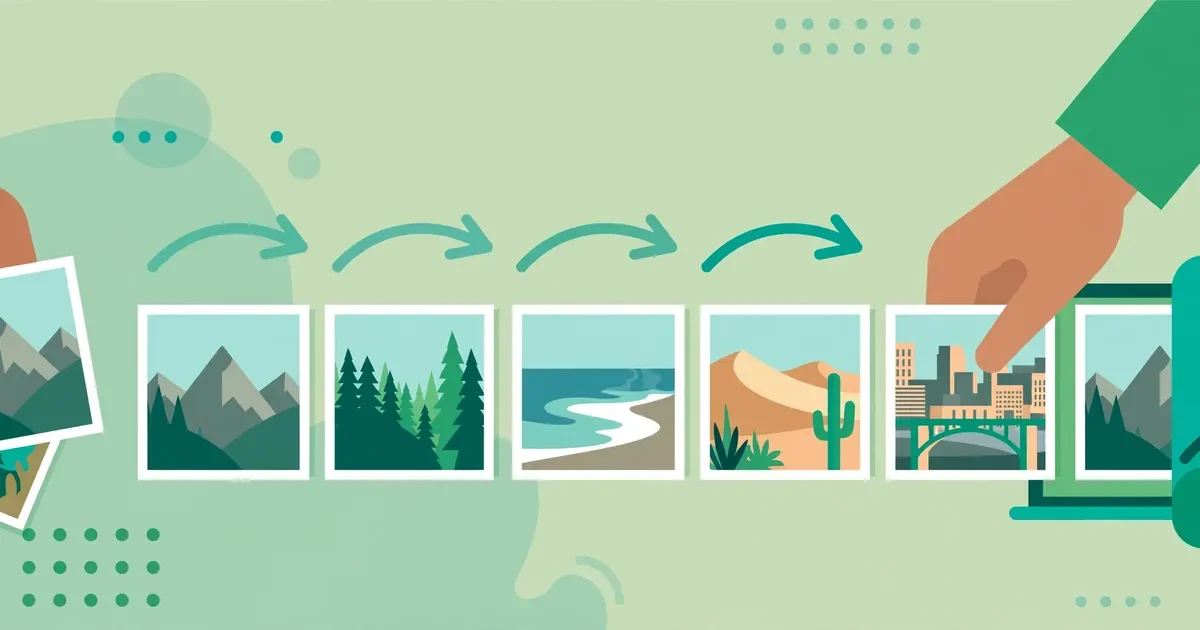
- Image order becomes page order — sort before converting.
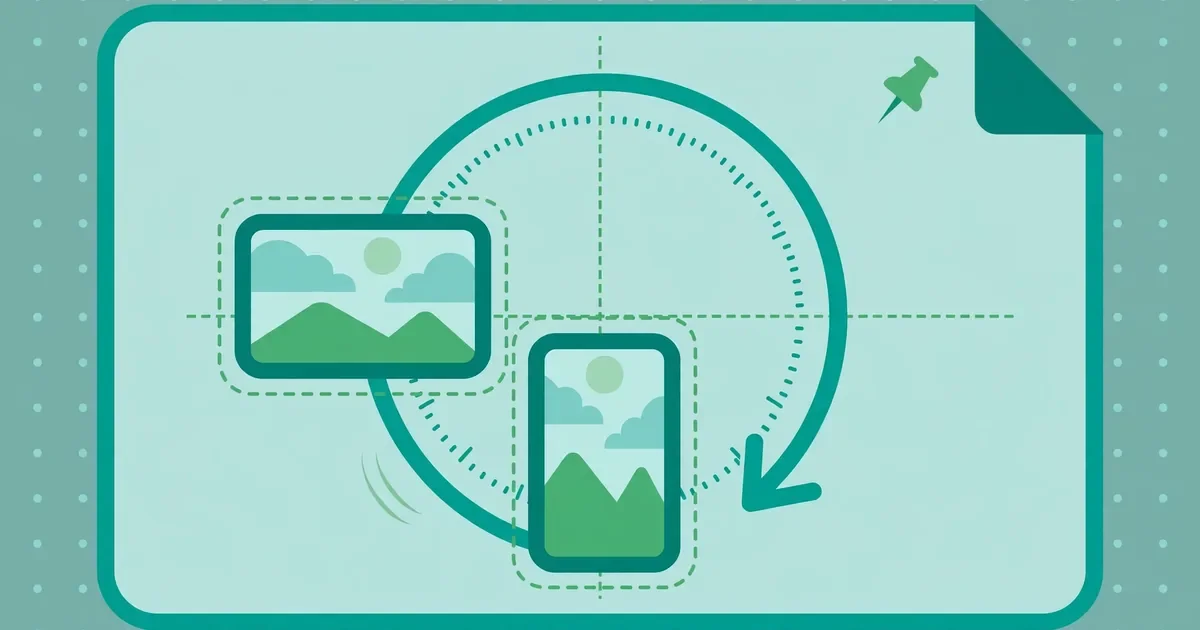
- Check orientation so no page comes out sideways.
- PDFs are easier to share and print than loose image files.
Why convert images to PDF?
Picture this: twelve photos of a signed contract, sitting in your camera roll. Try emailing those. Messy. Turn them into one PDF and suddenly it looks like real paperwork.
Images are easy to take but awkward to share as documents. A set of JPG photos sent one by one can arrive out of order, appear at different sizes, or get compressed by messaging apps until text becomes unreadable. A PDF fixes all of that. It bundles your images into a single file, keeps them in the order you choose, and looks the same on every phone, tablet, and computer. That is why schools, offices, and government portals so often ask for PDFs instead of loose image files.
The most common uses are practical. Students photograph handwritten notes, assignments, or textbook pages and turn them into one PDF for submission. For a closer look at that job, see how to turn scanned notes into one PDF. Job seekers combine scanned certificates and ID pages into a single document. Homeowners and renters photograph receipts, contracts, and bills and store them as PDFs for their records. Photographers and designers turn a set of images into a portfolio that opens as one clean file. In each case, converting JPG to PDF turns a pile of separate pictures into something that looks professional, is easy to email, and is simple to print. Because the conversion on this site happens in your browser, your photos never leave your device, which matters when the images contain personal documents.
How to convert JPG to PDF online, step by step
- Open the free JPG to PDF converter. Go to the JPG to PDF tool in your browser. There is nothing to install and no account to create — it works on desktop and mobile alike.
- Choose your JPG images. Select one image or several from your device, or drag and drop them into the upload area. If you are combining pages of a document, pick the files in reading order to save time later.
- Check the order and orientation. Look through the image list and make sure every page is in the right sequence and the right way up. Remove any duplicate or blurry photo before converting.
- Pick your page settings. Choose the page size and orientation that suit your images — portrait for document photos, landscape for wide shots — and keep the default margins unless you need edge-to-edge pages.
- Convert the images. Click the convert button and wait a moment while your images are assembled into a PDF in your browser. Keep the tab open until the download starts.
- Download and check the PDF. Save the file and open it to confirm every image is present, in order, and readable. If a page looks sideways or cropped, fix the source image and convert again.
What happens to image quality?
A JPG to PDF converter does not need to change your images at all. Each picture is placed onto a PDF page at a size that fits the page, and the original pixels are preserved as far as the page allows. Very large photos are scaled down to fit, but they remain sharp for on-screen viewing and for normal printing. Small or low-resolution photos, on the other hand, cannot gain detail by becoming a PDF — a blurry photo stays blurry, so the quality of the result always starts with the quality of the source image.
A few choices affect the final look. Picking a page size that matches your images avoids awkward white borders or unwanted cropping. Portrait pages suit phone photos of documents, while landscape pages suit wide screenshots and camera shots. If your images have very different shapes, expect some pages to have more white space than others; that is normal and does not mean anything went wrong. For the best results, photograph documents straight on, in good light, with the edges of the page visible, and crop out desks and backgrounds before converting. A clean source photo produces a clean PDF page, and a little care at this stage saves you from converting twice.
Tips for a clean, professional PDF
- Name files in order. Before uploading, rename images as 01, 02, 03, and so on. Numbered names keep multi-page documents in sequence automatically.
- Fix orientation first. Rotate sideways photos in your gallery app before converting, so every page of the PDF reads the right way up.
- Crop out the background. Trim desks, fingers, and shadows from document photos so each PDF page shows only the document itself.
- Use good lighting. Even, bright light without glare gives sharper text. Avoid flash on glossy paper, which creates bright spots that hide words.
- Keep one document per PDF. Do not mix a contract, a receipt, and a certificate in one file. Convert each document separately for tidier records.
- Combine related PDFs afterwards. If you convert images in batches, join the results with Merge PDF — or read our guide on how to merge PDF files online free.
- Check the file size. PDFs built from many high-resolution photos can be large. If the result is too big to email, compress it with our JPG to PDF tool workflow followed by the compressor, or reduce photo resolution before converting.
- Use a clear file name. Save the result as something descriptive, such as “invoice-march-2026.pdf,” so you can find it later without opening it.
Online converter vs built-in phone and computer options
Most phones and computers already offer some way to make a PDF from images. On a phone, you can print a photo to PDF from the share menu, and on a desktop you can insert images into a word processor and export the result. These built-in options work, but they are slow when you have many images: each photo must be added one at a time, page sizes must be set by hand, and ordering mistakes are easy to make. A dedicated JPG to PDF converter online free tool is built for exactly this job, so it handles batches, ordering, and page layout in one pass.
The online tool also wins on consistency. Every image gets the same page treatment, the output looks the same on any device, and there is nothing to install. The one advantage of built-in options is that they work offline, which can help if you have no internet connection. For everything else — combining ten receipt photos into one expense file, turning scanned homework into a submission, or assembling a portfolio — the free online converter is faster and produces a more polished result. As with all tools on this site, the conversion happens locally in your browser, so your images are never uploaded to a server.
| Option | Cost | Batch images | Setup | Best for |
|---|---|---|---|---|
| Free online converter | Free | Yes, many at once | None, works in browser | Multi-page documents, portfolios |
| Phone share-to-PDF | Free | Usually one at a time | None | Single quick photo |
| Word processor export | Free or paid | Manual, one by one | App required | Documents with captions and text |
Common mistakes to avoid
- Uploading images out of order. A PDF with shuffled pages confuses the reader. Sort your images before converting, or check the list carefully in the tool.
- Mixing documents in one PDF. Combining unrelated images into a single file makes it hard to find anything later. Keep each document separate.
- Using blurry photos. A PDF cannot rescue a photo that is out of focus or too dark. Retake a bad shot instead of converting it and hoping.
- Ignoring page orientation. A sideways page in the middle of a document looks careless and is annoying to read. Fix rotation before you convert.
- Sending the wrong file. After converting, double-check that you are sharing the new PDF and not one of the original JPGs, especially when the file names look alike.
Also useful: To combine several converted PDFs into one file, see how to merge PDF files online free.
Quick checklist
Run through this checklist before you finish:
- Images sorted in page order.
- Orientation checked (portrait vs landscape).
- Output PDF opened and every page viewed.
- File size checked for email.
- Originals kept.
Related: see how to convert PDF to JPG online free.
Frequently asked questions
Is it really free to convert JPG to PDF online?
Yes. The JPG to PDF converter on this site works without an account, payment, or watermark. You can convert as many images as you need, and everything runs in your browser.
Can I convert PNG images to PDF too?
Yes. The tool accepts common image formats including PNG as well as JPG, so you can convert screenshots and graphics alongside your photos. If you need the reverse direction, see our guide on how to convert PDF to JPG online free or use PDF to JPG.
Can I combine multiple images into one PDF?
Yes — that is the main point of the tool. Upload all the images you want, arrange them in the order you need, and convert them into a single PDF with one page per image.
Will converting JPG to PDF reduce the image quality?
No, not noticeably. Images are placed onto PDF pages without aggressive re-compression, so they stay sharp for viewing and normal printing. Very large photos are scaled to fit the page, but the visible quality remains high.
Are my images uploaded to a server when I convert them?
No. On this site, conversion happens locally in your browser tab. Your images are never uploaded, stored, or seen by anyone else, which makes the tool safe for photos of personal documents.
Conclusion
Turning images into a PDF is one of the simplest document tasks there is — once you use the right tool. Choose your images, check the order, convert, and download a single clean file that is easy to share, print, and store. Keep each document separate, use clear file names, and give your source photos a quick check before converting. Ready to turn your photos into a PDF? Convert JPG to PDF free now — it takes less than a minute.