Merge PDF on Phone Without an App
You have three PDFs on your phone: a cover letter, a CV, and your certificates. The job application wants one file. There is no computer nearby, and you do not want to install a random app, create an account, and hand your documents to a server you have never heard of. Good news: you can merge PDFs on your phone without an app, on iPhone and on Android, and the fastest way takes about a minute.
Quick answer
Yes, you can merge PDFs on your phone without installing an app. On iPhone, open the Files app, select your PDFs, and use Quick Actions, then Create PDF. On Android, use the Google Drive app, or your phone's Files app if it offers a merge option. On any phone, the simplest route is a browser-based merge tool: open it in Safari or Chrome, pick your files, arrange them, tap Merge, and download the result. Your files stay on your device when the tool runs in your browser.
iPhone: use the Files app
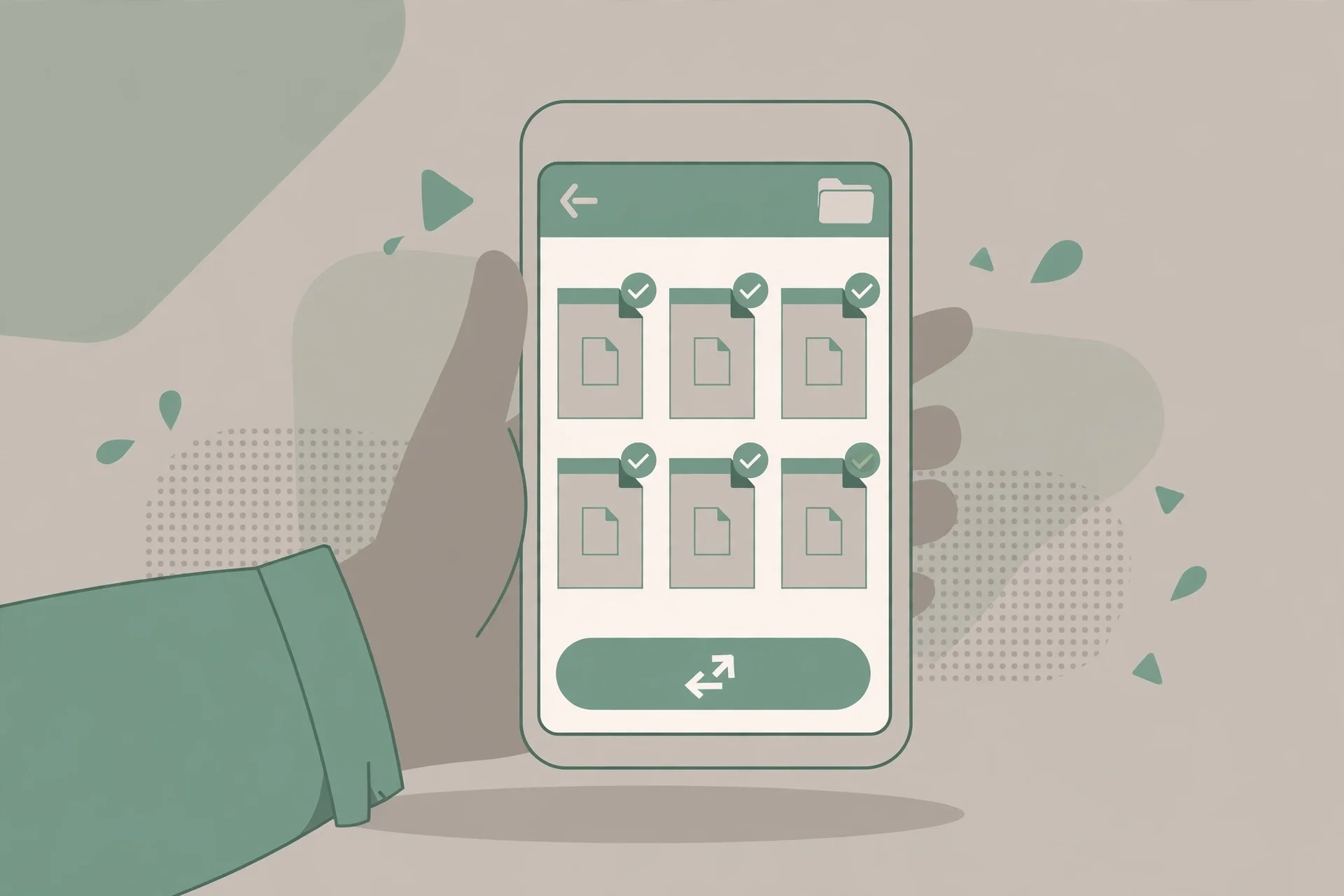
The iPhone has a built-in PDF merge feature in the Files app, and it has been there since iOS 16. No app to install, no account, no upload. It works on iPhone and iPad the same way.
Step 1: Put your PDFs in one folder. Open the Files app and go to the folder with your PDFs. If they arrived by email or WhatsApp, save each one to Files first, in the same folder. This step matters, because the merge works on files in one place.
Step 2: Select the files. Tap the three-dot menu in the top corner, tap Select, then tap each PDF you want to combine. The order you tap them in is not always the order they end up in, so check the next step.
Step 3: Create the PDF. Tap the three-dot menu again at the bottom of the screen, open Quick Actions, and tap Create PDF. The iPhone combines the selected files into a single PDF in the same folder.
Step 4: Rename it. The new file gets a generic name. Long-press it, tap Rename, and give it a clear name like "Application - Your Name.pdf". A clear name matters when you attach it to an email or a form.
The Files method has one weakness: page and file order. The merged file usually follows the order the files are listed in the folder, not the order you tapped them. If the order matters, rename your files first so they sort correctly, for example "1-cover-letter.pdf", "2-cv.pdf", "3-certificates.pdf". Then select them and create the PDF. Apple documents the Files app in its support guide to organizing files and folders on iPhone.
This method only combines whole files. It cannot reorder pages inside a file, remove a page, or compress the result. For that, use the browser method below.
iPhone: use Shortcuts for more control
If the Files app merge gives you the wrong order, or you merge PDFs often, Apple's free Shortcuts app gives you more control. Shortcuts comes pre-installed on iPhone, and it can build a small automation that combines PDFs in the order you pick.
Step 1: Open Shortcuts. Find the Shortcuts app on your home screen. If you deleted it, download it again free from the App Store. It is made by Apple.
Step 2: Create a new shortcut. Tap the plus button to make a new shortcut. Add the action "Select File", set it to pick PDFs, then add the action "Make PDF" from the selected files.
Step 3: Save the result. Add a "Save File" action at the end, and pick the folder where the merged PDF should go. Name the shortcut "Merge PDFs" so you can find it again.
Step 4: Run it. Tap the shortcut, pick your PDFs in the order you want them, and the merged file appears in the folder you chose. The shortcut stays saved, so the next merge is two taps.
Shortcuts is worth the five minutes of setup if you merge PDFs every week. For a one-off job, the Files app or the browser method is faster. One warning: shortcuts you download from strangers on the internet can do things you did not expect. Build this one yourself, or use the Files app, and skip random shortcut links.
Android: use Google Drive
Android does not have one built-in merge feature that works on every phone, because each manufacturer ships its own Files app. The most reliable route on Android is the Google Drive app, which most Android phones already have, and which also works on iPhone.
Step 1: Open Google Drive. Open the Drive app and sign in with the Google account you want the file saved to. If your phone has more than one Google account, check the right one is active before you start.
Step 2: Tap the plus button. Tap the large plus button at the bottom right, then tap Scan. This opens the document scanner, which handles existing PDFs as well as paper pages.
Step 3: Add your files. Capture or import the pages you want in the merged file, in order. You can add more pages with the plus button, reorder them by dragging the thumbnails, and retake any page that came out blurry or cropped wrong.
Step 4: Save as PDF. Tap Done, choose the PDF format, give the file a clear name, pick the Drive folder, and tap Save. The merged PDF uploads to your Drive, and you can open it on any device signed in to the same account.
Google documents this scanner in its help page on scanning files as PDFs with your mobile device. Two things to know before you use it. First, the result is saved to your Google Drive, so the file leaves your phone and sits in your Google account. That is fine for ordinary documents, but not the right route for a passport scan or a contract you would rather keep offline. Second, Drive's scanner is designed for scanning paper, so merging existing PDFs this way takes more taps than a dedicated merge tool.
Android: check your Files app first
Before you open Drive, check the Files app that came with your phone. Some manufacturers include a merge option, and it is the fastest route when it exists.
On Samsung phones, open My Files, go to the folder with your PDFs, select them, tap the three-dot menu, and look for a Merge or Combine option. On Pixel phones, open Files by Google and check the menu the same way. On OnePlus, Xiaomi, and other brands, the option may or may not be there, and the menu wording changes between software versions.
If your Files app has no merge option, do not spend long hunting for it. The browser method below works on every Android phone, in Chrome, with no app and no account. It takes about a minute, and it gives you proper reordering with up and down arrows, which a small phone screen makes much easier than dragging.
The browser method: works on every phone
This is the method to use when the built-in options do not fit: your Android Files app has no merge button, the iPhone Files app put the pages in the wrong order, or you want the file to stay on your device instead of uploading to a cloud account. It works the same on iPhone and Android, in Safari or Chrome, with no app to install and no account to create.
Step 1: Open the merge tool. In your phone's browser, open the free Merge PDF tool. The page loads once and then works offline, because the tool runs in your browser.
Step 2: Add your PDFs. Tap the file picker and choose your PDFs. On iPhone, pick them from the Files app. On Android, pick them from Files or Downloads. You can add two files or twenty. Tap the picker again to add more files later if you forgot one.
Step 3: Arrange the order. Use the up and down arrows next to each file to put them in the order you want. This is the step the built-in methods handle worst, so take ten seconds here. Cover letter first, CV second, certificates last, for a job application. For a visa application, follow the order the embassy asks for, and read our guide to merging PDFs for a visa application before you start.
Step 4: Merge and download. Tap Merge, wait a few seconds, and download the result. On iPhone the file lands in the Files app under Downloads, or in iCloud Drive if that is where your downloads go. On Android it lands in the Files app under Downloads. Rename it right away, while you still remember what it is.
The whole job takes about a minute for a few small files. The tool on this site processes everything in your browser with pdf-lib, so the files never leave your phone. That matters when the documents are yours: a CV has your address and phone number on it, and a visa file has your passport details. No upload means no copy sitting on a server, no deletion timer to trust, and nothing to leak.

Where does the merged file go?
Downloads on a phone are the part people lose most often. The file is there, just not where they looked. Here is where each method saves the result.
| Method | Where the merged PDF lands |
|---|---|
| iPhone Files app | The same folder as the original files, in the Files app |
| iPhone Shortcuts | The folder you picked in the Save File action |
| Google Drive | The Drive folder you picked, synced to your Google account |
| Browser tool on iPhone | Files app, under Downloads, or iCloud Drive if that is your download location |
| Browser tool on Android | Files app, under Downloads |
If you cannot find the file, open the Files app and check Downloads first, then search for the file name. On iPhone, also check the Recents tab in Files, which shows the newest files across all locations. On Android, check the Downloads folder in your Files app, not the gallery, because a PDF is a document, not a photo, and the gallery will not show it.
One more tip: rename the file before you attach it anywhere. A file called "merged.pdf" or "Document.pdf" looks careless in a job application and gets lost in a downloads folder full of files with the same name. "Application - Your Name.pdf" takes five seconds and saves confusion later.
What phones struggle with
Phones can merge PDFs, but they are not computers, and a few jobs go badly on a small screen. Knowing the limits in advance saves a failed upload at the worst moment.
Very large files. Phones have less memory than computers. Merging several large scanned PDFs, say five files of 30 MB each, can slow the browser or crash the tab. If that happens, merge in two batches on the phone, then merge the two results, or do the job on a computer. If the merged file is too big to send, run it through the free Compress PDF tool on your phone afterwards.
Scanned PDFs. A scanned PDF is a photo of a page, not text. Merging works fine, but the result is still a set of images, so you cannot search inside it or copy text from it. If you need searchable text, the file needs OCR, which phones do not do well. Scan with Google Drive instead, which runs OCR on the result, or use a desktop tool.
Password-protected PDFs. Most free merge tools refuse password-protected files, because they cannot open them. Remove the password on a computer first, or ask the sender for an unlocked copy. Never type a document password into a random website.
Reordering on a small screen. Dragging files into order with a fingertip is fiddly, especially with more than five files. Use the up and down arrows if the tool offers them, and rename files with numbers before you start, so the order is right from the beginning.
Mobile data. If you use a server-based merge tool, every file is uploaded and downloaded again over your connection. A browser-based tool avoids the upload entirely, which also saves mobile data. If you are on a slow connection, that difference is noticeable.
Common mistakes and fixes
Merging in the wrong order. Fix it by renaming files with numbers before you start, and checking the order in the tool before you tap Merge. Cover letter first, CV second, certificates last.
Losing the merged file in Downloads. Fix it by renaming the file immediately, and checking the Files app under Downloads, not the photo gallery.
Uploading a passport scan to a random free app. Fix it by using a browser-based tool or the built-in Files app for identity documents. No upload means no copy on a server.
Installing a "free" PDF app that demands a subscription after one merge. Fix it by using the browser method instead. A website cannot charge you for a merge, and there is nothing to uninstall afterwards.
Sending a 40 MB merged file that bounces back. Fix it by compressing the result before you send it, and checking the size limit of the form or email you are sending it to.
Merging a password-protected PDF and getting an error. Fix it by removing the password on a computer first, or asking the sender for an unlocked copy.
Frequently asked questions
Can I merge PDFs on my phone without an app?
Yes. On iPhone, use the Files app: select your PDFs, open Quick Actions, and tap Create PDF. On Android, use Google Drive or your phone's Files app. On any phone, a browser-based merge tool works in Safari or Chrome with no install and no account.
How do I merge PDFs on iPhone for free?
Open the Files app, put your PDFs in one folder, tap Select, choose the files, then tap the three-dot menu, Quick Actions, and Create PDF. Rename the result so you can find it. For more control over the order, use the free Merge PDF tool in Safari instead.
How do I merge PDFs on Android for free?
Check your Files app for a merge option first. If it has none, use the Google Drive app: tap the plus button, then Scan, add your files in order, and save as PDF. Or open a browser-based merge tool in Chrome, which works on every Android phone with no app.
Where do merged PDFs go on my phone?
On iPhone, the Files app saves the merged PDF in the same folder as the originals, and browser downloads go to Files under Downloads. On Android, browser downloads go to the Files app under Downloads, and Drive merges save to the Drive folder you picked.
Is it safe to merge PDFs on my phone?
Yes, if the files stay on your device. The Files app, Shortcuts, and browser-based tools keep the files on your phone. Server-based apps and websites upload a copy, so use those only for ordinary files, never for passports, bank statements, or contracts.
Can I merge a scanned PDF on my phone?
Yes, merging works the same for scanned PDFs, but the result is still a set of page images, so you cannot search or copy text from it. If you need searchable text, scan with Google Drive, which runs OCR, or use a desktop tool with OCR.
Try the free tool
The short version: iPhone users can merge PDFs in the Files app with no install, Android users can use Google Drive or their Files app, and everyone can use a browser-based merge tool that works on any phone in about a minute. If the file is sensitive, pick the route that never uploads it.
When you are ready, open the free Merge PDF tool on your phone, add your files, arrange them, and download the result. If you have photos instead of PDFs, read how to turn screenshots into one PDF first. If the file is for a visa application, read how to merge PDFs for a visa application. And if you want the full version on a computer, read how to merge PDF files online free.
How we tested this: we followed the iPhone Files app steps, the Google Drive scan flow, and the browser merge flow on this site, using test PDFs, and checked where each method saves the result. The iPhone and Drive steps follow Apple's support guide to organizing files on iPhone and Google's help page on scanning files as PDFs. Menu labels vary between phone models and software versions, so follow the labels on your own device. the Drive scan flow wording on a current Android version before publishing, since Google updates the app often.
Privacy note: the Merge PDF, Split PDF, Compress PDF, JPG to PDF, and PDF to JPG tools on this site need no account and no signup. Your files are processed in your browser and never uploaded, never stored, and never shared with third parties. When you close the tab, the working files disappear with the session.
Last updated: November 13, 2026
Related tools and guides
Merge PDFs for a Visa Application
One file, in the right order, for sensitive documents.
Read article →