Turn Screenshots Into One PDF
Screenshots pile up fast: a receipt here, a chat thread there, six pages of an article you want to keep. This guide shows you how to turn screenshots into one PDF that is easy to share, print, and store, free, with no signup and no watermark.
Quick answer
To turn screenshots into one PDF, open the free JPG to PDF tool, add your screenshots in reading order, and convert. Each screenshot becomes one page of a single PDF. The same trick works for paper: you can combine scanned notes into one PDF the same way. It works on iPhone, Android, Windows, and Mac, with no signup and no watermark.
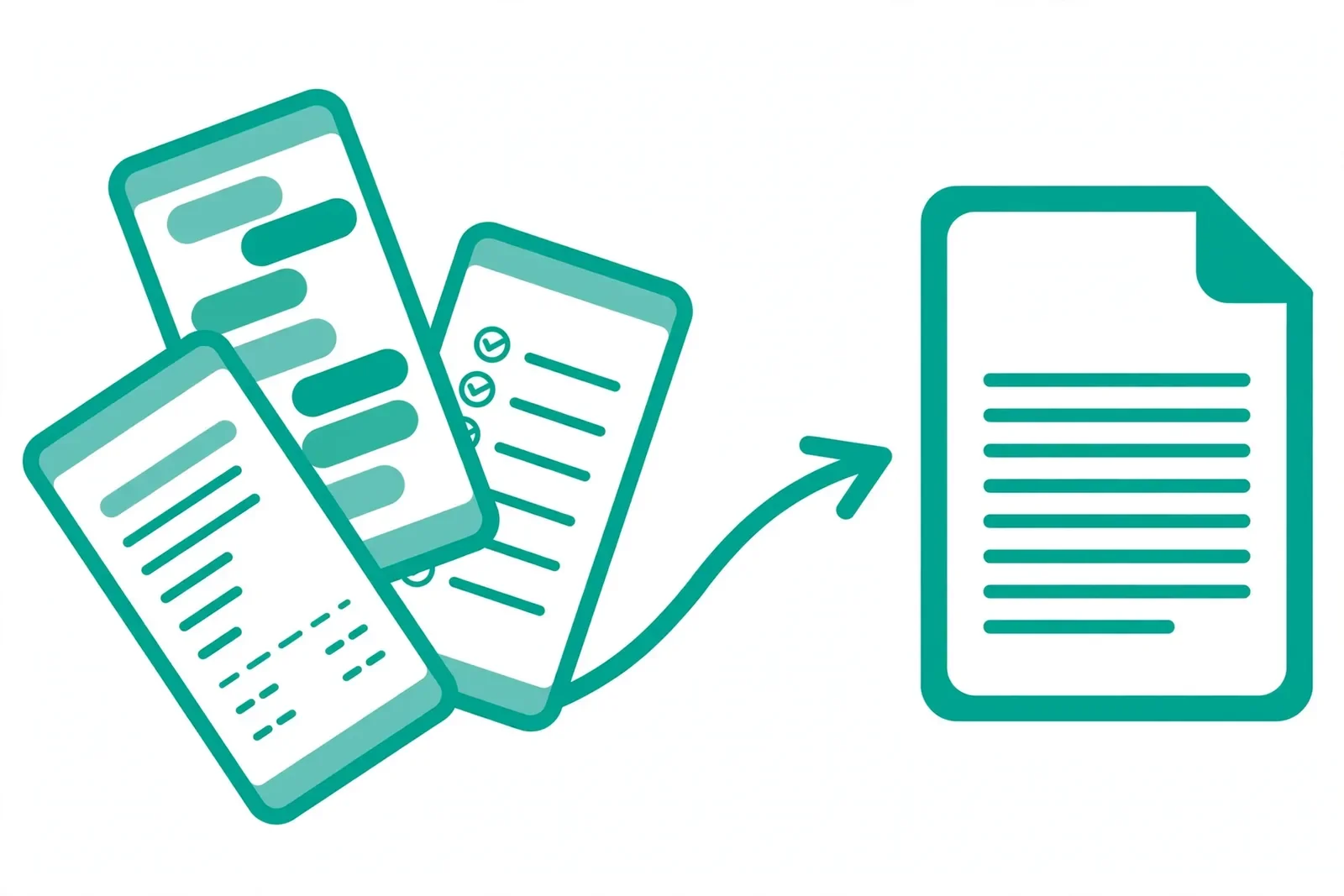
Why one PDF beats a pile of screenshots
Picture this: you send a friend twelve screenshots of a recipe, and they open them out of order, miss page 4, and ask you to resend the whole thing. One PDF would have ended the confusion before it started.
Screenshots are made to capture a moment, not to organize a document. Sent one by one, they arrive in whatever order the app feels like, chat apps compress them until small text turns fuzzy, and nobody can tell if a page is missing. A PDF fixes all three problems: one file, in the order you choose, under one name.
The situations come up all the time. A student captures a long article, a timetable, or a set of lecture slides and wants one file to revise from. A freelancer screenshots client feedback spread across ten messages and needs one record to attach to an invoice. A shopper screenshots an order confirmation, a receipt, and a delivery update for a refund claim. A bug report with five screenshots of error messages reads far better as one PDF than as five loose attachments. In each case, the content already exists on your phone. Turning it into a PDF just makes it usable.
Sharing is simpler too. Most email and form systems accept one PDF without complaint, while a folder of twenty PNG files can hit attachment limits or get rejected. A PDF also prints cleanly, one screenshot per page, which matters when a teacher or an office asks for a paper copy.
How to turn screenshots into one PDF online
- Collect your screenshots first. Save every screenshot you need into one folder or album, and delete the ones you will not use. Working from a short, clean list is faster than sorting inside the tool.
- Open the free screenshot to PDF tool. Go to the JPG to PDF tool in your browser. There is nothing to install and no account to create. It works on phones, tablets, and computers alike.
- Choose your screenshots. Click Choose files or drop your images into the upload area. The tool accepts JPG and PNG images, which covers the screenshots most phones and computers save.
- Put them in reading order. Check the list carefully. Each screenshot becomes a page in the finished PDF, in list order. Fix any sideways screenshots in your gallery app before converting.
- Convert to PDF. Start the conversion and keep the tab open until the download starts. Your screenshots are converted in your browser, so nothing is uploaded to a server.
- Download and check every page. Open the PDF and flip through it once. Confirm every screenshot is present, in order, and readable. If a page is missing or upside down, fix the source screenshot and convert again.
How to save a screenshot as a PDF on iPhone
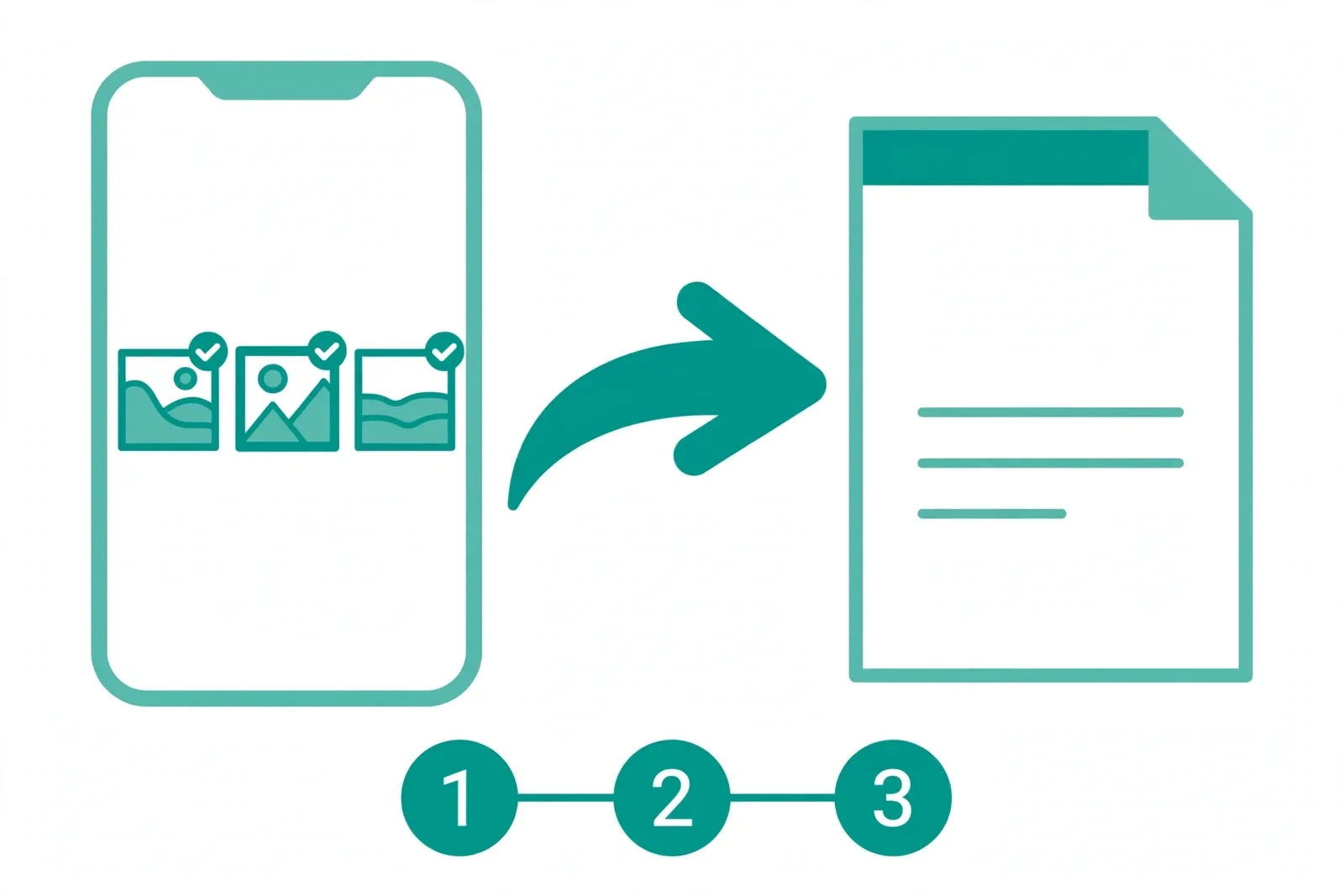
An iPhone can turn a single screenshot into a PDF without any app, using the Print trick in Photos. It works, but it is easy to miss, because nothing on screen says PDF until you try it.
- Open the Photos app and select the screenshot you want to convert.
- Tap the Share icon, then tap Print.
- On the print preview, pinch outward with two fingers on the thumbnail. The preview opens as a PDF.
- Tap the Share icon again and choose Save to Files to store the PDF.
The catch is that this method handles one screenshot at a time. If you have eight screenshots of a chat thread, you would end up with eight separate PDFs. The simple fix is to convert each one, then join them with Merge PDF, or read our guide on how to merge PDF files online free. For anything more than two or three screenshots, it is usually faster to skip the built-in method and add them all to the online tool in one go. Adobe's guide to saving a screenshot as a PDF describes the same Print steps for iPhone.
How to save a screenshot as a PDF on Android
Android has a built-in route too, through the Print option in Google Photos. Like the iPhone method, it converts one screenshot at a time.
- Open your screenshot in Google Photos or your gallery app.
- Tap the three-dot menu and choose Print.
- Under the printer dropdown, choose Save as PDF.
- Adjust the paper size and orientation if the preview looks wrong, then tap Save and pick a folder.
Menus vary a little between phone makers, so the Print option may sit in a different spot on your phone. If you cannot find it, or you need several screenshots in one file, the online tool is quicker: add all the screenshots at once and download one PDF instead of many.
How to turn screenshots into a PDF on Windows and Mac
On a computer, screenshots usually live in a folder already, which makes batch conversion simple. You still have two good routes: the built-in print option, or the online tool.
On Windows: open a screenshot in the Photos app, press Ctrl + P, and choose Microsoft Print to PDF in the printer dropdown. Then pick where to save the file. This works well for one screenshot. For a set of screenshots, print each one and merge them afterwards, or use the online tool to convert the whole set in one run.
On Mac: open the screenshot in Preview, click File, then choose Export as PDF. To combine several screenshots, select them all in Finder, open them in Preview, drag the thumbnails in the sidebar into the order you want, then use File, Print, and Save as PDF. Preview is handy, but reordering a long list of thumbnails by hand gets slow. If your screenshot PDF comes out too big to email, run it through Compress PDF, or see our guide on how to compress PDF online free.
Online converter vs built-in options
Built-in options are fine for one screenshot. The moment you have several, the online converter pulls ahead, because it converts the whole set in one run and keeps the order you set. The table below sums up the trade-off.
| Option | Cost | Multiple screenshots | Setup | Best for |
|---|---|---|---|---|
| Free online converter | Free | Yes, many at once | None, works in browser | Chat threads, receipts, bug reports, long captures |
| iPhone Photos print trick | Free | One at a time | None | A single quick screenshot |
| Android Print to PDF | Free | One at a time | None | A single quick screenshot |
| Windows Print to PDF / Mac Preview | Free | Manual, one by one | None | One screenshot, or small sets you reorder by hand |
The other difference is privacy. Built-in options never send your screenshots anywhere. The tool on this site matches that: conversion happens in your browser, so your screenshots stay on your device. Many other online converters upload your files to a server first. If a screenshot shows passwords, bank details, or ID numbers, crop or blur those parts before converting, no matter which method you use.
Common screenshot to PDF mistakes
- Uploading screenshots out of order. A PDF with shuffled pages is hard to follow, and the reader may not even notice a page is missing. Sort screenshots before converting, and check the list once more in the tool.
- Missing the join between scrolling screenshots. When you capture a long chat or web page in pieces, the end of one shot must overlap the start of the next. Leave a line or two of overlap in each capture so nothing falls through the gap.
- Mixing different screenshot sizes. A tall phone screenshot next to a wide desktop screenshot looks uneven, with white space around the smaller image. For a tidy result, crop each shot to the content you actually need.
- Leaving private details in the frame. Screenshots often catch notifications, contact names, or account numbers at the edge of the screen. Crop those parts out before you convert and share.
- Forgetting that screenshot text is not real text. A PDF made from screenshots holds pictures of words, not selectable text. Readers cannot search it or copy from it. If you need text they can search, see our guide on how to extract text from PDF online free, which explains OCR for scanned and image-based PDFs. And if you need the reverse direction — a PDF page back as an image — see our guide on how to convert PDF to JPG online free.
Before you send checklist
Run through this list before you share the PDF.
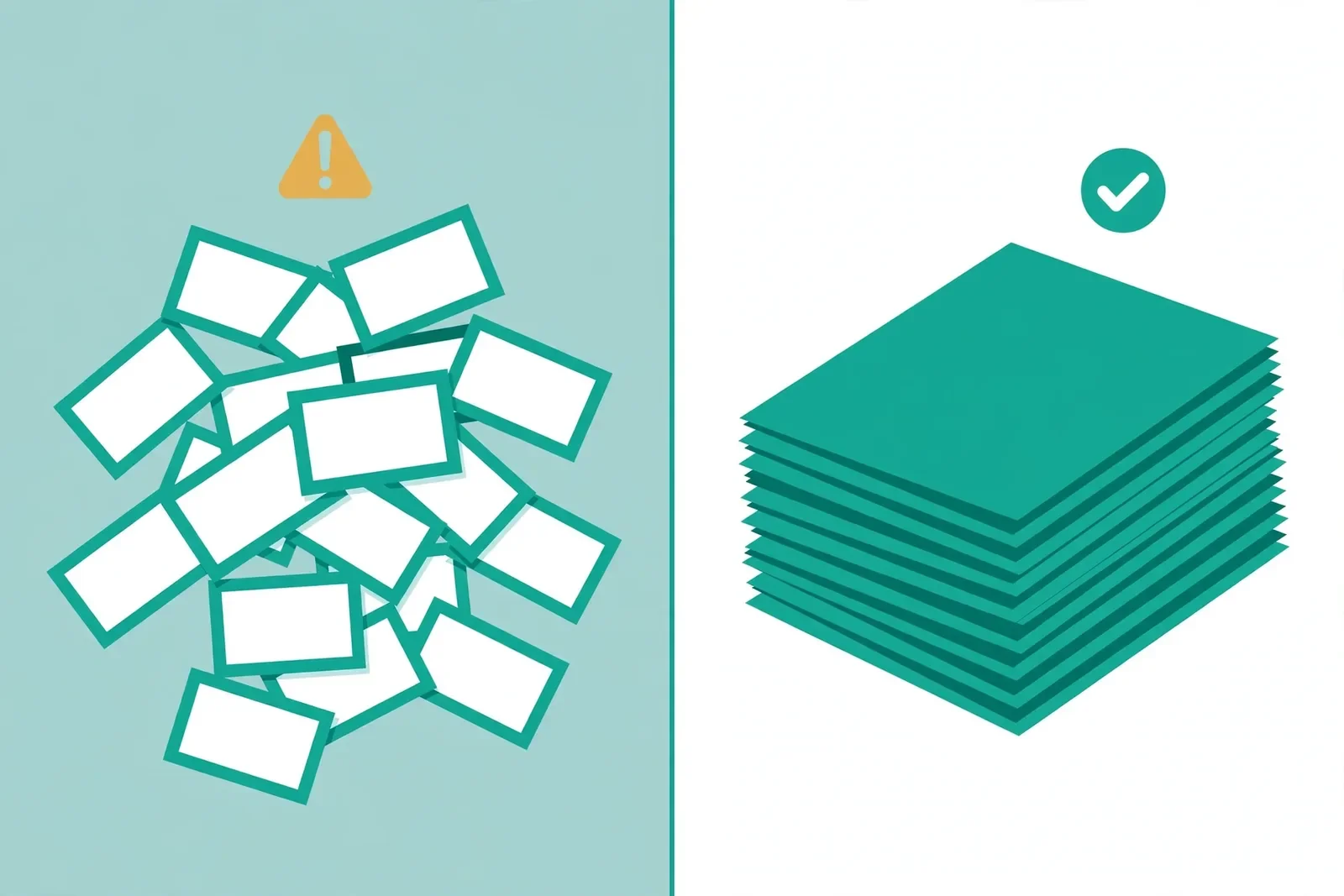
- Every screenshot is present, in order, and the right way up.
- No page is a duplicate or a near-duplicate of the one before it.
- Text is readable at normal zoom, not blurry or cut off at the edges.
- Private details, notifications, and passwords are cropped or blurred out.
- The file name says what the PDF is, such as "refund-receipts-march-2026.pdf".
- The file size fits where you are sending it. If it is too large for email, compress it first with Compress PDF.
- You kept the original screenshots until the other person confirms the PDF opens fine.
One honest note: if a conversion looks wrong on your device, try the built-in Print to PDF option on that device, or convert in smaller batches and merge the results with Merge PDF.
Last updated: November 5, 2026.
Frequently asked questions
How do I turn multiple screenshots into one PDF?
Open the free JPG to PDF tool, add all your screenshots in reading order, and convert. Each screenshot becomes one page of a single PDF. Check the order before converting, because the list order becomes the page order in the finished file.
How do I save a screenshot as a PDF on iPhone?
Open the screenshot in Photos, tap Share, then tap Print. On the print preview, pinch outward with two fingers to open it as a PDF, then tap Share again and choose Save to Files. This handles one screenshot at a time, so use the online tool for several.
How do I save a screenshot as a PDF on Android?
Open the screenshot in Google Photos, tap the three-dot menu, and choose Print. Under the printer dropdown, pick Save as PDF, check the preview, then tap Save. Menus vary a little by phone maker, so the Print option may sit in a different spot.
Can I turn screenshots into a PDF for free?
Yes. The JPG to PDF tool on this site is free, with no signup and no watermark. Your phone and computer also have free built-in Print to PDF options, but those handle one screenshot at a time while the online tool converts a whole set.
Are my screenshots uploaded when I use the online tool?
No. Conversion happens in your browser, so your screenshots stay on your device and are never uploaded, stored, or seen by anyone else. That makes the tool safe for screenshots that show receipts, chats, or personal documents. Many other online converters upload your files to a server first, so check before using one with private screenshots.
Can I search or copy text from a screenshot PDF?
No. A PDF made from screenshots holds pictures of words, not real text, so readers cannot search it or copy from it. If you need searchable text, you need OCR, which reads the words in the image and turns them into real text. Our extract text guide explains the options.
Turn your screenshots into one PDF today
Screenshots are only useful if the next person can read them in order. Turn screenshots into one PDF and the pile of loose images becomes one file that is easy to share, print, and store. Collect your shots, put them in order, convert, and check every page before you send it. Ready to tidy up your camera roll? Turn screenshots into one PDF free now.