Remove Blank Pages from a PDF Online Free, No Signup
You open a scanned report and half the pages are empty. You scroll past white page after white page before you reach real content. This guide shows you how to remove blank pages from a PDF in a few minutes, free, with no signup, and how to tell a truly blank page from one that only looks blank.
Quick answer
Open the free Delete / Rotate PDF Pages tool, choose your PDF, and type the blank page numbers in the Pages to delete box, like 2, 5-7. Click Apply changes and download the cleaned file. Check each page at full size first, because a page that looks blank can hold a faint stamp, footer, or signature.
Why your PDF has blank pages
Picture this: you send a 30-page assignment, and your teacher writes back asking why six pages are empty. You never added them. The scanner, the merge, or the export did.
Blank pages in a PDF usually come from one of five places:
- The scanner captured the back of each sheet. When you scan a stack double-sided, the blank backs of single-sided pages land in the file as empty pages.
- Word added filler pages. Empty paragraphs, manual page breaks, and Odd Page or Even Page section breaks can push content forward and leave a blank page behind. Word inserts that filler page so a new section starts on the right side.
- Merging pulled in extras. When you combine files, each file brings its cover sheet, divider page, and trailing blank pages with it.
- An export or conversion quirk left a gap. A table that runs past the margin or a page break at the very end can create one empty page, often the last one.
- The blank is on purpose. Books, exam papers, and contracts sometimes include a page that says the page was left blank on purpose, so readers know nothing is missing.
Blank pages are not always a mistake. Before you delete anything, check whether the blank is structural. The next section shows you how to tell the difference.
Truly blank or only near-blank?
This is the step most guides skip, and it is the one that saves you from deleting the wrong page. A truly blank page holds nothing at all: no text, no image, no header, no footer, no page number, no stamp, and no mark of any kind. A near-blank page looks empty in a thumbnail but holds something small that matters.
Watch for these near-blank pages:
- Header or footer only. A page with just a running header or a footer line still carries document structure.
- Page number only. If the document refers to page numbers, deleting these pages shifts every reference after them.
- Faint stamp or signature. An approval stamp or a signature can be so light that it vanishes in a thumbnail.
- Scanner specks. Dust on the glass leaves tiny dots. The page is still blank for practical purposes, but check first.
- White text on a white background. Text set to white stays invisible until you select it or change the background.
- A single line. A note like a page left blank on purpose, or a "continued on next page" line, tells the reader something.
My rule is simple: delete truly blank pages, and pause on near-blank ones. A page-number-only page may keep your references correct. A faint signature may be the only proof a page was approved. When in doubt, keep the page and ask the person who sent the file.
To check a page, open it at full size and zoom in. Look at the corners and the edges, where footers and stamps hide. Then try to select text on the page. If you need the words out of the file, see how to extract text from a PDF. If text selects, the page is not truly blank. It may hold white text or a hidden layer. For scans, zoom to about 150 percent so specks and faint marks show up.
Remove blank pages from a PDF in 5 steps
This method uses the free Delete / Rotate tool on this site. It runs in your browser, so your file never leaves your device.
- Open the Delete / Rotate PDF Pages tool. Go to the free page editor. There is no signup, no download, and no payment screen standing between you and the tool.
- Choose your PDF. Click Choose file, or drop the file into the Select a PDF box. The file opens in your browser tab.
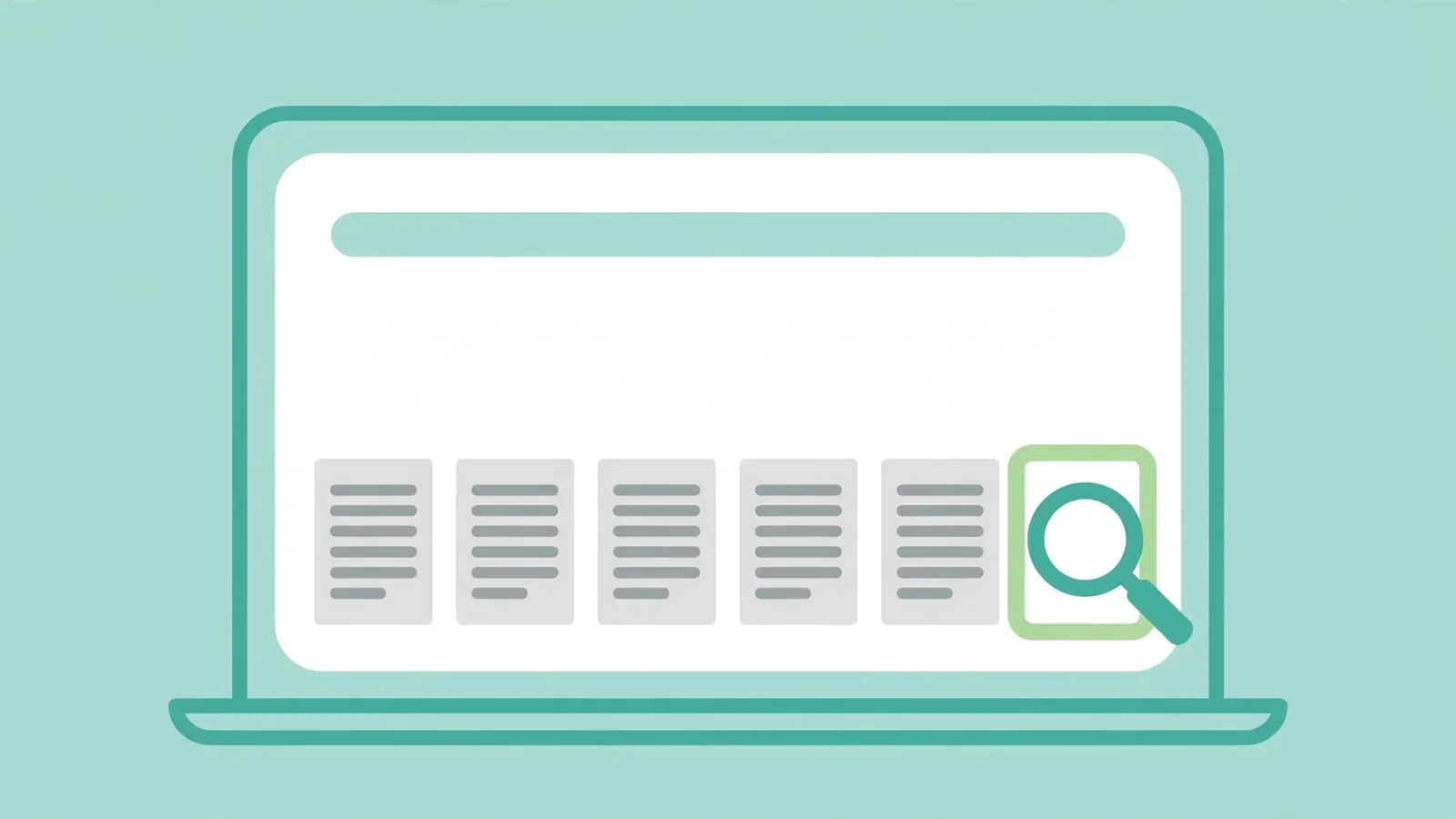
- Find the blank pages. Scroll through the page thumbnails, then open each blank-looking page at full size and confirm it holds nothing. Write down the page numbers as you go.
- Type the page numbers in the Pages to delete box. Use numbers and ranges separated by commas, for example 2, 5-7. Leave the rotation set to No rotation unless some pages are also sideways.
- Click Apply changes and download the cleaned PDF. Open the result and scroll through it once. Check that the page count dropped by the number you removed and that no real page went missing.
The tool stops you if you try to delete every page. At least one page must stay in the document, so a slip of the keyboard cannot wipe out the whole file. If you only need one page out of the file, see how to save just one page as its own PDF.
If a page came out sideways as well as blank, you can fix both problems in the same step. Pick the rotation angle for the pages that need turning, then apply the delete and the rotation at once.
Stop blank pages from coming back
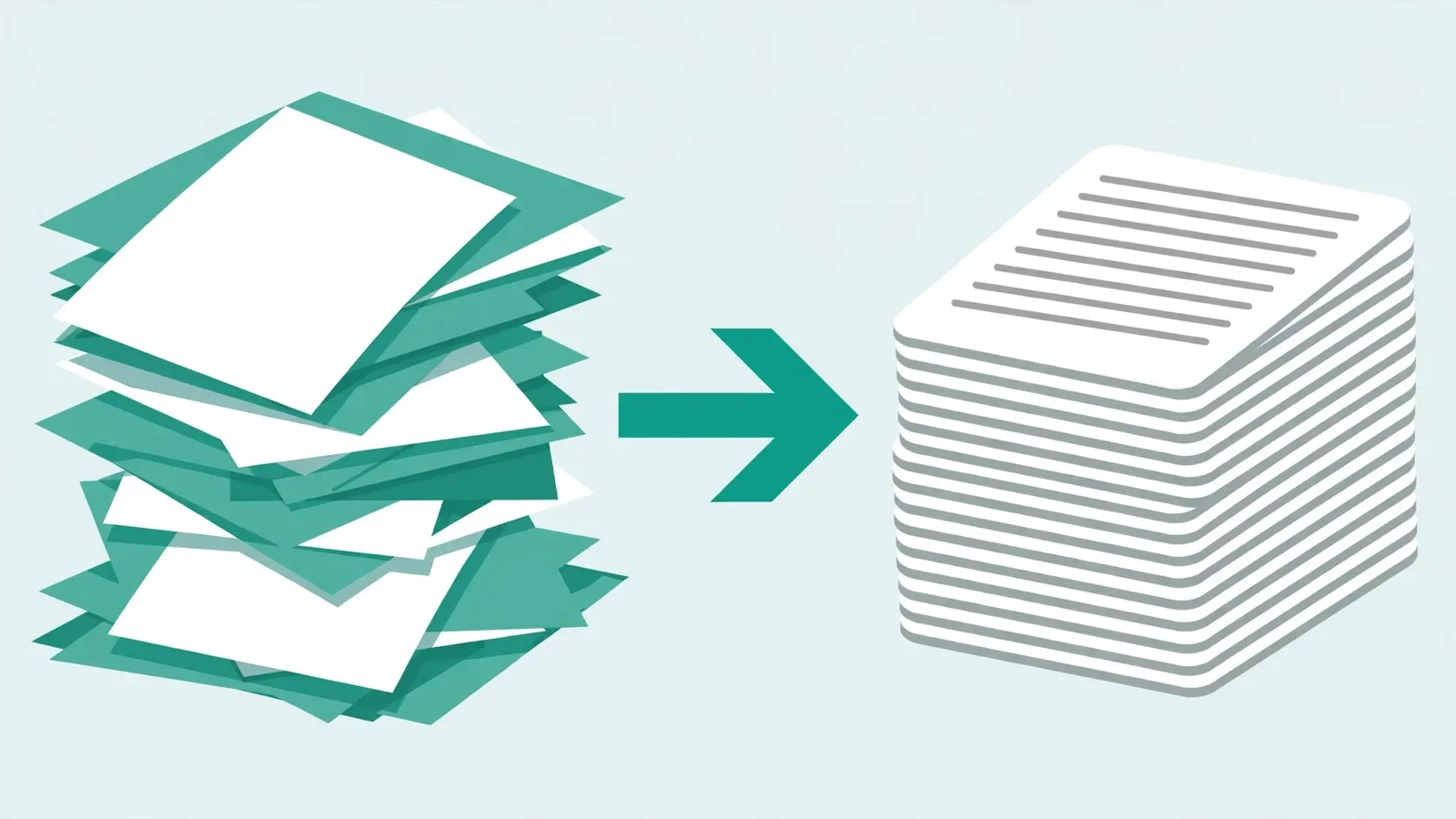
Deleting blank pages fixes this file. Fixing the source stops the next file from having the same problem.
- In Word, show the hidden formatting. Turn on paragraph marks with the ¶ button on the Home tab, or press Ctrl+Shift+8. You will see empty paragraphs, manual page breaks, and section breaks. Delete the empty paragraphs and the manual breaks. If a section break starts on an Odd Page or Even Page, change it to Next Page. Microsoft Support describes the same fix for deleting a blank page in Word for the web.
- In your scanner app, turn on blank-page skip. Many scanner apps offer a blank-page removal or blank-page skip setting. Turn it on, and scan single-sided originals as single-sided, not duplex, so the scanner stops capturing empty backs.
- Before you merge, clean each file. Open every file you plan to combine and drop its cover sheet, divider page, and trailing blank pages first. Merge clean files, then check the result once. Our guide on how to merge PDF files online free walks through the merge step.
- After an export, check the last page. If a PDF export keeps adding a blank last page, look for a trailing page break or a table that runs past the margin in the source file. Fix it there, then export again.
If your PDF is a scan and whole pages look blank or garbled after processing, the problem may be OCR, not blank pages. Adobe's community thread on OCR leaving blank pages after text recognition shows how scan quality and OCR settings can produce empty-looking pages.
Common mistakes and fixes
- Deleting the wrong page. Text pages look alike in thumbnails, and blank pages all look identical. Fix: read the heading of the page before and after each blank before you type its number.
- Deleting a near-blank page. A faint stamp or footer looks like nothing in a thumbnail. Fix: zoom in first, and treat any mark as a reason to keep the page.
- Deleting page-number-only pages, then finding cross-references point to the wrong pages. Fix: if the document refers to page numbers, keep those pages or update the references after cleaning.
- Replacing the original before checking. Fix: keep the original until you have opened the cleaned file and confirmed it. If you deleted the wrong page, run the tool again from the original with the correct numbers.
- Uploading a private PDF to a random site. Fix: use a tool that processes the file in your browser, so nothing leaves your device. Adobe's own delete PDF pages FAQ notes the same trade-off: deleting pages usually trims file size, and its online tool creates a new document, so the original stays intact.
- Cleaning one giant file instead of the sources. Fix: clean each source file first, then merge. It is faster than hunting blanks through a 200-page combined file. If you need only part of a file, split the PDF first and clean the part you keep.
How we tested this
Before you rely on a method, try it on your own file first:
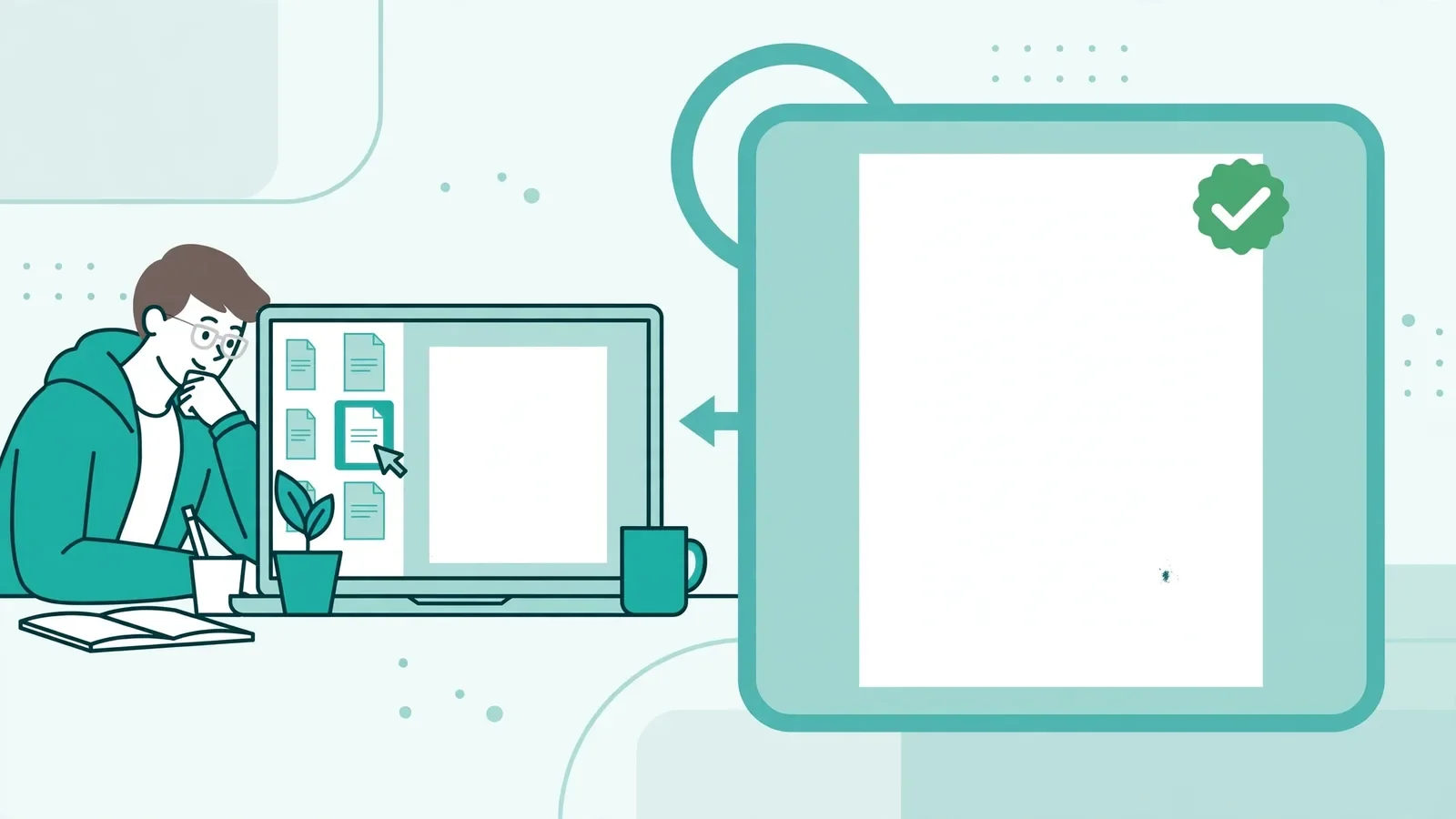
- Open a scanned PDF with blank pages, and list the blank page numbers by checking each page at full size.
- Type the numbers in the Pages to delete box, apply changes, and confirm the page count drops by the right amount.
- Try deleting every page and confirm the tool refuses and keeps at least one page.
- Open the cleaned file and confirm no real page is missing and the text still reads normally.
- Confirm the tool page links and the guide links in this article open the correct pages.
Pros and cons
Pros. Free, no signup, and no watermark. The tool runs in your browser, so private files stay on your device. You can delete and rotate in one step, and the original file stays untouched.
Cons. You must spot the blank pages yourself, since the tool has no automatic blank-page detection. It works on one file at a time. It cleans the PDF, not the source document, so a Word file with bad section breaks will keep producing blanks until you fix it there.
A note on privacy
Deleting blank pages with the tool on this site keeps your file on your device, because the edit runs in your browser tab. Nothing is uploaded or stored. For contracts, application forms, or medical records, that matters more than speed. If a site asks you to upload a file for a simple edit, ask whether the same edit can run in your browser instead.
Last updated: October 19, 2026.
Frequently asked questions
How do I remove blank pages from a PDF for free?
Use the free Delete / Rotate PDF Pages tool. Choose your PDF, then type the blank page numbers in the Pages to delete box, for example 2, 5-7. Click Apply changes and download the cleaned file. Open the result and scroll through it once to confirm no real page went missing.
How can I tell if a PDF page is truly blank?
Open the page at full size and zoom in. A truly blank page shows no text, image, header, footer, page number, stamp, or mark anywhere. Try to select text on it. If text selects, the page holds hidden or white text. If you see a speck, a stamp, or a footer, treat the page as near-blank and keep it.
Will removing blank pages make my PDF smaller?
Yes, usually, but only a little. Blank pages carry almost no content, so deleting them trims the page count more than the file size. If the file is still too large to email after cleaning, compress it. Our guide on fixing a PDF that is too big to email walks through five options that work.
Can I undo deleting a blank page?
Before you apply changes, you can clear the Pages to delete box and start over, which restores every page. After you download the cleaned file, the deleted pages are gone from that copy. Keep your original PDF until you have checked the result, so you can run the tool again with the correct numbers if you made a mistake.
Why does my PDF keep getting blank pages after I export it from Word?
The usual cause is formatting in the source file: empty paragraphs, a manual page break, or an Odd Page or Even Page section break that forces a filler page. Turn on paragraph marks in Word, delete the empty paragraphs and breaks, and change the section break to Next Page. Then export again and check the last page.
Is it safe to remove blank pages from a PDF online?
It is safe when the tool processes your file in your browser, because nothing leaves your device. Our Delete / Rotate tool works that way, so contracts and application forms stay private. Avoid sites that upload your file to a server, and never upload a PDF with bank details or medical records to a site you do not trust.
Remove the blank pages today
You do not need paid software. Open your PDF, check each blank-looking page at full size, and remove blank pages from a PDF with the free tool. Keep the original until you have checked the result, then fix the source file so the next export comes out clean. Remove blank pages from your PDF free now.
Related tools and guides
How to Delete and Rotate PDF Pages Online Free
The general guide to deleting and rotating pages.
Read article →Your PDF Is Too Big to Email? 5 Fixes That Actually Work
Five fixes when the cleaned file is still too large.
Read article →