Convert PNG to PDF Online Free
Need to convert PNG to PDF online free? Screenshots, logos, and graphics are usually saved as PNG, and a PNG file on its own is awkward to share, print, or file. This guide shows you how to turn PNG images into a clean PDF in seconds — no signup, no watermark, no software to install.
Key takeaways
- PNG files convert to PDF exactly like JPG files — the same free tool handles both.
- Screenshots are usually PNG, and PNG keeps text and lines sharp.
- Image order becomes page order — sort before converting.
- Check transparent images before sharing: flatten logos onto a white background first.
- PDFs are easier to share, print, and file than loose image files.
Why convert PNG to PDF?
Picture this: a client asks for your logo, a receipt, and a screenshot of an error message — and you send three loose PNG files. They open out of order, one will not print properly, and the chat app compresses the screenshot until the text blurs. One PDF would have ended the confusion before it started.
PNG is the default format for screenshots, logos, diagrams, and anything with sharp text or flat colours. Phones save screenshots as PNG, design tools export logos as PNG, and websites serve graphics as PNG. The format is excellent for keeping edges crisp, but it is a poor format for sharing documents. A PNG file is a single picture, not a document: it has no pages, no order, and no reliable way to combine several images into one file. A PDF fixes all of that. It bundles your PNG images into a single file, keeps them in the order you choose, and looks the same on every phone, tablet, and computer.
The most common uses are practical. Students screenshot lecture slides, timetables, and assignment instructions and turn them into one PDF for revision. Job seekers combine scanned certificates, ID pages, and signature images into a single document. Shop owners and freelancers photograph or screenshot receipts, invoices, and order confirmations and store them as PDFs for their records. Designers turn a set of logo variations or mockups into a portfolio that opens as one clean file. Support teams collect screenshots of error messages and attach them as one PDF to a ticket, so nothing arrives out of order. In each case, converting PNG to PDF turns a pile of separate pictures into something that looks professional, is easy to email, and is simple to print. Because the conversion on this site happens in your browser, your images never leave your device, which matters when they show personal documents, chats, or account details.
How to convert PNG to PDF online, step by step
- Open the free PNG to PDF converter. Go to the JPG to PDF tool in your browser — it accepts PNG as well as JPG, so the same tool handles your screenshots and graphics. There is nothing to install and no account to create, and it works on desktop and mobile alike.
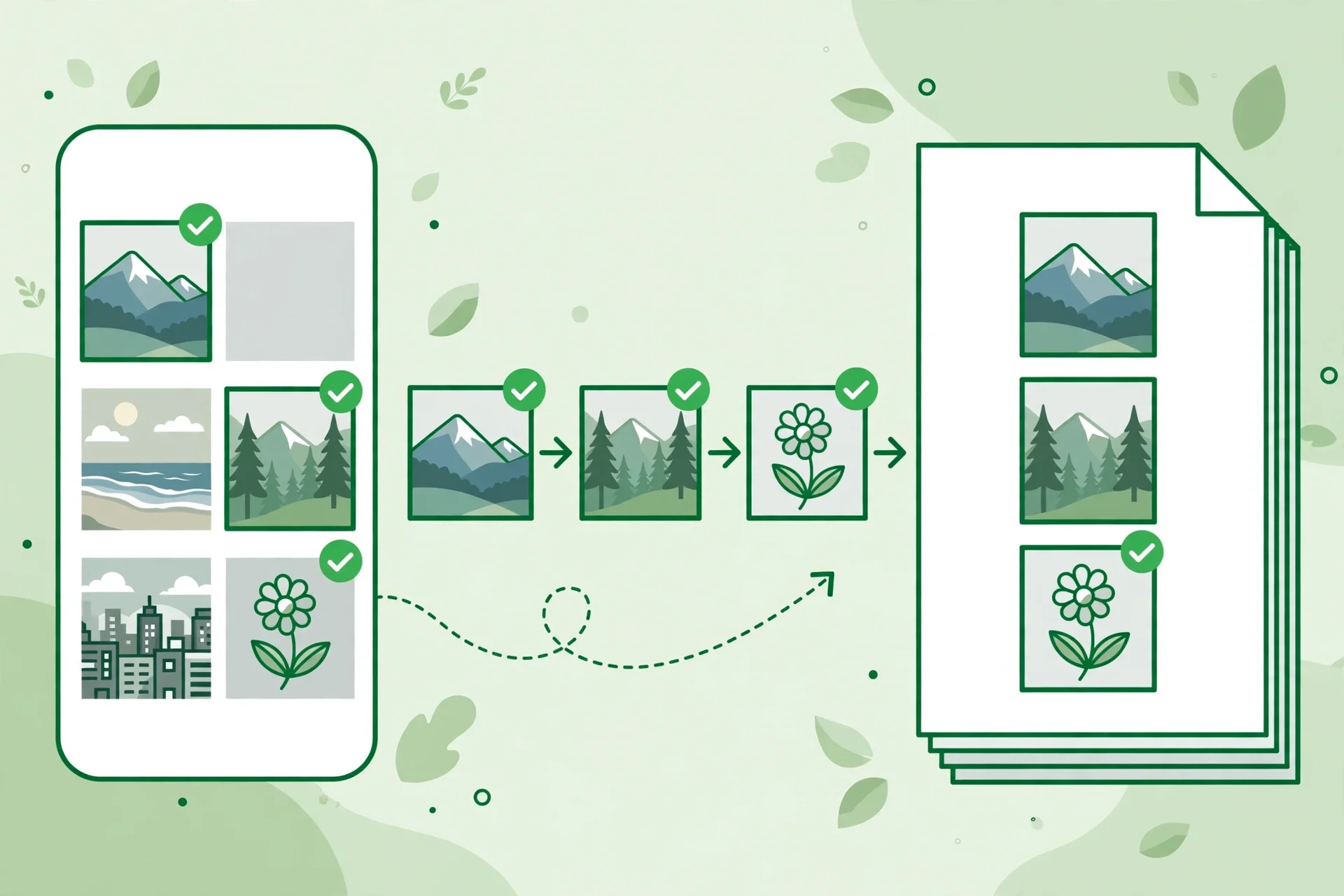
- Choose your PNG images. Select one image or several from your device, or drag and drop them into the upload area. If you are combining pages of a document, pick the files in reading order to save time later.
- Check the order and orientation. Look through the image list and make sure every page is in the right sequence and the right way up. Remove any duplicate or blurry screenshot before converting.
- Pick your page settings. Choose the page size and orientation that suit your images — portrait for document screenshots, landscape for wide diagrams — and keep the default margins unless you need edge-to-edge pages.
- Convert the images. Click the convert button and wait a moment while your images are assembled into a PDF in your browser. Keep the tab open until the download starts.
- Download and check the PDF. Save the file and open it to confirm every image is present, in order, and readable. If a page looks sideways or cropped, fix the source image and convert again.
PNG vs JPG: which should you convert?
PNG and JPG are both accepted by the tool, and both become PDF pages in the same way. The difference is what each format is good at, and knowing it helps you pick the right source file when you have a choice.
PNG is lossless: it stores every pixel exactly, so text, lines, and flat colours stay perfectly sharp. That is why screenshots, diagrams, logos, and scanned documents with text are usually PNG. The trade-off is file size — a PNG photo can be several times larger than the same photo saved as JPG. JPG is lossy: it throws away fine detail to make the file smaller, which is fine for photographs but softens sharp text and creates smudges around high-contrast edges. That is why a screenshot saved as JPG often looks slightly fuzzy when you zoom in.
| Format | Best for | Text sharpness | File size |
|---|---|---|---|
| PNG | Screenshots, logos, diagrams, scanned text | Perfect — lossless | Larger |
| JPG | Photos, camera pictures | Good, softens on zoom | Smaller |
The practical rule is simple. If the image is a screenshot, a scan, a logo, or anything with words in it, use the PNG version — it will read more clearly in the finished PDF. If it is a photograph with no text, JPG is smaller and looks just as good. If you only have one version, convert what you have: a JPG screenshot still makes a usable PDF, and a PNG photo still converts fine, just into a larger file. When a PDF built from PNG screenshots comes out too large to email, run it through Compress PDF, or see our guide on how to compress PDF online free.
What happens to transparency?
PNG is the only common image format that supports transparency, and it is the one thing that can surprise people when they convert to PDF. A logo saved as a transparent PNG has no background colour at all — the checkerboard you see in an editor is not part of the image. A PDF page, on the other hand, always has a background, so the converter has to decide what goes behind your transparent pixels.
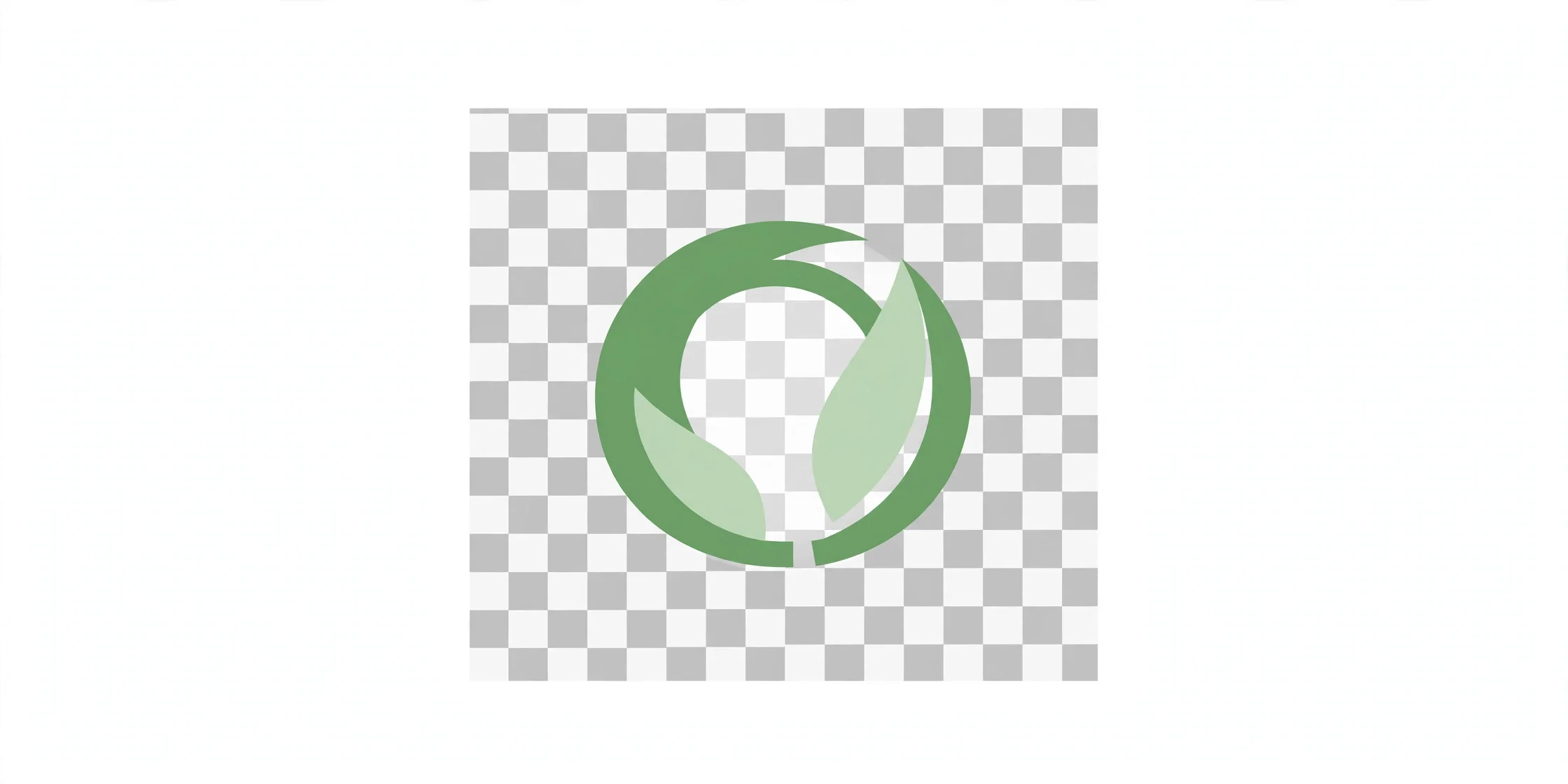
The safe habit is to flatten the image yourself before converting: open the PNG in any image editor, place it on a solid white background, and save a copy. That way you control the result instead of discovering a dark or odd-looking background in the finished PDF. This matters most for logos with white or light-coloured text, which can vanish against a light background or turn unreadable against a dark one. For ordinary screenshots, transparency is not an issue at all — screenshots have no transparent areas, so they convert exactly as they look on screen. If you are unsure, convert one image first, open the PDF, and check the page before converting the whole set.
Tips for a clean, professional PDF
- Name files in order. Before uploading, rename images as 01, 02, 03, and so on. Numbered names keep multi-page documents in sequence automatically.
- Fix orientation first. Rotate sideways screenshots in your gallery app before converting, so every page of the PDF reads the right way up.
- Crop out the background. Trim notifications, status bars, and empty space from screenshots so each PDF page shows only the content itself. Our guide on turning screenshots into one PDF covers this in detail.
- Flatten transparent logos. Put a transparent PNG on a white background before converting, so the logo looks the same in the PDF as it does in your editor.
- Use good lighting for photographed documents. Even, bright light without glare gives sharper text. Avoid flash on glossy paper, which creates bright spots that hide words.
- Keep one document per PDF. Do not mix a contract, a receipt, and a certificate in one file. Convert each document separately for tidier records.
- Combine related PDFs afterwards. If you convert images in batches, join the results with Merge PDF — or read our guide on how to merge PDF files online free.
- Check the file size. PDFs built from many high-resolution PNG screenshots can be large, because PNG files are bigger than JPG. If the result is too big to email, compress it with Compress PDF.
- Use a clear file name. Save the result as something descriptive, such as "receipts-march-2026.pdf," so you can find it later without opening it.
Online converter vs built-in phone and computer options
Most phones and computers already offer some way to make a PDF from images. On a phone, you can print a screenshot to PDF from the share menu, and on a desktop you can insert images into a word processor and export the result. These built-in options work, but they are slow when you have many images: each picture must be added one at a time, page sizes must be set by hand, and ordering mistakes are easy to make. A dedicated PNG to PDF converter online free tool is built for exactly this job, so it handles batches, ordering, and page layout in one pass.
The online tool also wins on consistency. Every image gets the same page treatment, the output looks the same on any device, and there is nothing to install. The one advantage of built-in options is that they work offline, which can help if you have no internet connection. For everything else — combining ten receipt screenshots into one expense file, turning scanned homework into a submission, or assembling a logo set — the free online converter is faster and produces a more polished result. As with all tools on this site, the conversion happens locally in your browser, so your images are never uploaded to a server.
| Option | Cost | Batch images | Setup | Best for |
|---|---|---|---|---|
| Free online converter | Free | Yes, many at once | None, works in browser | Multi-page documents, screenshots |
| Phone share-to-PDF | Free | Usually one at a time | None | Single quick screenshot |
| Word processor export | Free or paid | Manual, one by one | App required | Documents with captions and text |
Common mistakes to avoid
- Uploading images out of order. A PDF with shuffled pages confuses the reader. Sort your images before converting, or check the list carefully in the tool.
- Mixing documents in one PDF. Combining unrelated images into a single file makes it hard to find anything later. Keep each document separate.
- Converting transparent logos as-is. A transparent PNG can come out with an unexpected background in the PDF. Flatten it onto white first and check the result.
- Using blurry screenshots. A PDF cannot rescue a screenshot that is out of focus or too dark. Retake a bad shot instead of converting it and hoping.
- Ignoring page orientation. A sideways page in the middle of a document looks careless and is annoying to read. Fix rotation before you convert.
- Sending the wrong file. After converting, double-check that you are sharing the new PDF and not one of the original PNGs, especially when the file names look alike.
Quick checklist
Run through this checklist before you finish:
- Images sorted in page order.
- Orientation checked (portrait vs landscape).
- Transparent logos flattened onto white.
- Output PDF opened and every page viewed.
- File size checked for email.
- Originals kept.
Related: see how to convert PDF to JPG online free for the reverse direction.
Frequently asked questions
Is it really free to convert PNG to PDF online?
Yes. The JPG to PDF converter on this site accepts PNG as well as JPG, and it works without an account, payment, or watermark. You can convert as many images as you need, and everything runs in your browser.
Can I convert JPG images to PDF too?
Yes. The same tool accepts JPG and PNG, so you can mix photos and screenshots in one PDF. If your images are mostly photos, see our guide on how to convert JPG to PDF online free.
Can I combine multiple PNG images into one PDF?
Yes — that is the main point of the tool. Upload all the images you want, arrange them in the order you need, and convert them into a single PDF with one page per image.
Will converting PNG to PDF reduce the image quality?
No, not noticeably. PNG is lossless, so text and lines stay sharp, and the images are placed onto PDF pages without aggressive re-compression. Very large screenshots are scaled to fit the page, but they remain sharp for on-screen viewing and normal printing.
What happens to a transparent PNG in a PDF?
A PDF page always has a background, so a transparent PNG needs one. Flatten the image onto a solid white background in any image editor before converting, and check the finished PDF — that way a light-coloured logo never disappears against the page.
Are my images uploaded to a server when I convert them?
No. On this site, conversion happens locally in your browser tab. Your images are never uploaded, stored, or seen by anyone else, which makes the tool safe for screenshots that show receipts, chats, or personal documents.
Conclusion
Turning PNG images into a PDF is one of the simplest document tasks there is — once you use the right tool. Choose your images, check the order, flatten any transparent logos, convert, and download a single clean file that is easy to share, print, and store. Keep each document separate, use clear file names, and give your source images a quick check before converting. Ready to turn your screenshots into a PDF? Convert PNG to PDF free now — it takes less than a minute.
Last updated: November 11, 2026